Blog > September 2026 > Microsoft 365 Government Room Booking: Secure Integration with Door Tablet Open
September 16, 2026 5 min read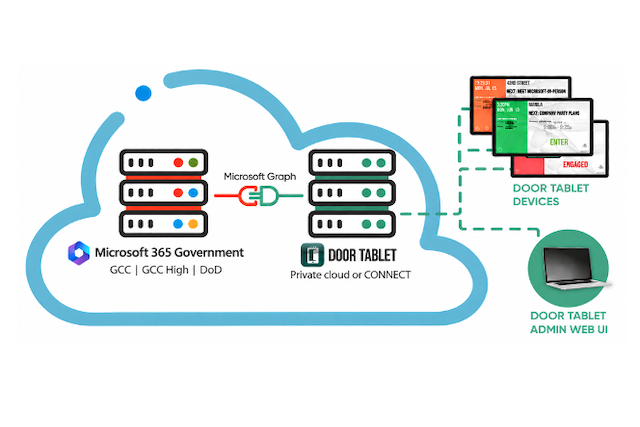
When your work involves national security, every email, calendar invite, and shared file carries a higher level of responsibility.
Government agencies, the U.S. Department of Defense, and the contractors who support them in defence, aerospace and intelligence operate under some of the strictest data security and compliance requirements in the world.
Sensitive designs, controlled technical data and confidential communications must be safeguarded at all times, with zero tolerance for exposure to unauthorised systems or personnel.
That’s why Microsoft offers Microsoft 365 Government, which includes GCC, GCC High, and DoD. In this article, we’ll explain what these government cloud environments are, who uses them, the compliance standards they support, the compatibility hurdles that often come with them, and how Door Tablet delivers a secure way to manage meeting rooms across all of these environments, whether deployed on-premises or in the cloud.
What Are Microsoft 365 GCC, GCC High and DoD and Who Are They For?
Microsoft 365 GCC (Government Community Cloud), GCC High, and Microsoft 365 DoD are specialised, highly secure Microsoft government cloud environments designed for organisations handling sensitive U.S. government and defence information.
Microsoft 365 GCC is designed for U.S. federal civilian agencies, state and local governments, tribal entities, and federal contractors who need to comply with government standards such as FedRAMP Moderate and CJIS without requiring the sovereign isolation of defense-tier clouds.
Microsoft 365 GCC High is intended for eligible U.S. government organisations and non-government entities such as Department of Defense contractors, aerospace and defence companies, intelligence community partners, and organisations handling Controlled Unclassified Information (CUI) or export-controlled data under ITAR (International Traffic in Arms Regulations).
Microsoft 365 DoD goes a step further. It is a highly restricted sovereign environment designed specifically for the U.S. Department of Defense and is available exclusively to eligible DoD entities, supporting workloads requiring compliance with the DoD Cloud Computing Security Requirements Guide up to Impact Level 5 (IL5).
For example, a municipal agency or state department might operate within GCC, a defence manufacturer or federal systems integrator handling CUI might use GCC High, while a U.S. Department of Defense service branch with IL5 requirements would operate inside Microsoft 365 DoD.
Unlike standard commercial Microsoft 365, all three environments provide data residency guarantees where customer content is stored at rest within the United States. For GCC High and DoD, Microsoft goes further into sovereign cloud isolation, where infrastructure is physically and logically segregated and backend access is strictly restricted to screened U.S. persons.
Why Do GCC, GCC High, and DoD Exist? (Compliance Matters)
For agencies, municipalities, and defense contractors handling public data, Controlled Unclassified Information, export-controlled data, or sensitive military communications, standard commercial cloud environments may not satisfy mandatory compliance frameworks.
Each tier addresses distinct regulatory thresholds:
-
FedRAMP Baselines: Microsoft 365 GCC meets FedRAMP Moderate, which satisfies requirements for the majority of civilian, state, and local government workloads. GCC High and DoD are assessed against NIST SP 800-53 controls at FedRAMP High (FIPS 199 High categorisation), providing a baseline tailored for high-impact federal and defense information.
-
DoD SRG Impact Levels: GCC supports DoD SRG Impact Level 2 (IL2). GCC High supports requirements up to DoD Impact Level 4 (IL4) (and select IL5 equivalents for Defense Industrial Base contractors). Microsoft 365 DoD provides the highest level of controls, purpose-built for DoD SRG Impact Level 5 (IL5).
-
DFARS 252.204-7012 / NIST SP 800-171: Defense contractors handling CUI must implement appropriate safeguards. While GCC covers certain baseline contractor requirements, GCC High is the industry-standard environment configured to satisfy full DFARS 7012 flow-down requirements, forensic reporting obligations, and NIST SP 800-171 controls.
-
ITAR and EAR: Export-controlled technical data under ITAR and EAR demands that data residency and access remain exclusively in the hands of vetted U.S. persons. Standard GCC does not support ITAR; GCC High and DoD were specifically built to satisfy these export-control standards.
-
CMMC (Cybersecurity Maturity Model Certification): For organizations across the Defense Industrial Base, GCC can support baseline requirements (such as Level 1 and select non-CUI scenarios), while GCC High is typically required for organizations seeking CMMC Level 2 certification where CUI and export-controlled data are present.
Together, GCC, GCC High, and DoD enable Microsoft 365 services, such as Exchange Online, Teams, SharePoint, and OneDrive, to operate safely within certified parameters matching each agency's or contractor's regulatory obligations.
Life in GCC, GCC High, and DoD: Common Tech Challenges
Operating in any Microsoft Government cloud provides essential security, but it also introduces practical administrative and architectural challenges. Because these environments prioritize isolation and compliance, not every third-party application or commercial feature works out of the box.
Microsoft services, features, and API updates often roll out to government tiers later than they do to the commercial cloud, and some consumer-facing features are disabled entirely to maintain security baselines.
For third-party software, an even bigger barrier is connectivity and endpoint architecture. While GCC shares aspects of the commercial directory infrastructure, GCC High and DoD operate on dedicated Microsoft Government cloud endpoints and separate Microsoft Entra ID (formerly Azure AD) identity instances. Third-party tools that are hardcoded solely for commercial Microsoft 365 endpoints will inevitably fail to authenticate or access calendar data when introduced to government tenants.
How Do Microsoft 365 Government Environments Integrate with Workspace Tools?
In a modern office, touchscreens mounted outside conference rooms display meeting availability, host names, and let staff book space on the fly. However, off-the-shelf room booking displays frequently rely on commercial cloud relays or third-party servers that cache calendar data, a practice that can violate government security frameworks or trigger connection errors due to unsupported government endpoints.
In GCC, GCC High, and DoD environments, workspace scheduling must respect government security boundaries:
- Meeting subject lines, attendee lists, and schedules must remain within the approved Microsoft 365 government tenancy.
- Room scheduling systems must authenticate directly against the correct cloud instance, whether connecting via standard Microsoft Graph endpoints for GCC, or dedicated sovereign endpoints for GCC High and DoD.
- Solutions that mandate sending calendar payloads through unvetted third-party cloud bridges are often disqualified during security and accreditation reviews.
How Door Tablet Bridges the Gap for Secure Room Booking
Door Tablet is a comprehensive meeting room and workspace scheduling solution that synchronises directly with your calendars to display schedules on touchscreen panels and interactive kiosks, designed with high-security environments in mind.
Door Tablet supports direct integration across Microsoft 365 GCC, GCC High, and DoD, allowing government agencies, defense contractors, and military facilities to connect securely to their Exchange Online calendars using the appropriate government cloud endpoints:
- No Unnecessary Third-Party Relays: Door Tablet communicates directly with your Microsoft 365 government tenant. Your sensitive meeting metadata never leaves your approved boundary to sit on an unaccredited vendor database.
- Support for Specific Endpoints: Door Tablet natively supports the specialized network and authentication services required by GCC, GCC High, and DoD.
- Modern Office Experience: Staff enjoy modern conveniences, checking room availability, booking ad-hoc meetings, and checking into rooms via digital signage, without compromising organizational compliance.
Flexible Deployment to Meet Your Security Needs
Every government agency, defence organisation or contractor has a unique IT setup and security posture. Recognising this, Door Tablet offers flexible deployment options to fit different requirements, whether you want everything in-house or prefer a cloud-hosted environment. Specifically, you can deploy Door Tablet in three ways:
-
Door Tablet CONNECT (Cloud Service): A shared, managed cloud server hosted by Door Tablet on AWS. While suitable for municipal or commercial deployments with less restrictive policies, organisations with strict GCC High or DoD compliance mandates often determine that a multi-tenant cloud is outside their accreditation boundaries.
-
On-Premises Server: For complete data sovereignty, you can deploy the Door Tablet server entirely within your own self-managed, on-premises infrastructure. All room configurations and calendar caches remain strictly within your local network, communicating securely outbound to your Microsoft 365 GCC, GCC High, or DoD tenant.
-
Private Cloud Instance: You can run a dedicated Door Tablet server within your organisation’s own controlled cloud tenant, such as Azure Government or AWS GovCloud. This delivers the convenience of cloud hosting while preserving dedicated single-tenant isolation for straightforward compliance assessment.
Conclusion
Navigating public sector and defense compliance is demanding, but Microsoft 365 GCC, GCC High, and DoD allow organisations of all tiers to adopt cloud collaboration without surrendering the security controls their missions require.
- GCC delivers a compliant baseline for federal civilian, state, and local agencies.
- GCC High protects Controlled Unclassified Information (CUI) and export-controlled data for defense contractors and government entities.
- DoD provides a dedicated, hardened environment for the U.S. Department of Defense supporting up to Impact Level 5.
Door Tablet’s native compatibility across all three tiers extends this protection directly to the walls outside your conference rooms. By interfacing natively with your designated Microsoft government cloud and offering true on-premises or private-cloud hosting, Door Tablet ensures your workplace management stays efficient, modern, and fully compliant.
Key Takeaways:
- Microsoft 365 GCC meets FedRAMP Moderate and CJIS standards for federal civilian, state, and local government bodies.
- Microsoft 365 GCC High provides FedRAMP High and ITAR-compliant sovereignty for defense contractors and organizations handling CUI.
- Microsoft 365 DoD is exclusively reserved for Department of Defense entities requiring DoD SRG Impact Level 5 controls.
- Room booking solutions must support specific Microsoft government authentication endpoints to function in these environments.
- Door Tablet integrates natively with GCC, GCC High, and DoD, offering on-premises and private cloud deployments that keep meeting data strictly within your accredited boundary.
We offer complete technical documentation on integrating Microsoft 365 GCC, GCC High, and DoD with Door Tablet. Create an account to access deployment guides and schedule a demo with our technical team.
Blog > May 2026 > Secure Workspace Management for High-Security Facilities Open
May 13, 2026 2 min read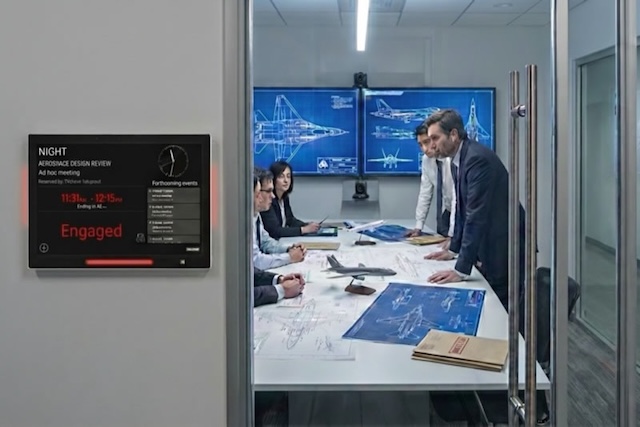
High-security environments, such as defence contractors and government agencies, require specialised infrastructure to manage sensitive data and maintain operational integrity. Standard office management tools often lack the necessary safeguards to prevent data leakage or unauthorised access in these regulated spaces.
Door Tablet provides a purpose-built workspace management solution designed to meet the rigorous demands of facilities handling Controlled Unclassified Information (CUI) and other classified data.
Our entire system can be customised for high-security environments, transforming standard office tools into hardened assets that meet rigorous defence and government standards.
Hardware Hardening and Physical Integrity
Organisations handling sensitive data must ensure that their meeting room tablets do not become entry points for unauthorised access or data leakage. Door Tablet’s meeting room tablets can be equipped with specialised hardware configurations and utilize a dedicated Hardened Operating System.
Security features of our meeting room tablets:
- Port and Sensor Lockdown: The Hardened OS can be configured to permanently disable USB and micro-USB ports, cameras, microphones, and Bluetooth, ensuring no unauthorised data extraction or eavesdropping can occur.
- Tamper-Resistant Infrastructure: Unlike consumer tablets, Door Tablet devices are purpose-built for the office. They feature secure wall mounts and a durable design that lacks the resale appeal of a standard iPad, reducing the risk of theft.
- Zero Local Credentials: No sensitive data (e.g., usernames, passwords, or meeting credentials) is ever stored on the tablets themselves. All information resides solely on the central server, so a compromised device yields no usable intelligence.
- Access Control Integration: Using built-in RFID and NFC readers, Door Tablet integrates with existing facility security systems. Users must swipe their security access cards to check into a room or extend a session, ensuring that only cleared personnel can interact with the room's scheduling or physically unlock the door.
- Physical Wireless Exclusion: The Door Tablet SL-Cyber is built specifically for organizations where wireless signals represent a security risk. This model has Wi-Fi and Bluetooth hardware physically removed from the board to provide total signal isolation.
Software Sovereignty and Deployment
The architecture of a management solution determines whether it can meet federal and defence-grade compliance.
We integrate with many scheduling systems, including high-security systems and offer 3 deployment options:
- Microsoft 365 GCC High Integration: For organisations in North America in the defence industrial base, Door Tablet provides a native integration for GCC High resource calendars. Both systems communicate directly via the Microsoft Graph API, ensuring data stays within the authorised U.S.-only cloud boundary and supporting ITAR, DFARS, and FedRAMP High compliance.
- On-Premises Deployment: For air-gapped facilities, Door Tablet can run entirely on your own internal servers behind a firewall. In this model, the system is invisible to the external internet, providing maximum control over data residency.
- Private Cloud Options: Organisations can host their Door Tablet server within a dedicated single-tenant instance on Azure Government or AWS GovCloud. This offers the scalability of the cloud while maintaining the isolation required for regulated data.
Door Tablet provides a secure workspace management solution for high-security facilities, enabling them to streamline their room booking workflows while ensuring that sensitive information remains within the organisation.
Get Access with our team to see how Door Tablet can provide an easy, secure meeting room booking experience.
Blog > March 2026 > 5 Security Questions to Ask Before You Buy Workplace Management Tech Open
March 18, 2026 4 min read
Workplace leaders are investing heavily in new tools to make office work attractive to their teams, like desk booking, wayfinding, room booking displays, and sensors. But while everyone else is focused on “experience,” IT is focused on something far more urgent: security.
Because at the end of the day, it doesn’t matter how sleek a workplace device looks if it quietly increases your attack surface.
Before signing a contract for any workplace management solution, consider five key security questions that should guide the conversation. They’re the kinds of questions that help IT protect employees, protect data, and protect the organisation’s network long after launch day.
We’ve broken them down for you so you can walk into your next demo call prepared.
1. How is user and device authentication handled, and what prevents unauthorised access?
Any device you place in your office, especially one mounted publicly, like a room-booking display or a hot-desk kiosk, is an entry point.
Your leadership team doesn’t need a full technical breakdown, but they do need to understand how the solution enforces trust at the front door.
Ask:
- Does it support badges, SSO, MFA, or role-based access?
- Does the device itself require a secure login, or is it open once powered on?
- Can it be quarantined when first added to the network?
Weak authentication can allow someone to reserve rooms they shouldn’t, access internal systems, or use the device as a stepping stone into your network.
2. What data is collected, how is it stored and transmitted, and how is it protected?
Workplace management tech collects personal activity data: bookings, check-ins, usage patterns, and occupancy trends.
This is where you need clarity for yourself and something concrete to present to leadership.
Ask:
- Is data encrypted in transit (TLS/VPN) and at rest?
- Where is data stored (cloud region, on-prem, third-party)?
- Who has access to the database?
- How are permissions managed?
Employee location and time-based data are sensitive under GDPR and internal privacy policies.
3. How does the system integrate with your existing networks and IoT devices, and what risks come with that?
The workplace management tools connect to sensors, calendars, mobile apps, visitor systems, analytics platforms, and more. This is the perk of every workplace management tool: they integrate with your day-to-day apps.
Ask:
- Will devices sit on your main corporate network or a segmented VLAN?
- How are displays, sensors, and mobile apps authenticated?
- Are API connections encrypted and access-controlled?
- Are IoT components updated and monitored?
A single poorly secured IoT device can expose your entire network. Integration should enhance the workplace and not expand your attack surface.
4. What physical-security features are built into the hardware (for instance, tamper-resistant casing, secure boot, a hardware root of trust)?
A room display mounted in a hallway or a hot-desk kiosk on an open floor isn’t sitting safely behind a desk; it's exposed. That means the hardware itself needs to defend against tampering, unauthorised access, and manipulation.
Ask:
- Is the casing tamper-resistant or easy to open?
- Does the device use secure boot to prevent unauthorised firmware?
- Is there a hardware root of trust to validate system integrity?
- What happens if someone attempts to force access, reboot, or remove the device?
- Can IT be alerted if a unit is disconnected or physically disturbed?
Door Tablet offers a purpose-built hardware line which includes security-hardened hardware. Our SL Cyber edition disables WiFi and Bluetooth at the board level, locks down USB ports, developer options, camera/mic access, and limits installations to certified versions only.
5. What is the vendor’s plan for updates, incident response, and long-term maintenance?
The vendor needs to treat patching and monitoring as critical, ongoing responsibilities.
Ask:
- How often are firmware or software updates released?
- Are patches automatic or manual?
- Is there logging for device health, anomalies, or attempted breaches?
- What is the incident-response plan if something goes wrong?
Unpatched devices become liabilities. One outdated display can disrupt operations or expose sensitive data.
You are ready!
These five questions give you a clear, practical way to evaluate any workplace-management platform and ensure the tech you choose strengthens your organisation rather than weakening it. Use these questions next time you are looking for workplace management tech, and while you are at it, check Door Tablet’s secured workspace management ecosystem.
Blog > January 2026 > RFID for Meeting Room Access Open
January 21, 2026 3 min read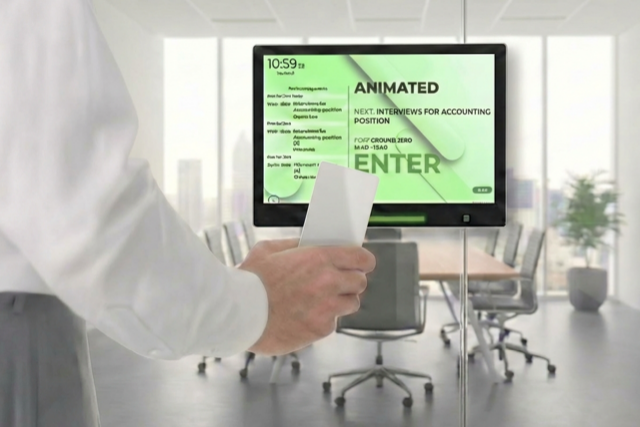
At a Glance
When integrated into meeting room displays, RFID lets you tie access permissions directly to bookings. With solutions like Door Tablet, users can tap their badge to check in, extend, or end meetings, but only if they’re authorised. That means no more anonymous use or walk-up takeovers. You can control who does what at the door, enforce booking policies, disable lost credentials remotely, and meet higher security standards with hardened device options.
Most people don’t give a second thought to tapping a badge on a meeting room tablet. For IT and facilities teams, however, that “tap-and-go” moment solves a long-standing headache like unauthorised use.
This article explores how RFID works in practice and how it can transform meeting room access for corporate HQs and government institutions.
What Access with RFID Looks Like
When employees walk up to a booked meeting room and tap their badge to unlock the door or check in, there’s usually one of two technologies at work behind the scenes.
RFID (Radio Frequency Identification) uses radio waves to allow passive ID cards or key fobs to transmit a unique identifier when held near a reader. It’s fast, contactless, and widely used in access control systems across offices worldwide.
A related technology is NFC (Near Field Communication), which is essentially a subset of RFID designed for very short-range interactions (a few centimetres) and often used with mobile devices.
Both RFID and NFC can enable secure, contactless access. However, in this article, we’ll focus on RFID and its use in room-booking panels, hot-desk kiosks and broader access control.
This technology helps automate the process of verifying that the person at the panel is allowed to be in that room at that time. There is more to it when it comes to meeting room panels; RFID can link people to bookings and actions.
RFID for Meeting Room Panels
One of the big advantages of using RFID on meeting room panels is the ability to control who can do what. For example:
- Reserve a meeting space – Presenting an NFC tag reserves the room and identifies the owner
- Extend or terminate a meeting – Only the user who originally booked the room can extend or end it. This prevents strangers from hijacking or cutting off someone else’s meeting.
- Check in to a pre‑booked meeting – Users must tap their badge to check in; a notification goes to the meeting organiser confirming who checked in.
- Self‑register or disable tags – Users can self‑register new badges, or administrators can disable lost tags remotely.
- Request assistance – The panel can log a support request and automatically identify the requester, and when integrated with access control, can activate door opening for the authorised user.
Because the panel knows exactly who is tapping, it can enforce policies like “only the meeting host can make changes” or “unauthenticated guests cannot extend bookings.”
The booking system automatically enforces policies without manual oversight and creates a clear audit trail of room usage, which is essential in regulated industries.
This is important in corporate headquarters and government buildings, where meeting content may be confidential and access needs to be controlled. Door Tablet even supports “secure check‑in” modes and can provide a hardened version of its devices for sensitive environments.
Getting Started: What to Look For
Your meeting rooms should accommodate the credentials your organisation already uses and the ones you might adopt tomorrow.
Most of Door Tablet’s meeting‑room displays include a reader that recognises Mifare, FeliCa and HID smart cards as well as standard RFID badges. Staff can tap the same badge they use at the front door, and the panel links their identity to the booking.
The reader is built into the tablet, so there’s no separate device or wiring. For organisations that rely on HID credentials, Door Tablet offers hardened variants (AIO-h and CIR-h) where the hardware is slightly different, but all the functions (booking, check-in, extending meetings) work with HID cards.
Compatibility matters off the wall, too. A robust platform should integrate with your existing calendar and identity systems. Door Tablet ties badge IDs to user accounts, whether they’re stored on the device or in an external directory like Active Directory or a third‑party access control system.
That way, the same badge that opens the front door can also authenticate a meeting room booking, and policies such as “only the host can extend the meeting” are enforced automatically. Because the panel knows who tapped, it can send an alert if someone without permission tries to change a reservation.
Why Door Tablet Fits the Bill
If you’re weighing whether to implement RFID, Door Tablet shows how you can utilise this in your workspace management. Door Tablet displays support for multiple card technologies, making it easy to adopt contactless check‑in without replacing everyone’s badges.
The platform enforces who can do what on the display, like only the booking owner can extend or end a meeting and logs every tap for a clear record. Integrations with external identity systems mean credentials are managed centrally and can be disabled instantly. And for environments with tight compliance requirements, hardened devices provide secure check‑in and optional PIN or RFID door unlocking.
Blog > November 2025 > On-Prem vs. Cloud-Based: Choosing the Best Deployment Model for Workspace Systems Open
November 12, 2025 7 min read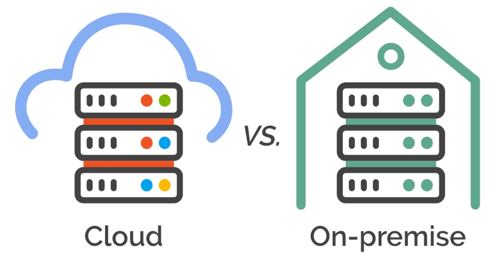
If you're in IT and evaluating how to roll out meeting room tablets across your offices, one question should arise early: Where will this system reside?
Not physically, the tablets are taken outside the rooms, clearly. But behind every display that shows meeting status, handles booking requests, and pulls data from your calendars, there’s a central hub doing the heavy lifting: the server.
And how you deploy that server, whether on your premises, in the cloud, or a hybrid setup, shapes how reliable, secure, and scalable your meeting room solution will be. This is where your IT teams can make or break the deployment.
We will break down the most common server deployments (on-premise, cloud and hybrid) so that you can know what is the best solution for your environment
What Is an On-Premise Server Deployment?
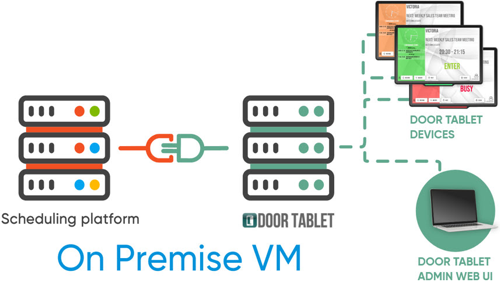
On-premise deployment means your workspace software’s server is hosted locally under your control. In this model, the room booking or desk booking system’s backend is installed on servers that your organisation owns (or leases) and manages, often at your office or data centre. All the software, databases, and data reside on your company’s infrastructure. Typically, your IT team is responsible for setting up, updating, and maintaining these servers and keeping the system running smoothly. This gives you full control over the environment; you can configure hardware, security, and integrations to suit your needs.
However, it also means all upkeep falls on your team, from applying patches to handling any hardware issues or capacity upgrades. In practice, an on-prem deployment for a room or desk booking tool might involve installing the server software on a local Windows or Linux server (physical or virtual) within your network, connecting it to your internal calendar system (like an on-site Exchange server), and managing access for employees within your firewall.
What Is a Managed Cloud Server Deployment?
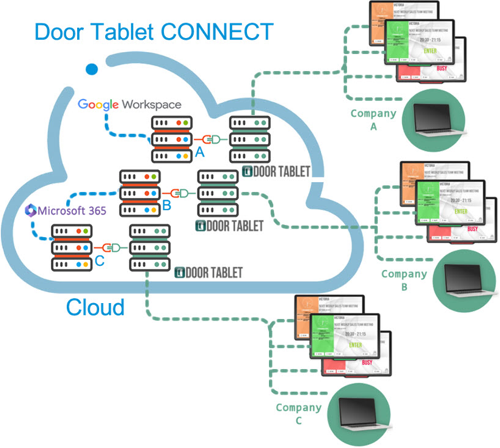
A cloud deployment means the workspace tool’s server runs on a provider’s cloud infrastructure rather than on hardware you manage. In this model, your room/desk booking system is delivered as a service by the vendor over the internet. The software and data are hosted off-site in the vendor’s cloud (for example, on AWS or Azure data centres) and accessed via web or app clients. You don’t need to set up a server yourself – the provider handles the heavy lifting of provisioning and maintaining the servers. Your organisation’s devices and browsers simply connect to the system through an internet connection. This makes deployment much quicker (often just signing up and configuring settings) compared to procuring and installing your own server hardware. It also means your IT team isn’t on the hook for things like server updates or backups – the cloud vendor manages those.
The trade-off is that you are relying on external infrastructure: your data is stored in a third-party data centre, and you access the tools over the internet instead of your local network. For example, a cloud-based desk booking system might be hosted on the vendor’s multi-tenant platform online. You’d simply log in through a web portal or app, and all your offices would use that centralised service without any local server installation.
Self-Managed Cloud Deployments
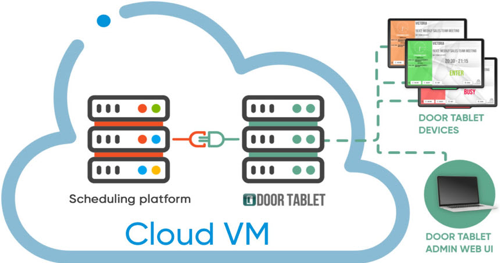
A self-managed cloud deployment offers a middle ground between full vendor-hosted cloud services and on-premise infrastructure. In this model, the server software is deployed in a cloud environment controlled by your organisation, such as your own AWS, Azure, or Google Cloud account. While the server is hosted in the cloud, your IT team retains control over its configuration, security, updates, and data. This setup provides flexibility in terms of where and how the system runs, while still offering the scalability and geographic reach of cloud hosting.
It is especially useful for organisations that already maintain a robust cloud environment and prefer to keep server management in-house without the physical hardware constraints of on-premise setups.
Comparing On-Premise, Multi-Tenant Cloud, and Self-Managed Cloud: Advantages & Disadvantages
Now that you have a better understanding of what on-prem and cloud deployment mean. Let’s go over how on-premise and cloud deployments stack up in key areas important to IT teams, from maintenance to user experience:
1. Maintenance & IT Overhead
On-premise systems require in-house upkeep. Your team handles everything, like installing updates, applying security patches, monitoring performance, and fixing issues on the server. This can be labour-intensive and demands specific expertise (or dedicated staff) to manage the infrastructure.
In a multi-tenant cloud model, much of that headache is lifted. The vendor takes care of server maintenance and software updates centrally, so you always run the latest version without manual intervention. There’s no server hardware for you to patch or power, freeing your IT staff to focus on other tasks.
With a self-managed cloud deployment, your IT team is still responsible for maintaining the server, but without the physical infrastructure. You control updates, backups, and availability using cloud tools and best practices.
The flip side of both cloud models is less direct control over infrastructure-level customisation compared to on-premise deployments.
2. Performance & Reliability
With on-premise deployments, your system is running on the local network, which can mean low latency and fast response times for on-site users. If your booking system needs to interact with other on-site services (like a local Exchange calendar or building access control), keeping it on-prem can minimise any network lag.
On-prem systems can also keep running even if your external internet connection goes down – employees on the local network might still be able to use the tool if it doesn’t rely on outside data.
Cloud systems, on the other hand, are engineered for high availability across regions. A good cloud provider will use scalable infrastructure and redundancies to ensure uptime and speed globally. Internet connectivity is the linchpin for cloud performance – a strong connection makes the experience seamless, but an outage can temporarily hinder access.
In terms of reliability, cloud providers often boast uptime SLAs (Uptime Service Level Agreement) and rapid failover capabilities that would be expensive to replicate on-prem. On-prem reliability rests on your redundancy planning; you might implement backup servers or failover clusters, which add complexity. In short, on-prem can offer speedy local access and offline capability, while cloud offers robustness and scale, but relies on that network link.
Self-managed cloud servers sit somewhere in between. You can select the geographic region, configure redundancy and backups, and scale performance settings as needed. This gives more flexibility and ownership than a multi-tenant cloud, but you are responsible for uptime.
3. Scalability & Growth
Cloud-based deployments make it easy to roll out your meeting room booking system, hot desking tools, or wayfinding screens as your offices grow. If you're expanding into a new floor or adding 100 desks across regional hubs, you don't need to rethink your infrastructure. Just configure the new devices, connect them to the cloud instance, and you're good to go. Cloud models scale on demand, so whether you're onboarding ten users or a thousand, the backend adjusts automatically. This flexibility is especially valuable for hybrid workplaces where occupancy changes week to week, or for companies piloting workspace tools before rolling them out more broadly. On-premise scaling is still possible. It just requires more internal effort. Adding more rooms or users could mean provisioning extra server capacity, increasing database throughput, or implementing failover clustering. These things aren’t insurmountable, but they take time, budget, and planning. For IT teams used to building out infrastructure in-house, that’s manageable.
For those looking to deploy quickly or scale dynamically across distributed locations, the cloud offers a clear advantage. Self-managed cloud also supports elastic scaling, but your team needs to plan, monitor, and manage provisioning across your cloud account. This makes it a good fit for organisations with in-house DevOps or IT capabilities who want more control without physical limitations.
4. Integration & Customisation
Workspace tools don’t live in a vacuum. They have to integrate with calendars, identity providers, sensor platforms, and sometimes legacy systems. If you're self-hosting the server, you're in control of the environment. That means you can build connections to your internal room booking policy engine, legacy HR system, or access control platform using custom scripts, direct database access, or internal-only APIs. In cloud deployments, integration depends on the APIs the vendor supports. For common platforms like Microsoft 365, Google Workspace, or Azure AD, most cloud systems have turnkey connectors. But if your estate includes bespoke or older systems, or if you want to enforce hyper-specific business logic in your room booking flow, on-prem is usually more adaptable. That’s not to say cloud can’t be extended; many vendors, Door Tablet included, provide API access and optional modules, but the sandbox is wider when the server is in your own hands.
Self-managed cloud gives you a hybrid level of flexibility. Since you control the hosting environment, you can implement more advanced integrations than with a multi-tenant cloud, while still enjoying the benefits of cloud scalability and remote access to all modules, but the sandbox is wider when the server is in your own hands.
5. Security Considerations
Data Residency & Compliance
Security is one of the biggest deciding factors in deployment strategy—especially when you're dealing with room booking data, employee check-ins, or guest access logs.
With on-premise deployments, you maintain full control over data location, encryption, and access. This is essential for organisations in highly regulated sectors (finance, healthcare, government) or those using platforms like Microsoft 365 GCC High, where data must remain within specific boundaries. You know exactly where your server is, how it communicates, and which logs are stored—and you can audit every part of it.
Self-managed cloud deployments provide more flexibility than vendor-hosted solutions while still offering strong control. You decide which region the server is hosted in (e.g., EU, UK, or US), manage your own security configurations, and can meet many regulatory standards by enforcing your own encryption and access protocols. However, your team is still responsible for maintaining compliance—unlike on-prem, you're also relying on a third-party cloud provider (e.g., AWS or Azure) for underlying infrastructure compliance.
Multi-tenant cloud deployments (like Door Tablet CONNECT) offer the least customisability but come with out-of-the-box security managed by the vendor. The provider takes care of hosting, updates, backups, and general infrastructure protection. This is ideal for organisations without complex compliance requirements, but it may not satisfy teams with strict data sovereignty rules or government-grade mandates that prohibit third-party managed environments.
Network Access & Exposure
On-prem servers live behind your own firewall, which limits internet exposure by default. If configured correctly, only internal users or those with VPN access can connect. This creates a closed, tightly controlled environment.
Self-managed cloud offers global accessibility with security depending on how well your team configures access protocols, such as firewalls, IP whitelisting, and user-level permissions. You can replicate on-prem-like controls, but it requires active management.
Multi-tenant cloud is accessible over the public internet by design. Vendors enforce strong encryption and offer compliance certifications, but the exposure surface is inherently broader, and organisations must be comfortable with handing over part of that responsibility.
Administrative Control & Responsibility
On-prem gives you full administrative access; you own the stack and manage everything from OS patches to user permissions. It’s ideal for organisations that want to tailor every aspect of their environment and aren’t afraid of that responsibility.
Self-managed cloud splits responsibility. You control the server software, security settings, and data handling, but your cloud provider (e.g., AWS) manages the physical infrastructure and uptime. This gives you significant control without needing a data centre.
Multi-tenant cloud offers the least administrative access, but that’s part of the appeal. The vendor manages the entire environment, ensuring updates, uptime, backups, and security patches are handled automatically. This significantly reduces internal IT workload and ensures best practices are followed consistently. While it limits low-level customisation, most organisations benefit from the streamlined setup, predictable performance, and quick deployment, especially when speed and simplicity are key.
Many cloud providers have robust security protocols and undergo independent audits, often achieving high compliance standards that individual companies would find costly to attain. Still, some organisations remain wary of trusting a third party with critical systems or data. Highly regulated sectors like government agencies or those with unique security needs might lean toward on-prem for the peace of mind of having the server under lock and key (both figuratively and literally).
Door Tablet: Flexibility with Cloud and On-Premise Options
When it comes to workspace management solutions, Door Tablet recognises that one size doesn’t fit all. IT teams have varying infrastructure preferences and requirements, so Door Tablet provides all three deployment models to suit modern IT environments: on-premise, self-managed cloud, and multi-tenant cloud.
If you prefer a cloud-hosted service, Door Tablet CONNECT is available as a secure, multi-tenant cloud solution running on AWS. With Door Tablet CONNECT, you don’t need to provision any servers yourself; our team hosts and manages everything, allowing you to get up and running in minutes once your instance is provisioned. This is ideal if you want to minimise maintenance and let the vendor handle updates and scaling.
On the other hand, Door Tablet also offers an on-premise server version for organisations that require everything to be on-site. In this model, you can run the Door Tablet server software on your own Windows PC or virtual machine in your data centre. This gives you full ownership of the system’s environment, which can be advantageous for high-security deployments or situations with limited internet connectivity.
Door Tablet’s on-prem solution isn’t limited to physical servers on your premises – you can also deploy it in your private cloud (for example, on a company-controlled AWS or Azure VM). This self-managed cloud option means you still own and control your server instance, but it’s hosted on the cloud infrastructure of your choosing. It combines the dedicated control of on-prem with the geographic flexibility and scalability of the cloud.
Door Tablet even makes it possible to migrate between server types if your needs change over time. For instance, an IT team might start with Door Tablet CONNECT for a quick pilot, then move to an in-house server later on, or vice versa. Few vendors support such seamless transitions – it’s a reflection of Door Tablet’s commitment to accommodating diverse IT strategies. Whether you want the simplicity of a cloud service, the control of an on-prem system, or a mix of both, Door Tablet’s architecture has you covered.
This flexibility means you won’t be locked into one deployment model; instead, you can align the system with your organisation’s evolving requirements.
Key Takeaways: Which One Should You Choose for Your Workspace Management System?
- On-premise servers are ideal for organisations with high security and compliance requirements, such as those using Microsoft 365 GCC High, who need full control over data flow, infrastructure, and hosting.
- Multi-tenant cloud (like Door Tablet CONNECT) is the fastest to deploy and requires the least internal maintenance, making it perfect for teams seeking a vendor-managed, low-touch solution.
- Self-managed cloud offers the flexibility of cloud infrastructure with the control of on-prem. Best suited for IT teams who want to manage their own environment but avoid physical server constraints.
- Hybrid and scalable: With the right platform, you can start in one mode and shift to another as your needs evolve, whether scaling across regions or increasing security requirements.
- Integration matters: On-premise gives maximum flexibility for integrating with legacy systems. Cloud (especially self-managed) supports modern APIs and rapid deployment across multiple locations.
- Security and control vary: All models can be secure. The difference lies in who manages the environment and how much responsibility your IT team is willing to take on.
Choosing What’s Best for Your Organisation
Ultimately, the decision between on-premise and cloud comes down to what fits your organisation’s needs and resources. Both models can successfully power modern room booking or desk booking systems; the key is to match the technology to your internal capabilities, compliance requirements, and plans.
The good news is that you don’t have to make this choice in the dark. It’s wise to evaluate both options in practice. Door Tablet allows you to do exactly that; you can spin up a live cloud demo or install a trial server on your network to compare the experiences side by side. Seeing the system in action will help determine which deployment model delivers the user experience and administrative comfort your IT team is looking for.
Friendly tip: Whichever route you lean toward, involve your stakeholders early; from security officers to end-users to gather input and address concerns. And don’t hesitate to take advantage of free trials or demos. With a hands-on trial, you’ll be well-equipped to choose the deployment strategy that makes your workplace run smoother and more securely.
Here’s to finding the perfect fit for your team’s workspace management needs!
Blog > May 2025 > How to Correctly Invest in Workplace Management Solutions Open
May 29, 2025 3 min read
Key takeaways
- Align stakeholders before the demo. IT, HR, and Facilities must define success metrics—such as a 20% reduction in no-shows—and identify which team will own the resulting occupancy data before reviewing solutions.
- Assess the cultural readiness for change. Companies must evaluate employees’ needs to ensure the technology matches how the workforce currently operates.
- Define the specific employee problems first. Teams should rank their primary pain points, such as finding meeting rooms or managing hybrid seating, before attending product demos to avoid being distracted by non-essential features.
Employees notice the little things: finding a desk without circling the floor, locating a meeting room without asking reception, sensing that the air and lighting adjust to real use. Those moments add up to what people now call workplace experience. To deliver it, offices need a coordinated set of digital tools - a workspace-management stack - that quietly runs behind the scenes.
Independent research shows that more than 80% of large companies now integrate these tools through APIs or data platforms to create a single source of truth for space data..
When the stack is well-chosen, secure by design and delightful to use, employees spend less time hunting for rooms or desks and more time doing their best work. The article will explain the must-have layers of the stack, the questions every IT, Facilities, and HR team should ask before buying.
What are the essential components of a modern workplace management stack?
A workplace management stack is the collection of cloud and on-prem tools that handle bookings, visitor flows, space analytics, meeting services and communications.
When these pieces share data, the office feels effortless to navigate for employees and the teams who run it.
The Core Tools—In Practice and What to Look For
Modern employees expect the office to work like their favourite app - fast, intuitive, and secure - yet many still waste minutes every morning hunting for a free desk or a meeting room that isn’t double-booked. This gap between expectation and reality is driving a quiet revolution in workspace-management tools. So let’s see some workspace management tools that are a must-have in any workspace:
1. Room & Desk Booking
In practice:
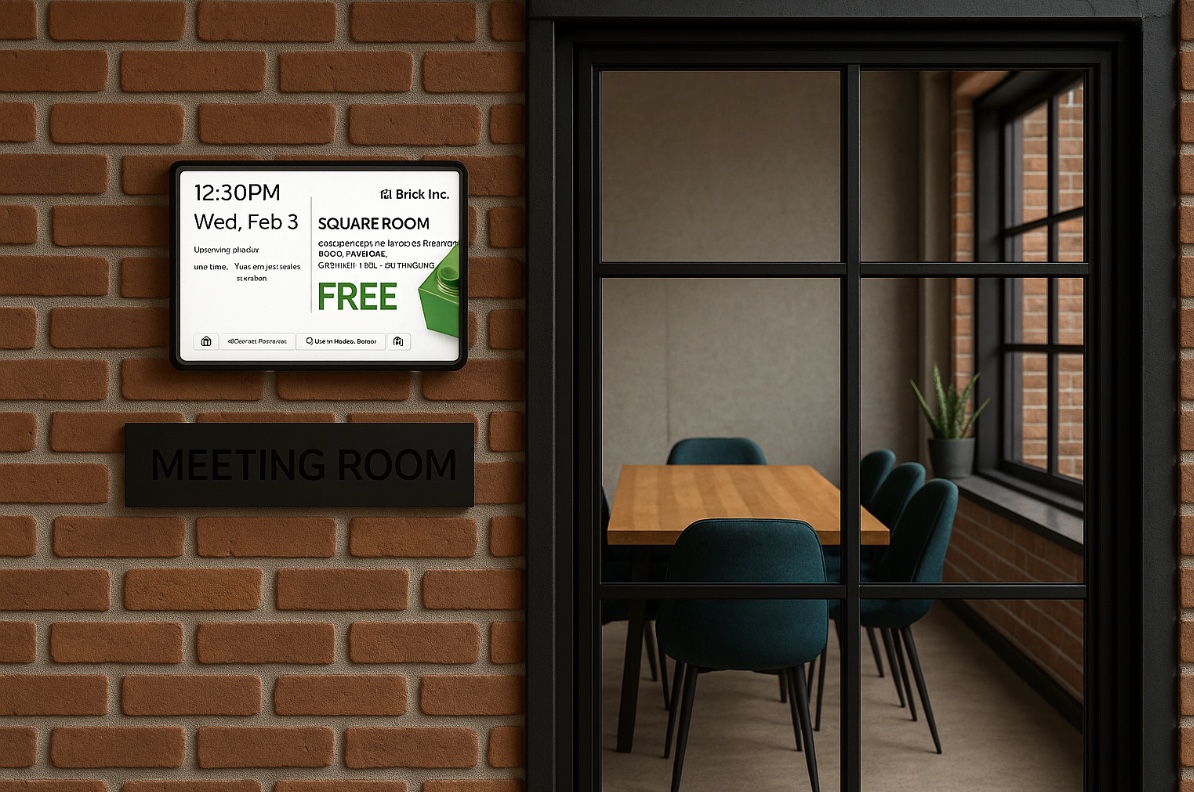
Picture a 10-inch touch panel beside every meeting room: the bezel glows green or red, shows your brand colours, and pulls its schedule straight from Microsoft 365 or Google Workspace within seconds of a change. A hot-desking floor plan in the same system lets hybrid staff tap an open seat, see avatars of colleagues nearby, and book on the train before they arrive. If nobody checks into a reserved room, after a grace period, motion sensors automatically free the space so someone else can use it.
What to look for:
- Calendar & ID integration. Real-time sync with Microsoft 365/Exchange, Google Workspace, and SSO so nothing lives in a silo.
- Branding and accessibility. Ability to swap logos, colours, languages, and even lexicon without code; screens should support 15-plus languages and large-text options for inclusivity.
- Right-size hardware. Panels around 10 inches with PoE power (one cable, no batteries) and LED status strips that are visible down the corridor.
- Sensor-aware automation. Built-in or external sensors that confirm presence, auto-check in, and release no-shows.
2. Wayfinding
In practice:
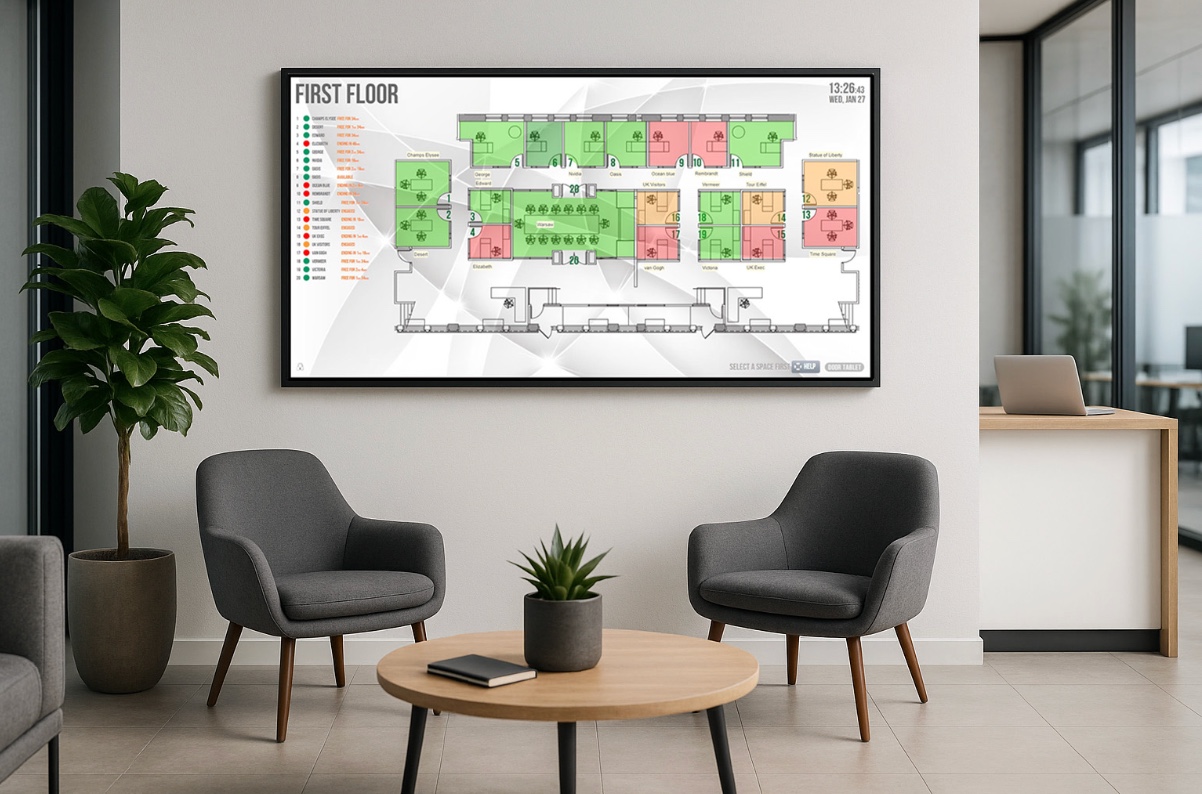
Imagine arriving at a large corporate campus as a visitor or as an employee who only comes in twice a week – finding the right conference room or a colleague’s desk can be daunting without guidance. A good wayfinding system displays floor maps on any display in key spaces (lobby, elevators, etc.)
What to look for:
- Live data feed. Maps must pull real-time availability from the booking layer so green spaces are truly free.
- Editable, on-brand floor plans. Drag-and-drop tools to recolour icons, rename zones, and match corporate fonts without calling a developer.
- Scalable hardware. Runs on standard signage players or browsers, not proprietary boxes, so Facilities can repurpose existing screens.
3. Occupancy Sensors & Analytics
In practice:
Motion sensors under desks and in the ceiling register real use. Facilities managers can see the average utilisation of meeting rooms. They can convert underused boardrooms into more huddles and save on the floor rent. Globally, average office utilisation is still around 35%, down from 64% pre-pandemic, so data-driven changes matter.
What to look for:
- Anonymised data: Sensors count presence, not people’s identities, easing “Big Brother” fears.
- Clear dashboards: Metrics in plain language, like peak occupancy, average meeting size, with export options.
Internal Questions to Ask Before Going to Market
- What employee problems are we solving first? Is the pain finding rooms, managing hybrid seating, or knowing which floors to heat? Rank them before demo day so features don’t distract from goals.
- What experience do we want to create? A friction-free day means bookings under one minute, maps at every decision point, and zero surprises. Translate that into must-have checkpoints.
- How much change can our culture absorb? If people still rely on paper signs, start with room panels and grow. If staff are mobile-first, prioritise an app.
- Who will own the data? Decide early which team (IT, CRE, HR) keeps the dashboards, sets retention rules, and reports wins to leadership.
- What does success look like in 12 months? Maybe it’s 20% fewer no-shows or 15% higher employee satisfaction scores.
These conversations align stakeholders and prevent shiny-object syndrome once you hit the marketplace.
Once you have decided to invest in workplace management solutions, companies will need to decide how these solutions will be implemented and adopted within the organisation. We covered how to ensure any solution is adopted by your teams. Read more here.
Conclusion: Designing an Unparalleled Employee Experience
Great offices feel almost
magical: the desk you need is open, the room you booked is ready, and the building itself seems to understand when and how people use it. That magic is the result of a well-built workspace-management stack—tools chosen for clarity, trust, and day-to-day ease rather than pure specs.
When employees spend less time hunting for space and more time doing meaningful work, engagement rises and real-estate costs fall.
A workspace management solution like
Door Tablet bundles every layer, room & desk booking, interactive wayfinding, motion-based auto-release, and utilisation analytics into one solution, making that seamless experience easier to deliver.
Book
a demo with Door Tablet today.
Build the right stack, and the technology fades into the background while people and ideas move effortlessly to the foreground.