n
anonymousdoortablet/dthelp.nsftime-zones
Protected content
| 278pages | Our help system contains many pages and videos for you to consume. This includes the complete information on how Door Tablet works, all its features and options, and of course the many benefits for your business. Door Tablet School offers many videos too. |
|
Click on images to see them in full screen
63FDF4B71DD1C90C80257D460067315ETime Zones
When using Microsoft Exchange you will need to set up Time Zones and change them with the seasons.
Create the Zones relevant to your organisation:
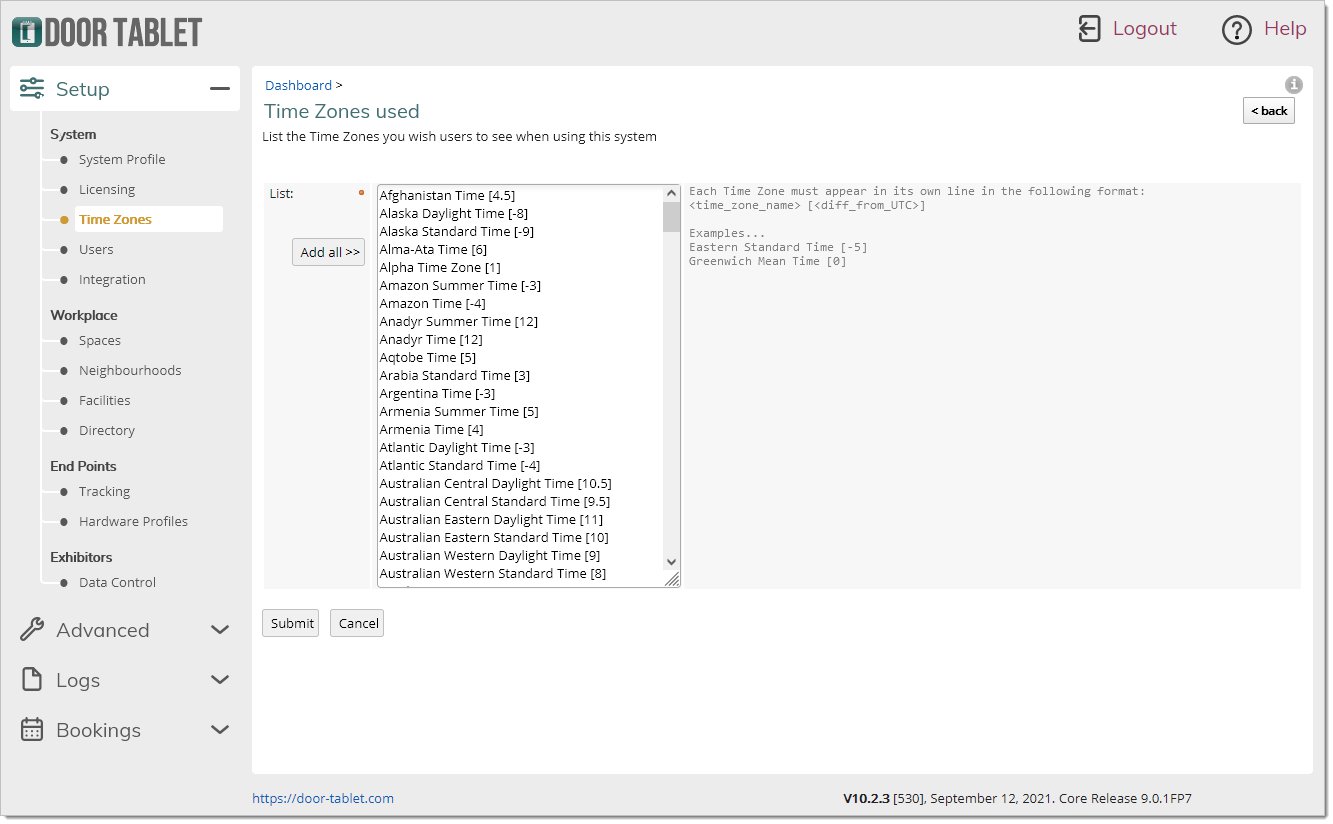
Note: you can accept all the worldwide Zones but we strongly recommend that you clean these out and use only the Zones applicable to your organisation.
You will now be able to tell Door Tablet the Time Zone where the Door Tablet server is running (the Operating System), and the tablets that connect to it.
Note: you cannot specify Time Zone in the Tablet App.
Note: Time Zones may need to change twice a year and Door Tablet Web UI makes it an easy task, particularly if you have a large number of meeting spaces. From the spaces view, select the meeting spaces you wish to change:
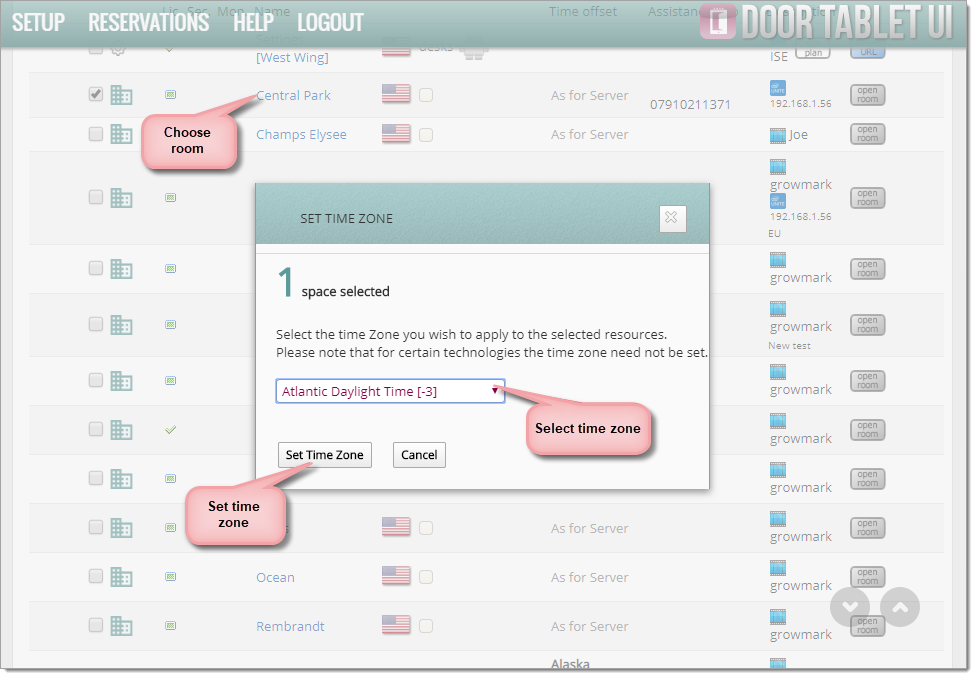
Click on "Set Time Zone" to set a new Time Zone for each of the selected resources.
The result will look like so:
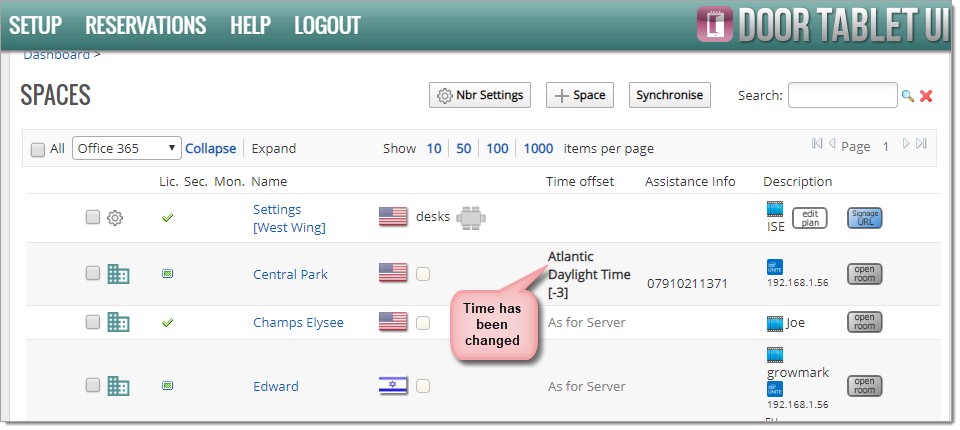
Note: you do not need to touch the Door Tablet clients when you change Time Zones on the Door Tablet server