anonymous18.97.14.82
See the whole floor.
Find your space.
Bring room availability and meeting schedules into view. Door Tablet wayfinding displays help people find a space, see what’s coming up and book an available room from a configured touchscreen.
 See room availability across the floor, with touch interaction where enabled.
Wayfinding in action
A clearer view of your workplace.
- 1See availability
- 2Find a room
- 3View upcoming meetings
- 4Book on touchscreens
One workplace. Different perspectives.
Choose the view
that makes things clear.
Show where spaces are, compare room schedules or list upcoming meetings. Choose the format that suits the screen and the people using it.
Floor plan view
Your spaces, on the map

Give people a visual overview of available rooms or desks and their location on the floor. Use an interactive or display-only layout.
Watch the floor plan tutorial →
Cluster view
Room schedules, side by side

Compare current and upcoming bookings across a neighbourhood of rooms. See the day’s schedule together, with booking available on configured interactive displays.
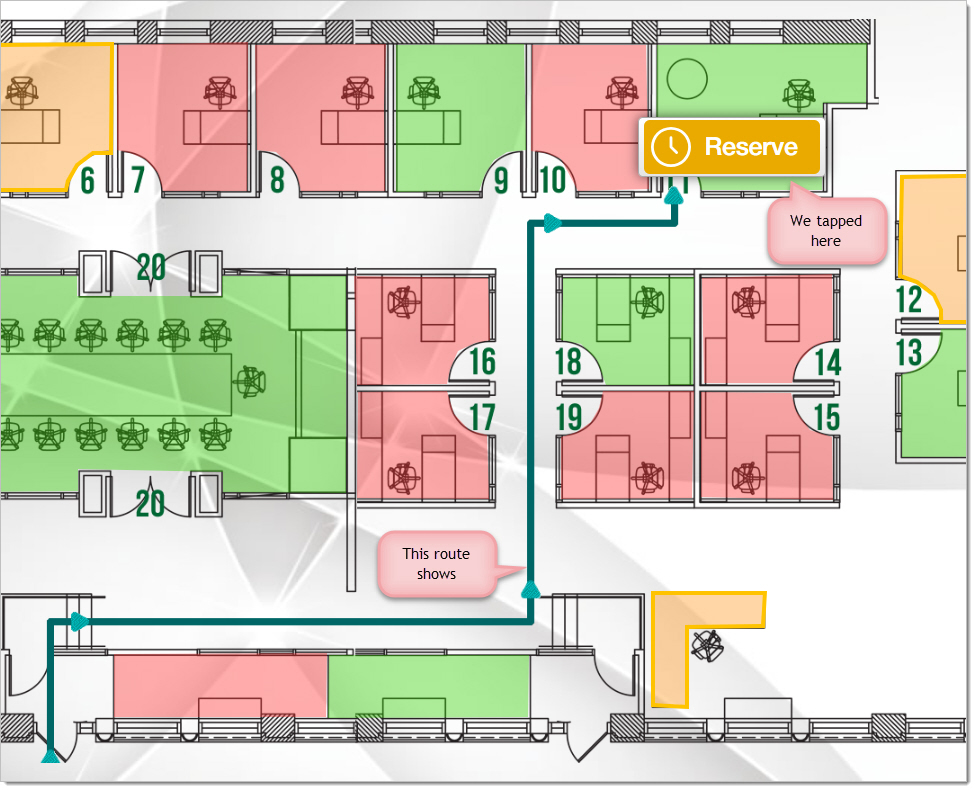 A configured route shows the path from the display to the selected space. View full-size example ↗
Floor plan routes
Find the room.
Follow the route.
Help people see how to get from the display to their chosen room or desk. On an interactive floor plan with routes configured, selecting a destination reveals the walking path.
-
Choose a space
Tap the space on the map, select its agenda entry or use the room selector.
-
See the way
The route appears on the floor plan, guiding people from the display’s location to that workspace.
Routes are prepared for your floor plan, with colours and designs to suit your layout.
See how floor plan routes are set up →
Airport-style view
The meeting schedule.
At a glance.
A familiar list of current and upcoming meetings helps people see which room they need and when the meeting starts.
Place a shared schedule in the lobby, at reception or in a communal area, where people can check it as they pass.
 An airport-style schedule brings meeting information into shared areas.
Touch or display-only
Give people the overview.
Add interaction where it helps.
Choose how people use each screen. Floor plan and cluster views can support touch interaction or provide a shared, display-only overview.
Interactive displays
Let people find an available room and make an impromptu booking from a touchscreen. Enable meeting controls such as check-in, extension and early release according to your setup and booking rules.
Display-only screens
Show availability and meeting schedules on a screen people can read as they pass. A clear overview at reception or in shared areas helps staff and visitors find the right room.
Interaction, RFID identification and meeting controls depend on compatible hardware, your scheduling integration and the controls you enable.
Door Tablet NOW
Add a QR code.
Continue on your phone.
Bring interactivity to a non-touch wayfinding display with Door Tablet NOW. Place QR codes for rooms or desks on the floor plan so people can open the space they need on their own phone.
- Scan from the plan. Scan a room or desk’s displayed QR code to open that space in Door Tablet NOW.
- Tap, then scan. On an interactive wayfinding display, tap a space to reveal its QR code, then continue on your phone.
View availability, reserve a space, check in or manage a booking through Door Tablet NOW, according to your workplace’s settings and your permissions. It opens in the mobile browser, with no separate app to install.
Explore Door Tablet NOW →
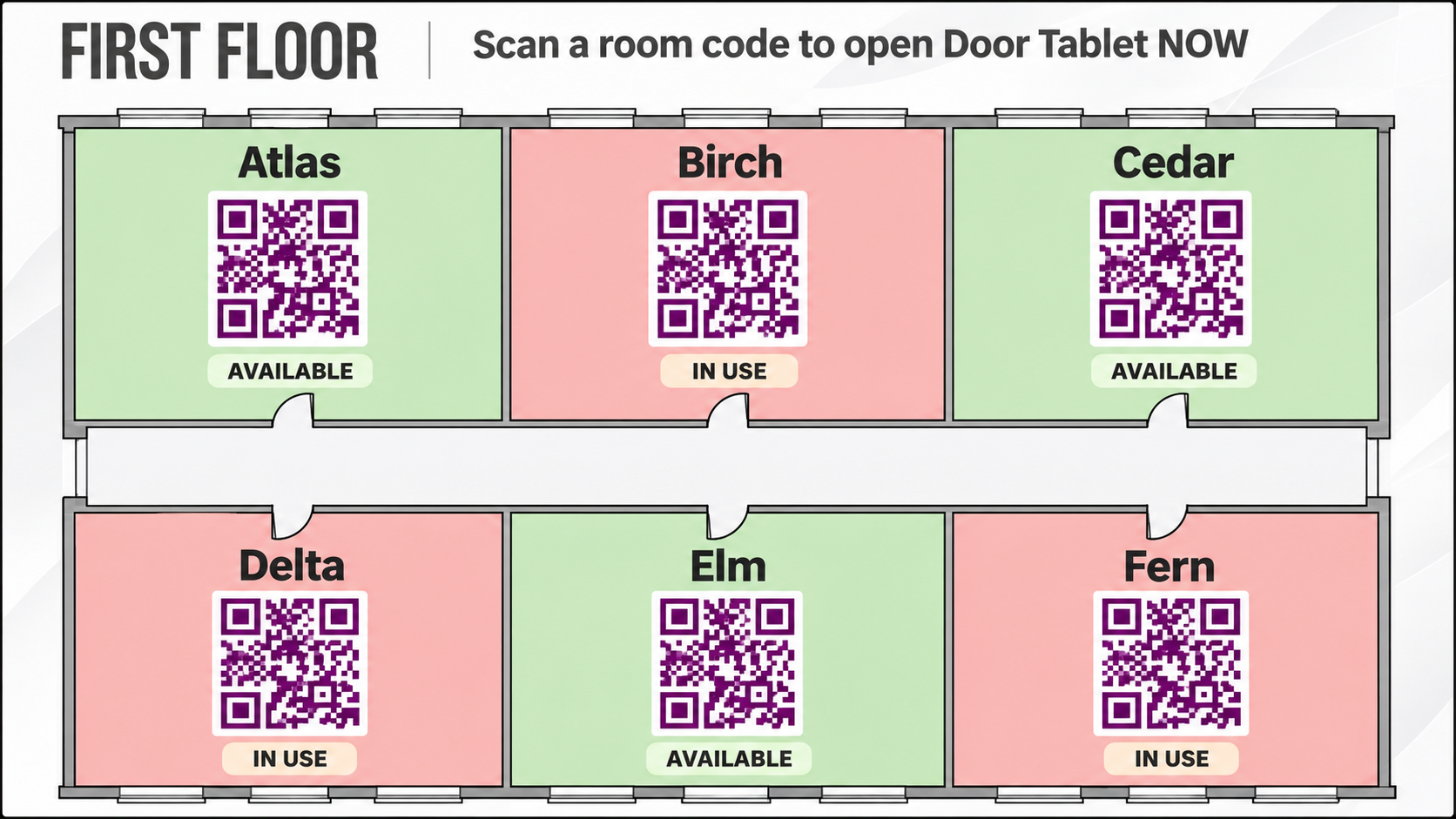 Non-touch wayfinding illustration: six rooms, each with its own QR code for Door Tablet NOW. View full-size example ↗
More than a room list
Keep people
and meetings moving.
Connect a shared view of your workplace with the booking controls and branding that suit your organisation.
Make availability visible
Bring room status and upcoming bookings together so people can find a suitable space without checking every door.
Make room for the unplanned
Let people book available space on a configured touchscreen when an impromptu discussion needs a room.
Manage the meeting
Offer check-in, meeting extensions and early release on interactive displays, according to the controls and booking rules you enable.
Release unused spaces
Configure no-show cancellation so rooms become available again when a booking is not checked in.
Make the display yours
Adapt backgrounds, colours, fonts and layouts to reflect your brand and make the information easy to read.
Use familiar words
Choose from supported languages and customise the lexicon to match your workplace’s terminology.
Features depend on your hardware, integrations and configuration. Explore customisation or administration and booking rules.
From the floor to the door
Connect wayfinding
with room booking.
Use shared displays to see the wider picture, then find availability and meeting details at the individual room.
Door Tablet brings your scheduling information to the places people need it: across the floor and right beside the meeting room door.
Explore room booking →
Bring your screens into the system
A compact player.
A clearer workplace.
Connect a compatible screen to Door Tablet with a wayfinding player such as Door Tablet ABX2. Bring floor plans, room schedules and welcome information into your communal areas.
Choose the screen, player and touch capability to suit the location and the way people will use it.
Explore Door Tablet ABX2 →
Door Tablet ABX2
A compact player for shared wayfinding displays. Discuss screen compatibility, connectivity and installation with our team.
See wayfinding players →
Let’s talk about your workspace
Help people find their next meeting.
Tell us about your rooms, floor plans, screens and scheduling system. We’ll help you choose the right wayfinding setup.
doortablet/dtcms.nsf/doortablet/dtcms.nsf::/doortablet/css/dt.css?rnd=45671" id="dt-css" data-dummy="cont-homepages58E1767339A9724B8025867900571927Wayfinding DisplaysYes