n
anonymousdoortablet/dthelp.nsfprism-bookings
Protected content
| 273pages | Our help system contains many pages and videos for you to consume. This includes the complete information on how Door Tablet works, all its features and options, and of course the many benefits for your business. Door Tablet School offers many videos too. |
|
 |
| 
Click on images to see them in full screen
6C3CF33BF5A679F480258DE6004FF5A5Prism Bookings
Door Tablet offers a number of reservation options when working with Prism
.
The following options are available from V10.20.01, for tenant bookings see further below as applicable for version V10.50.33
Available hardware
The functionality described here is available on all Door Tablet hardware platforms. This includes 10.1" device, 3.4" devices. For EPS devices you can show Prism bookings but cannot book from the display.
Simple booking
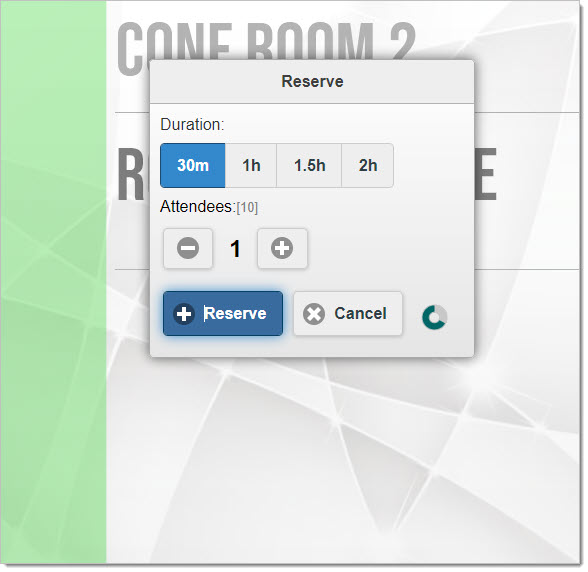
Just specify the duration and the number of participants and the room will be booked:
- Booked for "now" only
- Cannot be booked in the future
- In Prism the booking is made by the System Admin
 Verified internal user booking
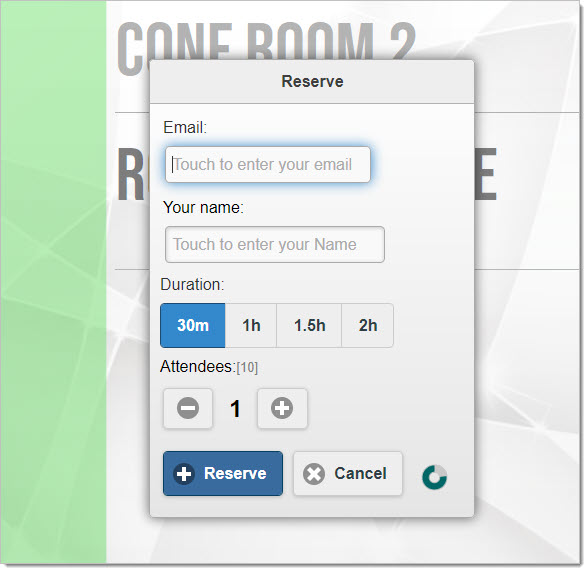
Door Tablet allows you to create users in its internal database:
Verified internal user booking
Door Tablet allows you to create users in its internal database:
- Users will need to match an email address they type in with an entry in the database
- Booked for "now" and in the future
- The booking is made on behalf of the System Admin
 Booking using a PIN
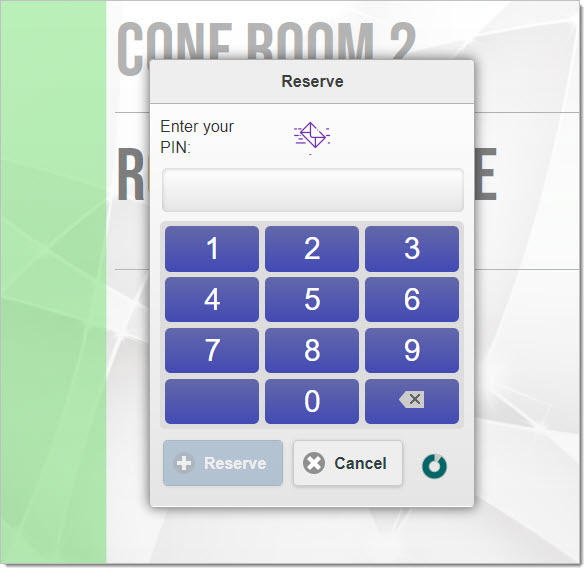
In each user record in Door Tablet a PIN can be added. The PIN is numeric:
Booking using a PIN
In each user record in Door Tablet a PIN can be added. The PIN is numeric:
- Users will tap a PIN on a PIN pad. This is matched against the users inside Door Tablet
- Booked for "now" and in the future
- The booking is made on behalf of the System Admin
 The following options are available from V10.50.25
Prism tenant booking
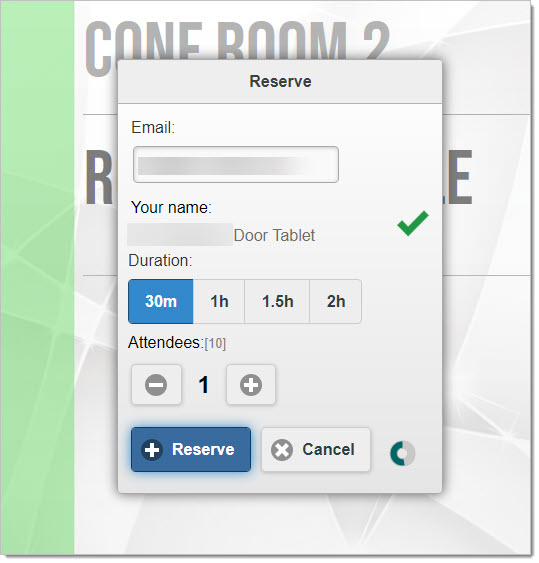
Door Tablet allows you to specify that the IDs come from Prism and are matched using an API call to Prism:
The following options are available from V10.50.25
Prism tenant booking
Door Tablet allows you to specify that the IDs come from Prism and are matched using an API call to Prism:
- Users type an email address and this is matched with Prism
- The user specifies duration and attendee number
- Booked for "now" and in the future
- The booking is made on behalf of the tenant and NOT the System Admin
- If the user is not allowed to book, as specified in Prism, the booking will fail
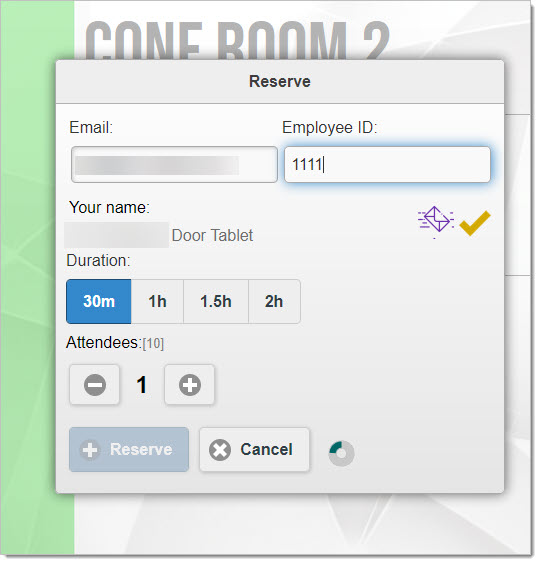
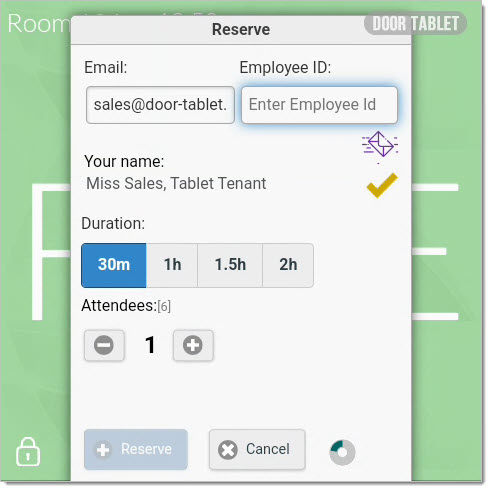
 Prism tenant secure booking
Similar booking to the above but also requires the Employee ID:
Prism tenant secure booking
Similar booking to the above but also requires the Employee ID:
- Users type an email address, if this is matched with Prism, they are asked to type their Employee ID
- If they forget the ID, Door Tablet will email it to the user
- Booked for "now" and in the future
- The booking is made on behalf of the tenant and NOT the System Admin
- If the user is not allowed to book, as specified in Prism, the booking will fail
On a 10.1" display:
 On a 3.4" display:
 How to activate tenant bookings
There are a number of places you will need to make changes to configurations:
How to activate tenant bookings
There are a number of places you will need to make changes to configurations:
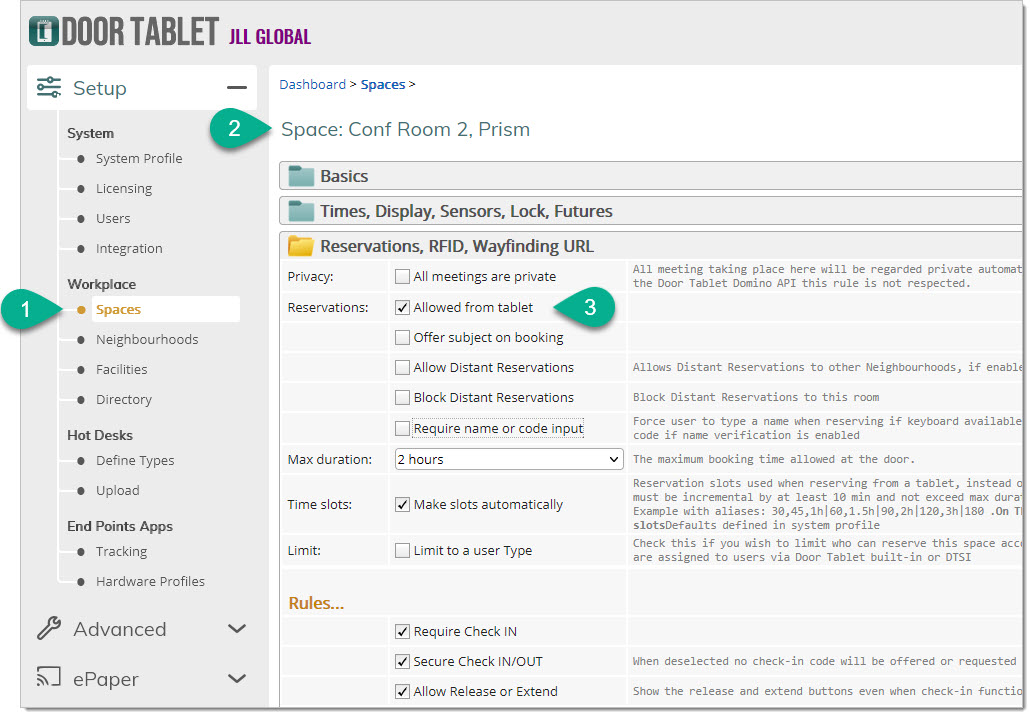
- In a room record specify that a room may be booked from the tablet. You can also specify limits on that.
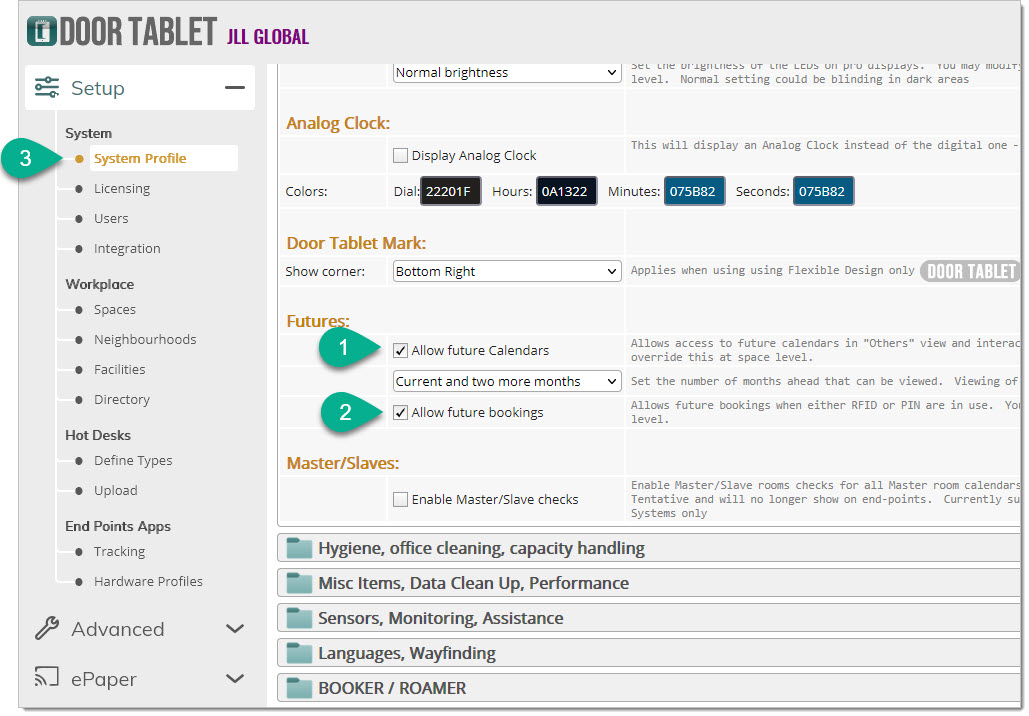
- In the System Profile you can specify that future bookings are allowed, or not
- In the room record you can specify that future bookings are not allowed although it is generally allowed
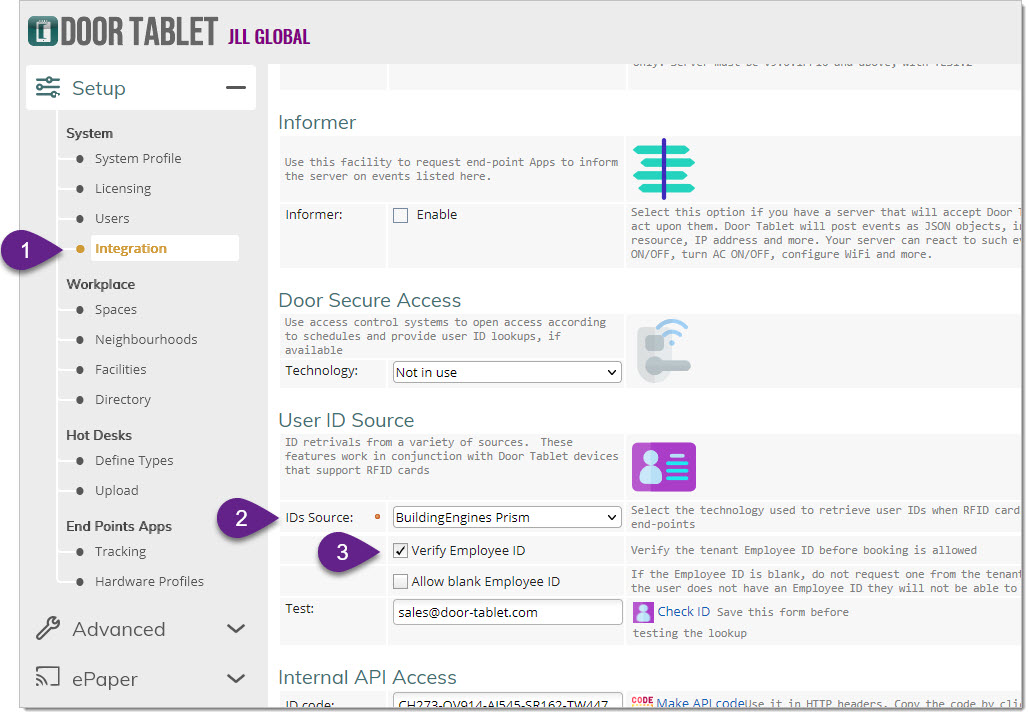
- In "Integration" you need to mark that the ID Source is Prism
- Below that, you can specify if you require Employee ID and if you allow users without Employee ID to book
Enabling reservations for a room:
 Enabling Futures in the System Profile
 Enabling Prism ID look-up with the option to require Employee ID
 Settings in Prism
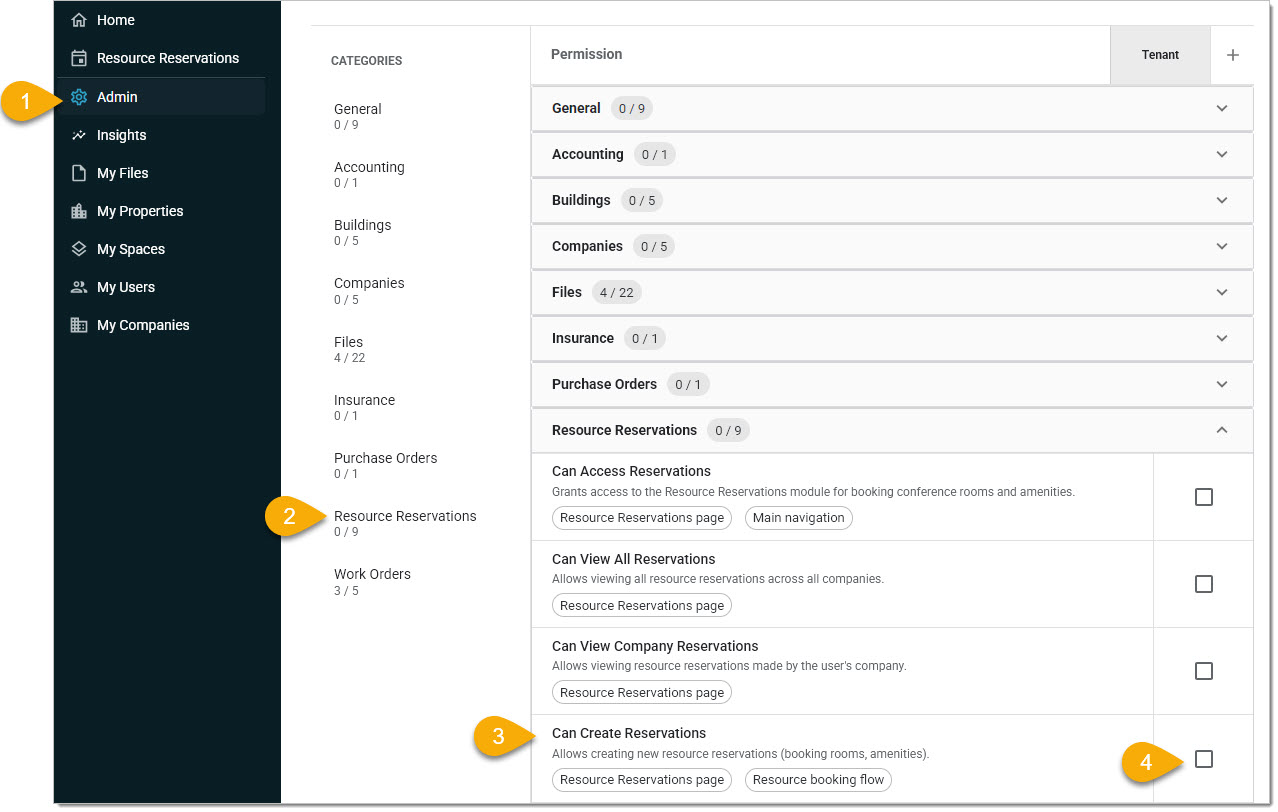
If you allow tenants to create resource reservation, be sure to apply these permissions correctly. You can equally create permission groups that disallow resource reservation. Since reserving as a Tenant adheres to these rules, if permissions are not granted, the user in front of the tablet will be notified.
Settings in Prism
If you allow tenants to create resource reservation, be sure to apply these permissions correctly. You can equally create permission groups that disallow resource reservation. Since reserving as a Tenant adheres to these rules, if permissions are not granted, the user in front of the tablet will be notified.
 Adding Employee ID
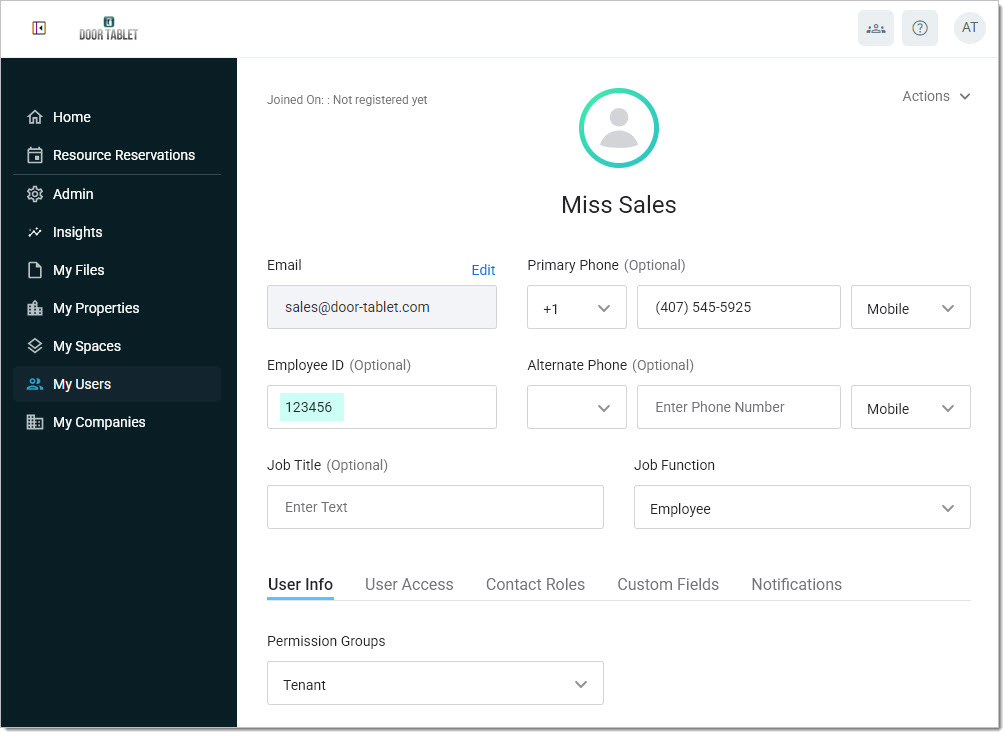
The Door Tablet Prism bridge obtains this ID and asks the user to match it before it will allow reservation. If the user has forgotten their Employee ID a reminder can be sent, eliminating the need for admins to provide this information. Setting a user:
Adding Employee ID
The Door Tablet Prism bridge obtains this ID and asks the user to match it before it will allow reservation. If the user has forgotten their Employee ID a reminder can be sent, eliminating the need for admins to provide this information. Setting a user:
 When the above user attempts to reserve a resource:
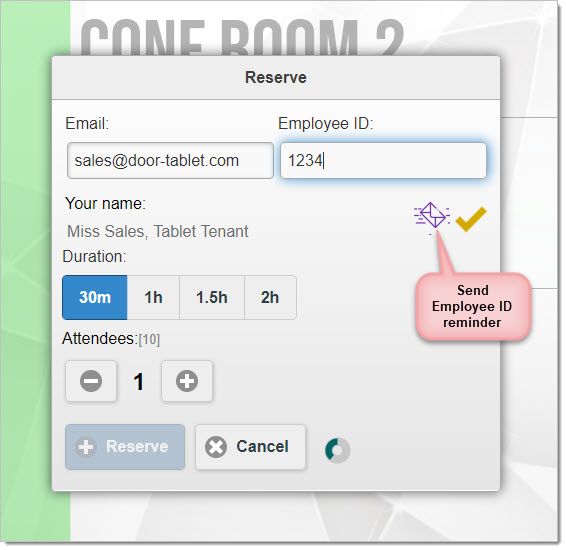 When the Employee ID matches... the Reserve button becomes active:
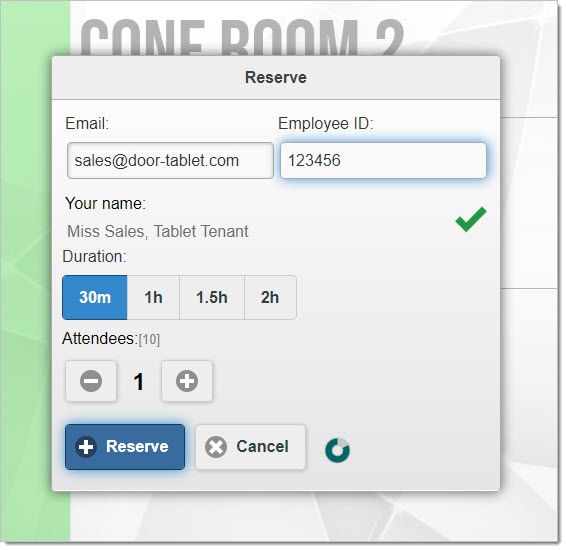 At this point, if the user does not have permission to book, an error will show.