Click on images to see them in full screen
2DF87894C070543680258E1E003E92D3Active Directory
From V10.50.4 Door Tablet supports Active Directory integration combined with RFID.
The end user experience goes like this:
- User needs to reserve a room or check-in at the tablet
- They need to identify themselves using an RFID card that they use in Access Control
- The user starts the booking process, at which point they are asked to present their RFID card
- The software reads the card and sends its ID to the server
- The server sees that it is configured to look up the company Active Directory using LDAP
- The server searches the LDAP system and receives information about the user
- The server then passes this information on to the tablet to complete the process that the user triggered
Setup
For the above to work, there are a number of prerequisites:
- Active Directory is enabled and fully operational
- A service account exists that allows for reading the LDAP directory
- Users are listed and a field, for example EmployeeID, contains the ID of a user RFID card
- Firewall ports are open to allow the Door Tablet server to make LDAP calls, using the service account identity
- The Door Tablet Integration form in the web UI has been used to define the interface to AD, and successfully tested
Note
If you wish to use LDAPS and not just LDAP, you must extract your certificates from AD and install these in the Door Tablet certificate store. To begin with just start with LDAP.
Prepare Active Directory
We have to assume that your AD is ready to be used. That is, you have a Domain Controller and in it you have a directory tree available for looks ups. The following is assumed:
- You have Users either at the root of your tree or in OUs (organisational units)
- Each user has an RFID number in one of the fields, each RFID number must be unique
- You have a "Service Account" that can be used to authenticate and access AD users data, at least in Read Only mode
In the example below we show a small OU, called DoorTablet, with three users and a service account...
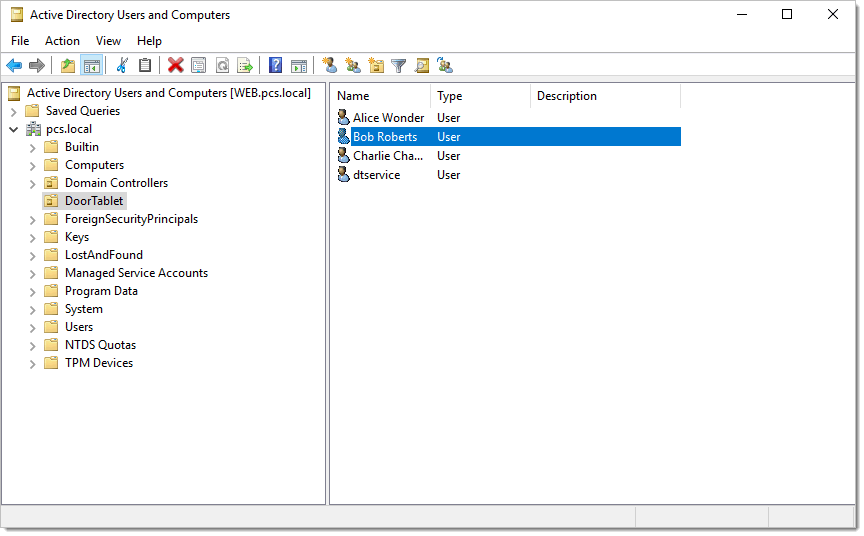 Setting the users with the RFID number
To be able to see additional attributes, and add an RFID number to your choice of field you must enable the following option in the menu:
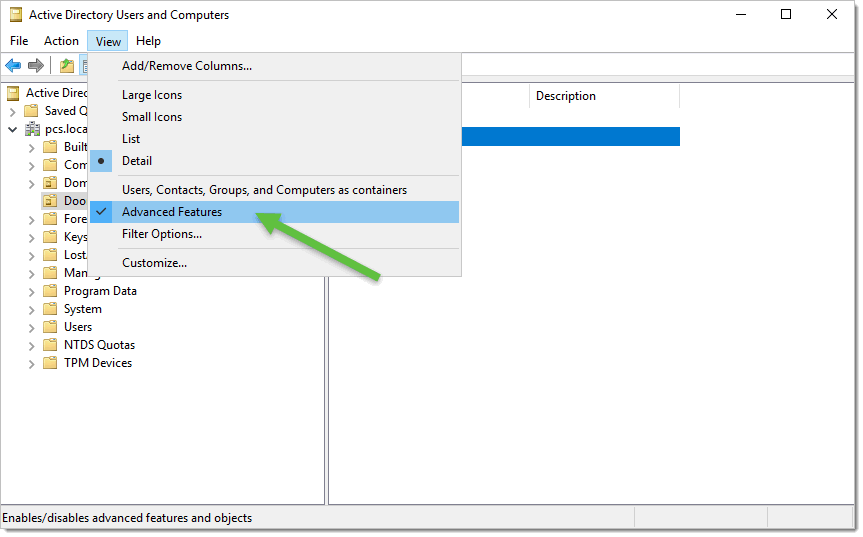
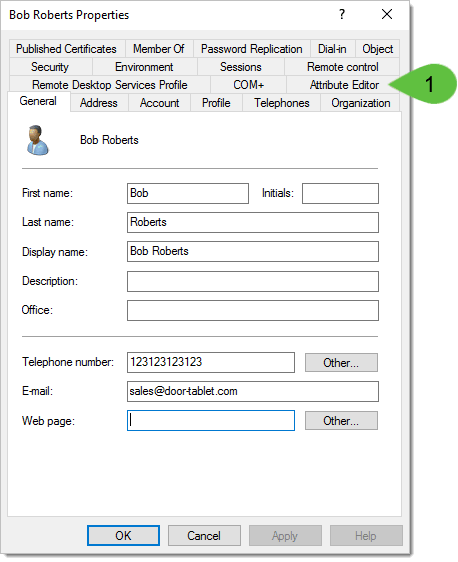
You will now be able to see the Attribute Editor for each user...
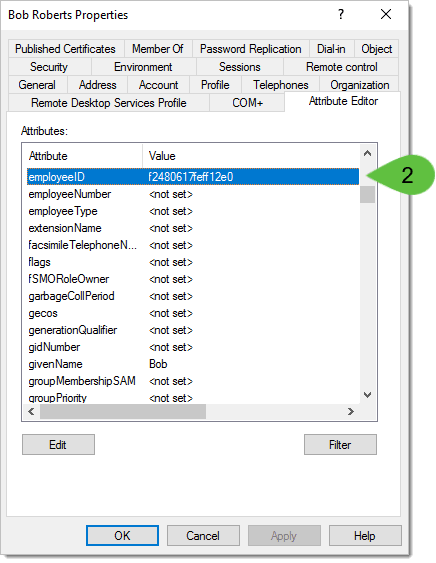
In our case we are using the EmployeeID...
 Tests access to data
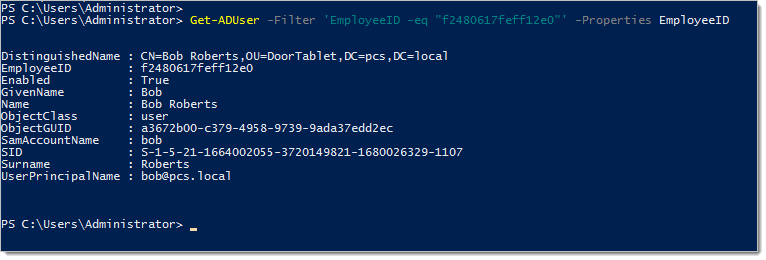
You may test lookups using PowerShell and use the RFID code you stored. For example:
Get-ADUser -Filter 'EmployeeID -eq "f2480617feff12e0"' -Properties EmployeeID
Result:
 Service Account
Create a user that serves as the Service Account that will be used for LDAP lookups. In our case we created a "dtservice" user, solely for this purpose.
To allow the user to Access both read and write properties in user records we had to grant it rights. Further, in order for the user to be able to use Remote Desktop to the server we added the user to the Administrators group.
Steps:
- Open: Active Directory Users and Computers
- Right-click on the tree
- Click: Delegate Control...
- Add: dtservice
- Choose: Create a custom task to delegate
- Select: User objects in this folder
- Permissions: Tick: Read all user information
Option: you can provide rights only to your OU
Right-click on the OU instead of the whole tree
Firewall Rules to the LDAP Server - inbound
To access LDAP on a remote server the server firewall must be open to inbound rules:
LDAP (unencrypted): Port 389 (TCP)
LDAPS (encrypted): Port 636 (TCP)
SSL
When you try to connect Door Tablet to your LDAP host over LDAPS, the connection will fail. You need to extract the certs from the AD, and import them into the Door Tablet certificate store. If you do not have a certificate on the server, use LDAP and not LDAPS.
Step 1: Export AD certificate
On Domain Controller:
- MMC → Certificates (Local Computer)
- Personal → Certificates
- Find Domain Controller cert
- Export as .cer
Step 2: Import the certificate to the Door Tablet certificate store. This is covered here:
Preparing Door Tablet
You are now ready to enable Door Tablet to perform look-ups using RFID cards that users present on Door Tablet devices. Please follow these steps:
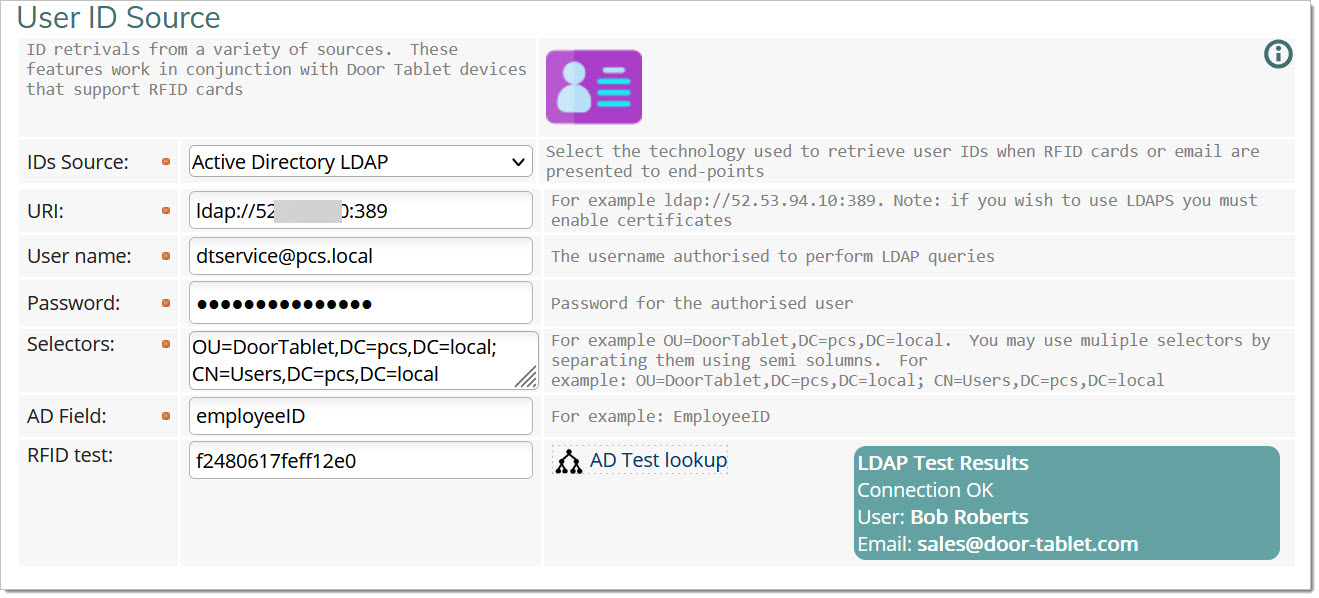
- Open the Integration Page
- Find User ID Source
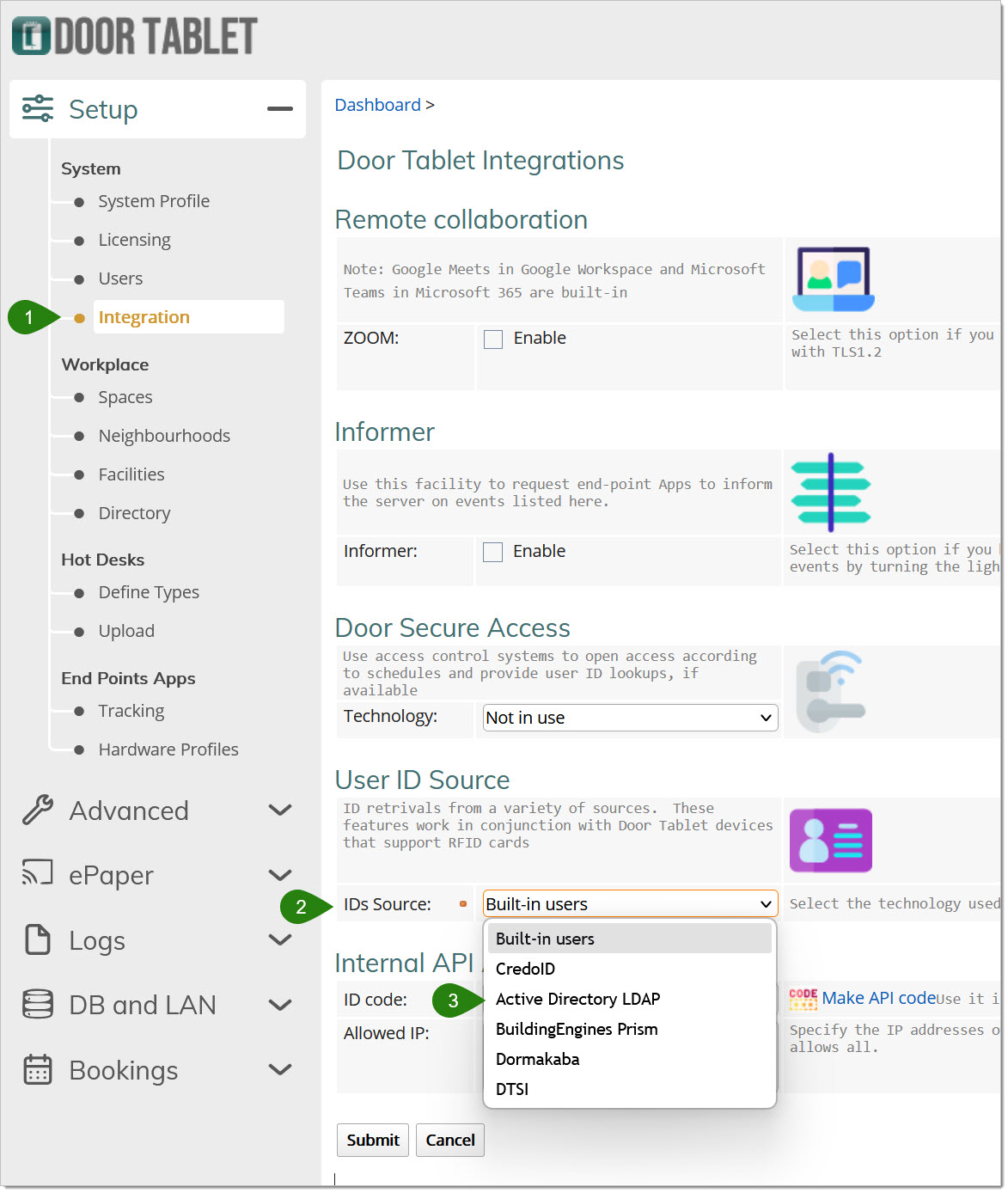
- Select "Active Directory LDAP"
- Fill in the details highlighted below
- Optionally but highly recommended, fill in the RFID test value.
- Once all is filled in, click on 'AD Test lookup'
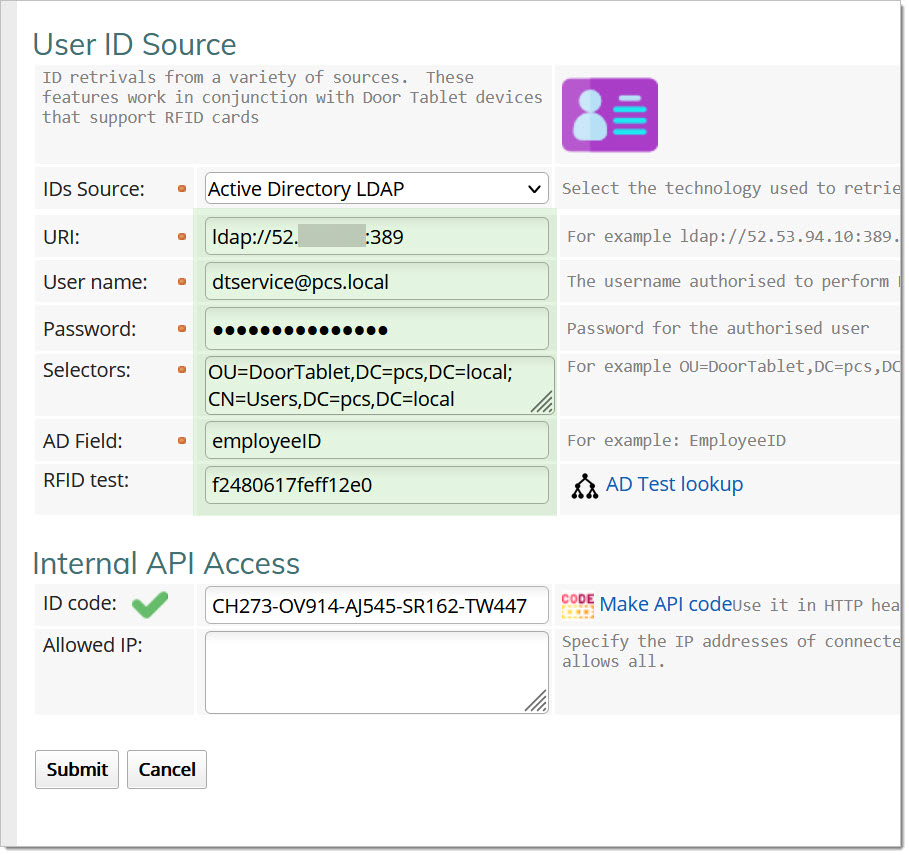 When you test, errors will show like this:
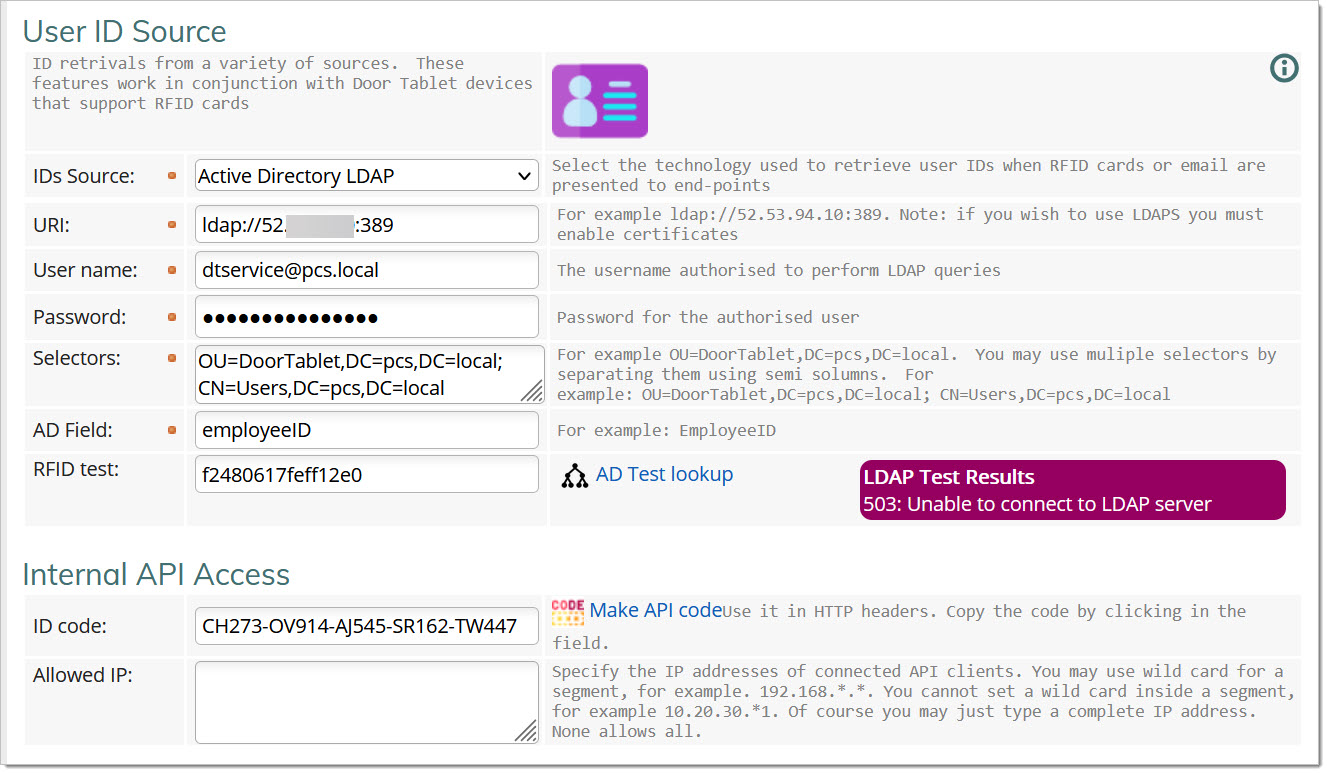 While success shows like this:
 Notes:
- You have to indicate in the System Profile that you want to use RFID
- Each device must be enabled for RFID
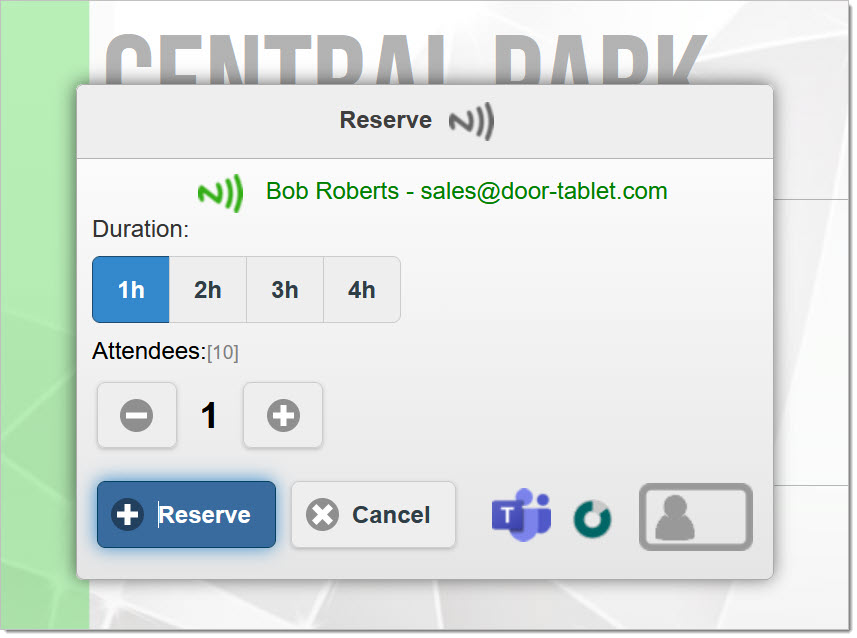
Once your tests are complete, try the service from your tablet:
- Try reserving a room
- Present your card
 All set.