Click on images to see them in full screen
C4125F5713A00D0480258D86004846CBLibCal
The Door Tablet bridge to LibCal from SpringShare brings all of Door Tablet features to a LibCal environment. The integration is mainly in the bridge but some minor changes have been implemented in the Door Tablet App to provide features that exploit LibCal in the way users may be accustomed to.
We are not listed Door Tablet features here as these are fully described throughout these help pages. Changes to the App that are specific to LibCal are:
- Show QR codes on all interfaces that directly link to LibCal bookings
- Handle Check-in differently as LibCal issues the check-in code upon booking
Enable the LibCal Bridge
Door tablet uses LibCal native API. To enable the connection you will need the following items:
- Client ID
- Client Secret
To obtain the above items head to LibCal and login as an Administrator.
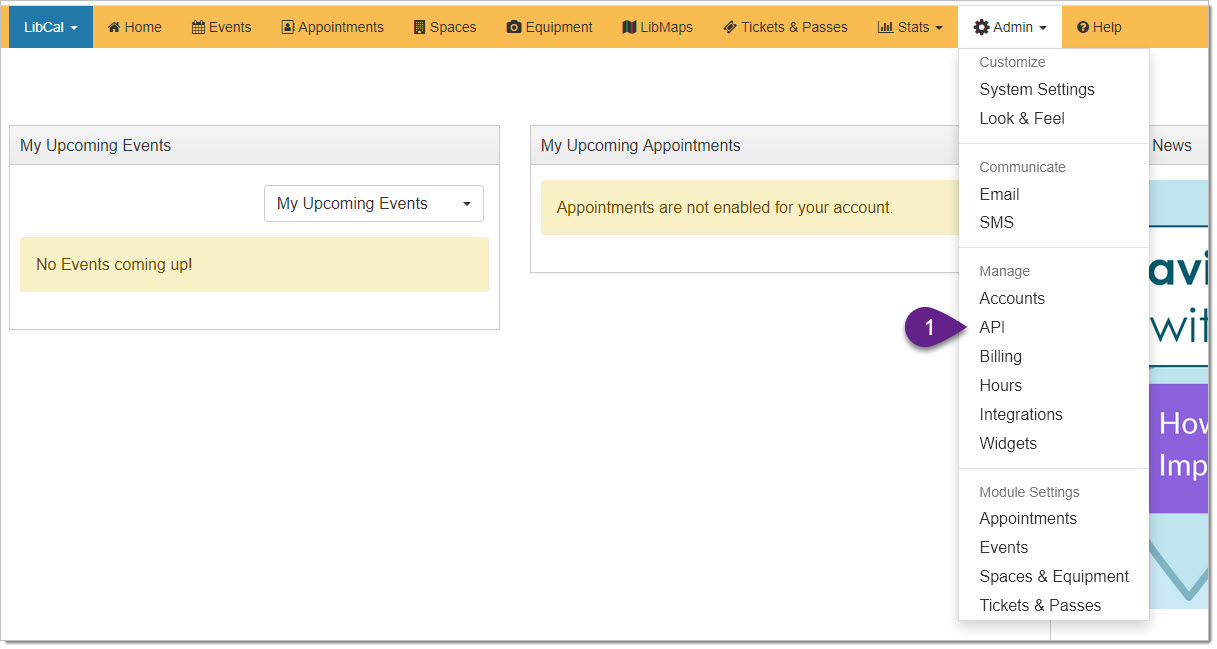
Once in API, select the "Vendor Access" tab. Door Tablet uses this version of the API and so should you.
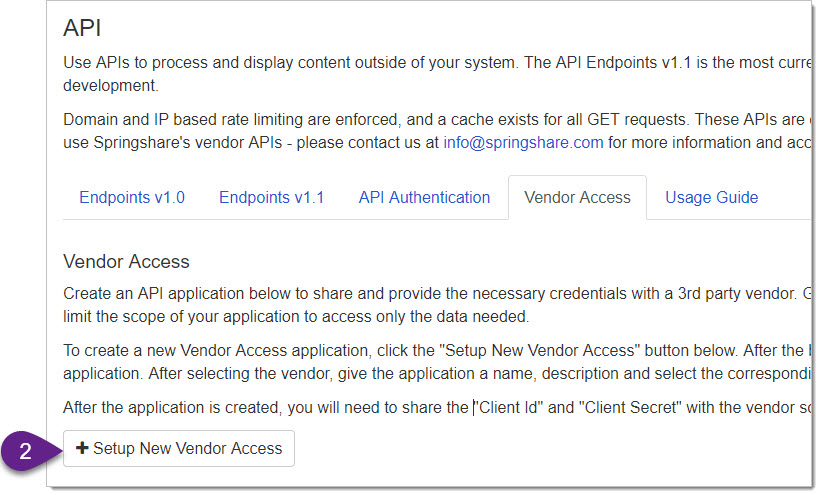
The result of our API enablement shows below. You will now need copy the Client ID and Client Secret.
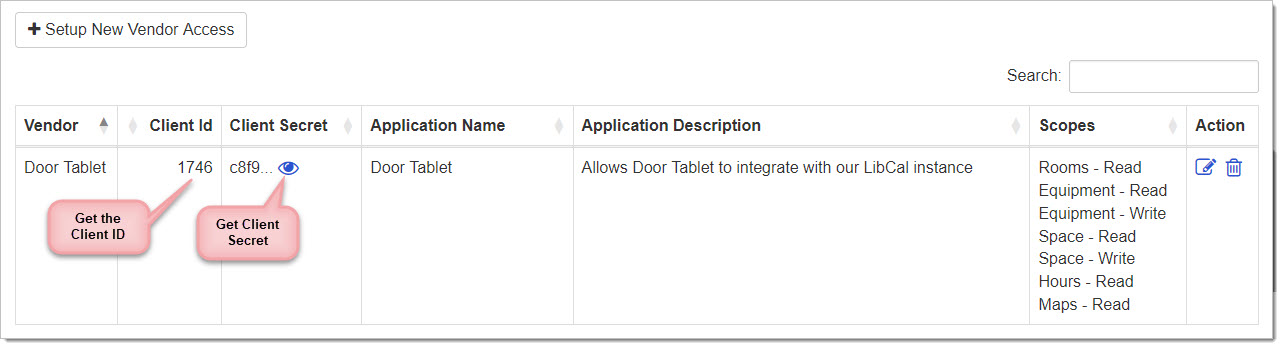 Configure Door Tablet
Open the Door Tablet System Profile from the WebUI dashboard. Select Springshare LibCal as the Technology. Door Tablet needs to validate the connection and set the API domain. For this purpose you provide us with the Client ID and Secret. We, in turn provide you with a Security Code. Type these in the System Profile.
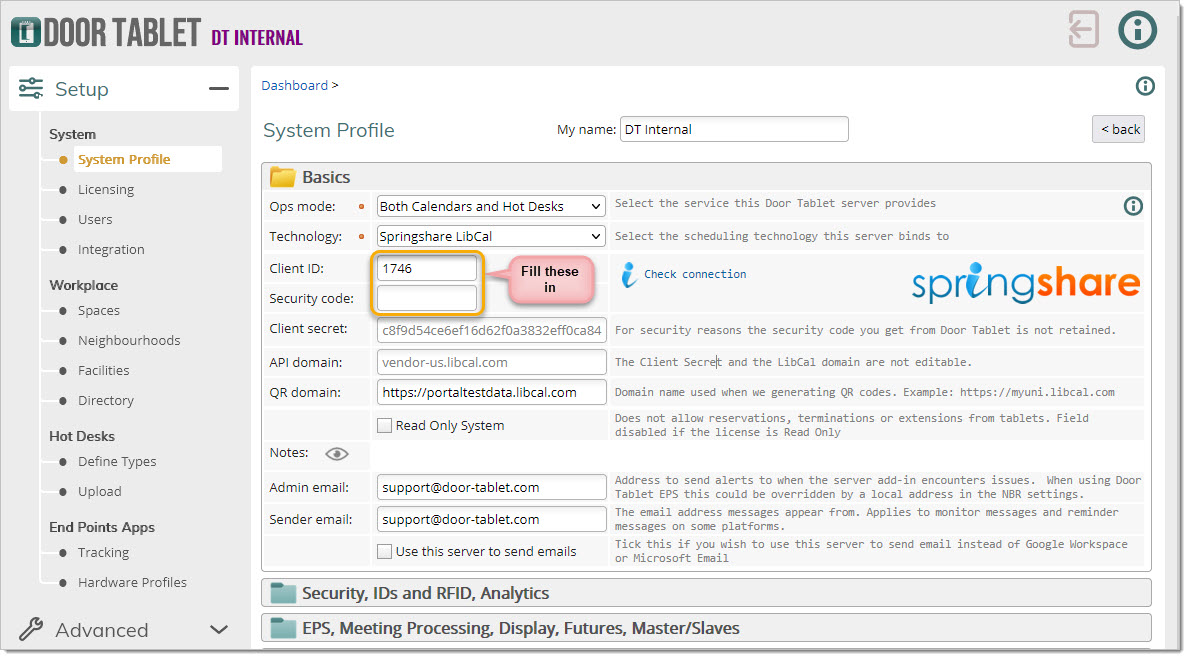
When the Secret is in, you are ready to test the connection to your LibCal instance.
Setting up LibCal
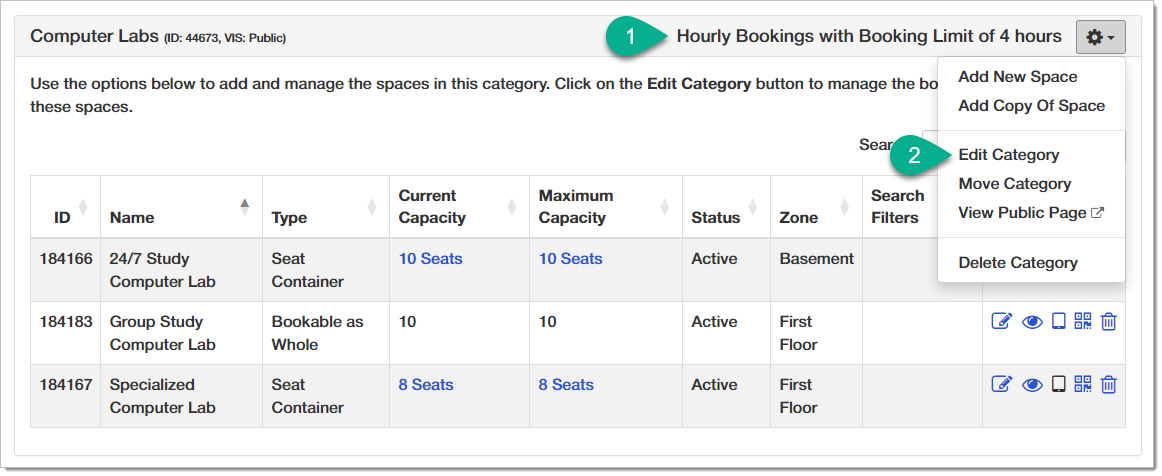
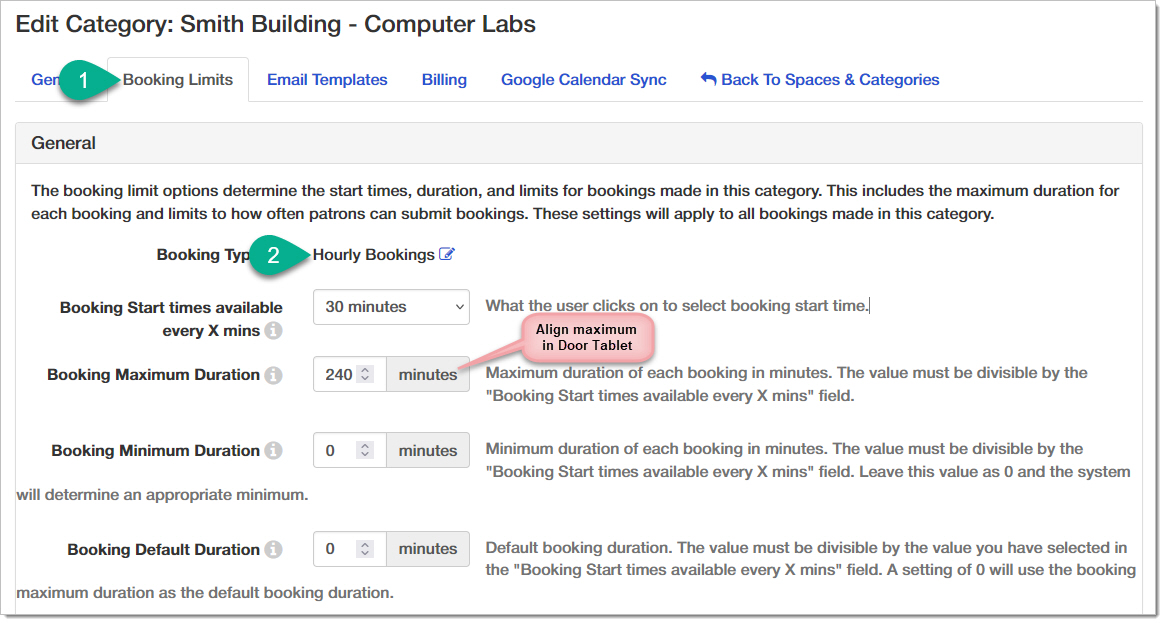
It is important to set up LibCal in a way that facilitates Door Tablet integration. For example, if you allow Ad-hoc bookings in Door Tablet, make sure this is enabled in LibCal.
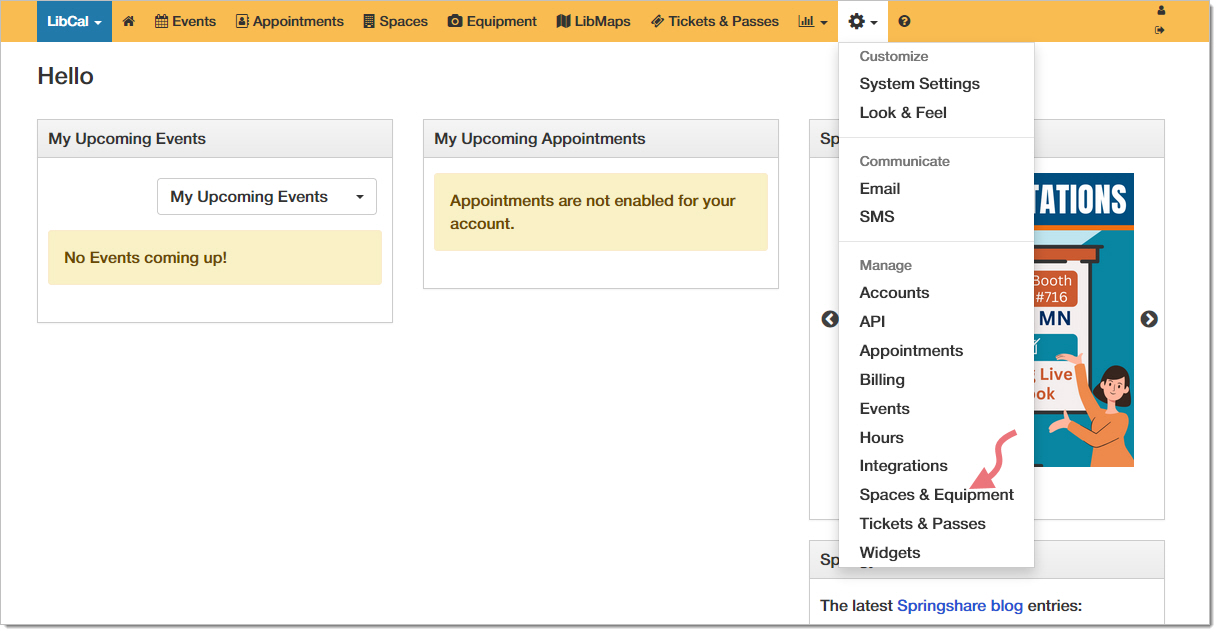
To access the settings you must have "Admin" rights.
Go to Spaces & Equipment
Open the Zone you wish to edit:
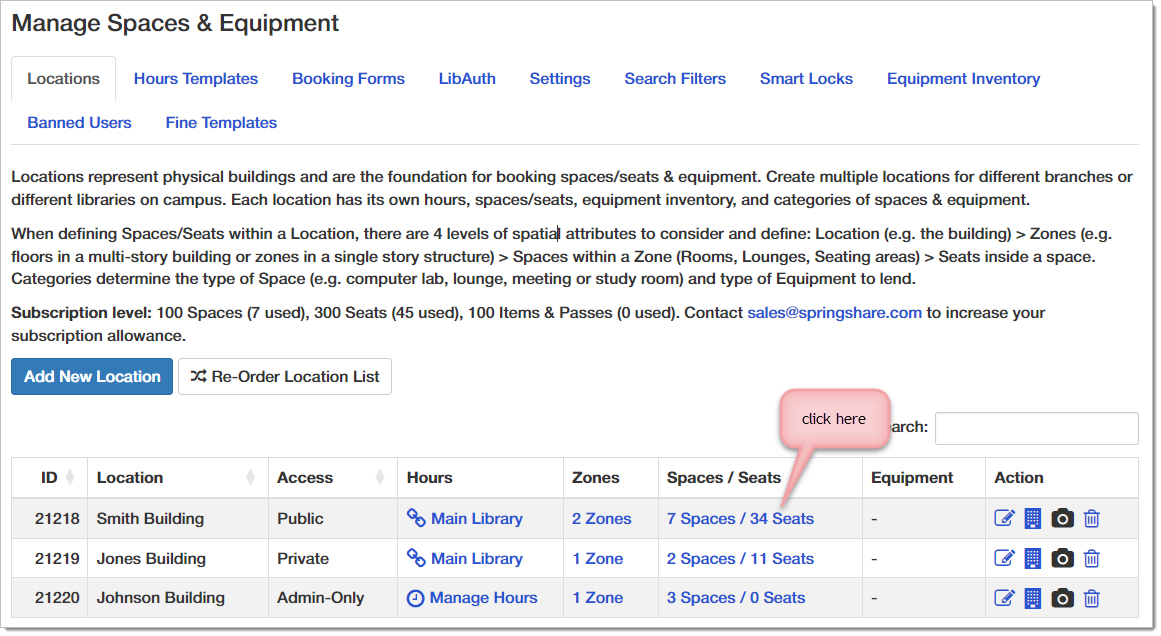
Once you have the location open, edit the categories...
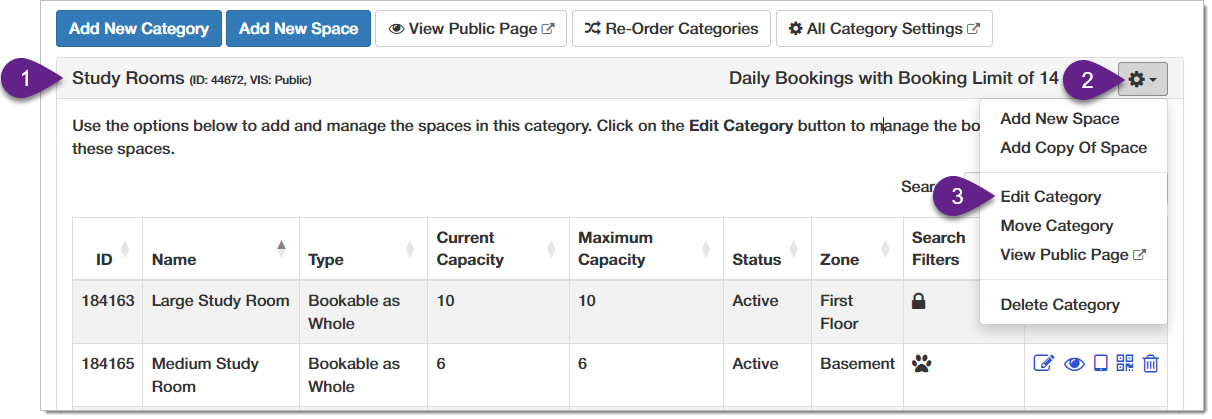
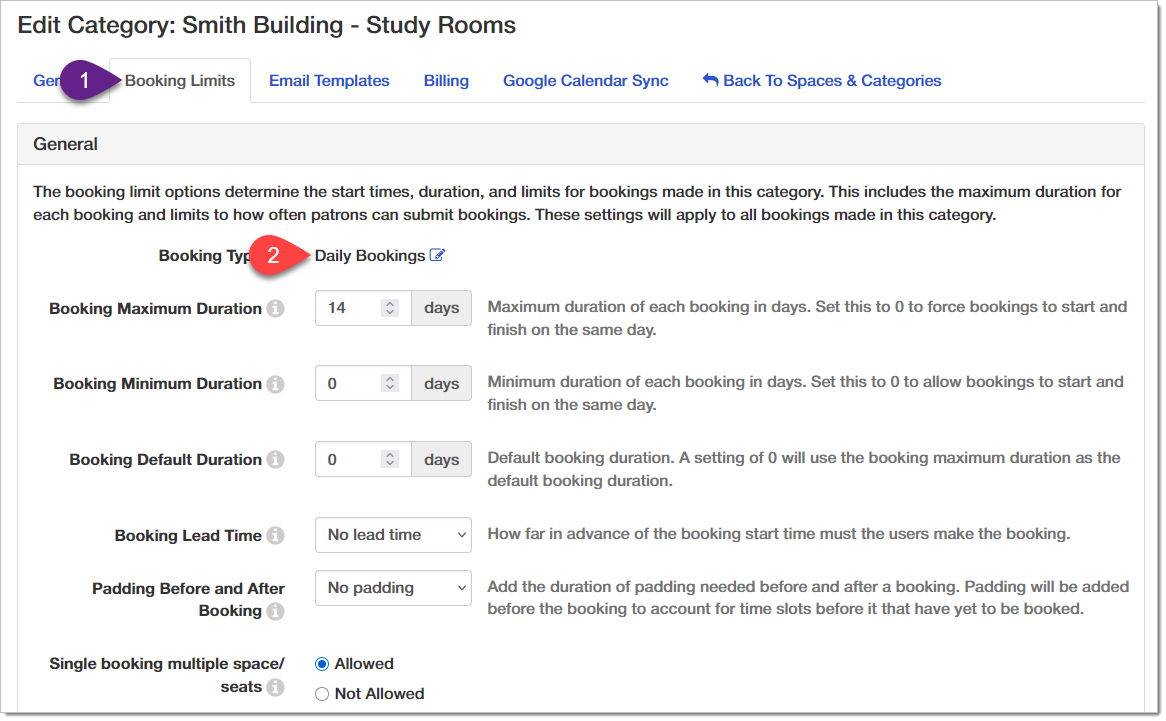
If the space you show is marked for
Daily Bookings you should
not allow booking from Door Tablet. This is because Door Tablet allows instant booking for a short time, including starting "Now". So, you should use an hourly booking template.
Work on spaces that are governed by
Hourly Bookings only...