Click on images to see them in full screen
5324078F71BC1BE880258CA000400EA7One Time Password OTP
From V10.22 of Door Tablet OTP Service is available
The purpose of this feature is to tighten security around the access to the Web UI.
When you turn the feature on, the following happens:
- You are challenged for an OTP code
- The OTP code is sent to the email address assigned to the user
- The user is challenged for an OTP periodically, according to your set-up
Platform support
The OTP feature is supported on some of our platforms, starting with Microsoft systems, including Exchange and Microsoft 365. Get in touch if you require OTP support on other platforms.
User experience
The login page looks normal to begin with...

When the user clicks on 'Login', the following happens:
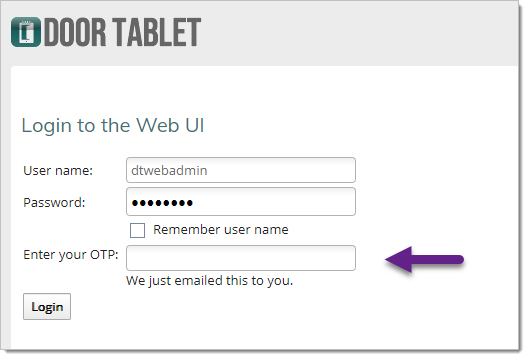 Note:
Note: once the OTP process is in force, the username cannot be changed. However, if the password is incorrect the user can retry until they use the correct one.
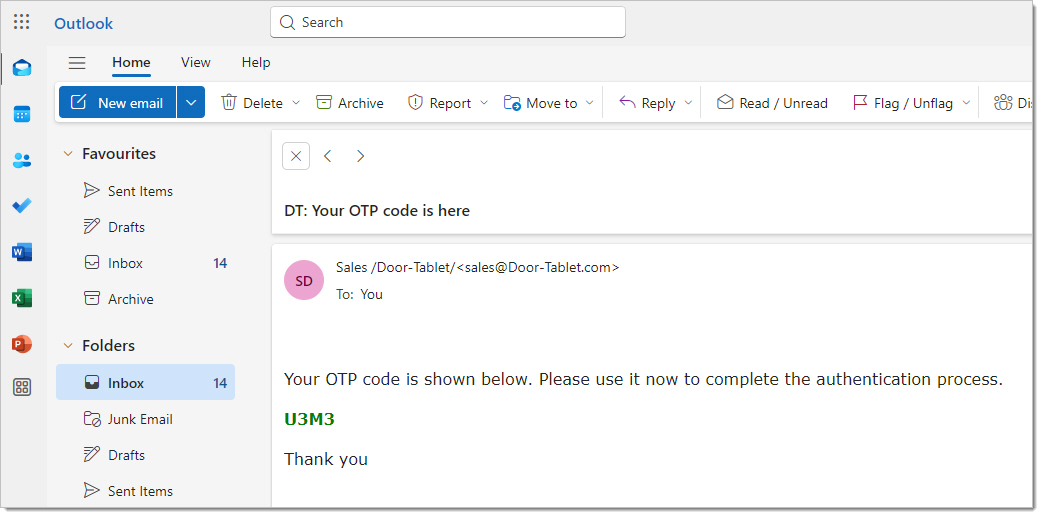
At this point the user will type in the OTP from the email:
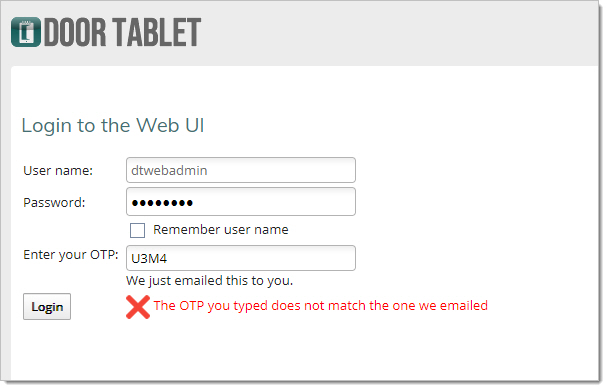
And the usual error handling applies:
 Which email addresses are used
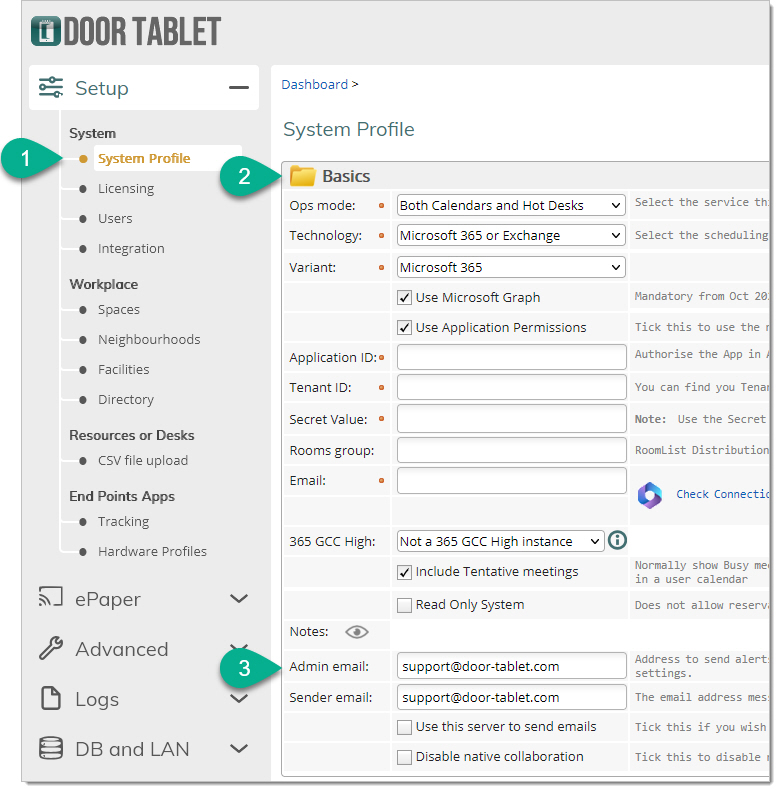
When you use "dtwebadmin", which is the base admin user name, the email address is what is listed in the System Profile for 'Admin Email':
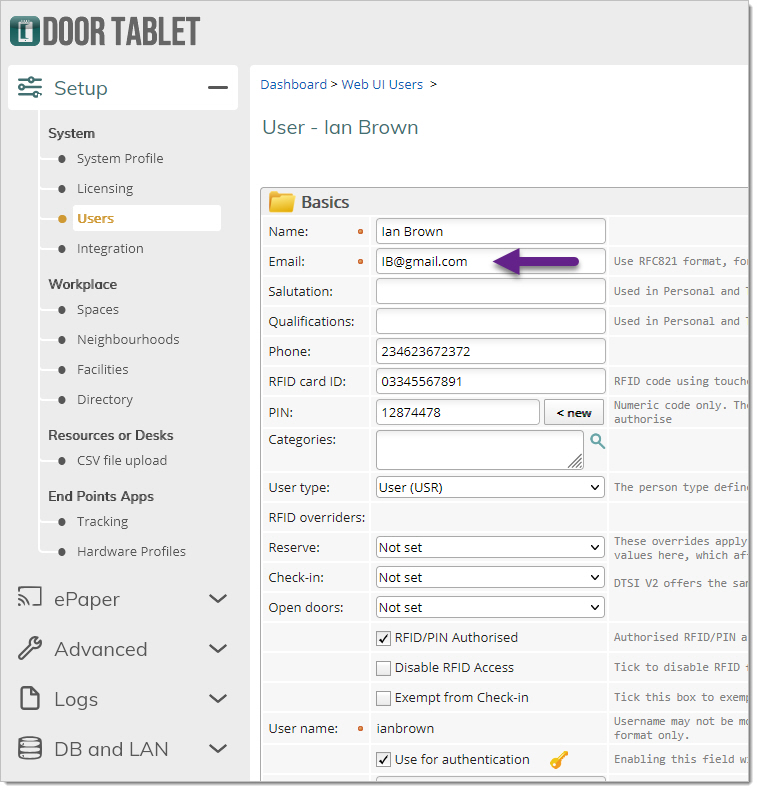
For other users, the email is listed in their user account, as follows:
 Configuration
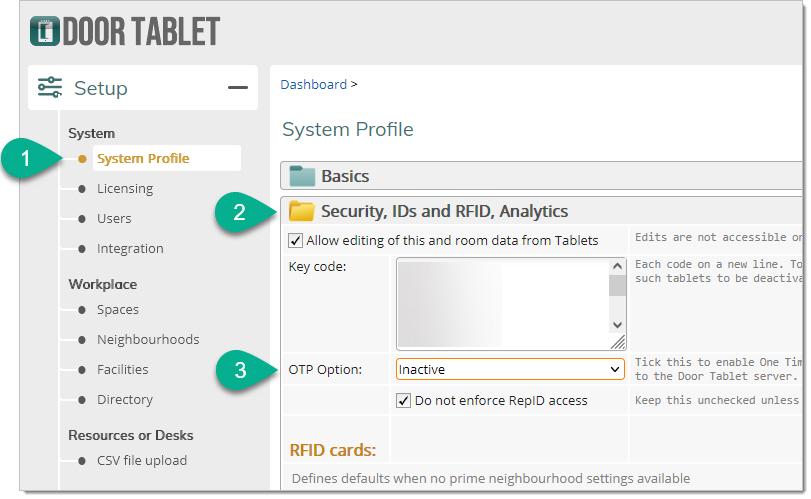
To configure OTP open the System Profile:
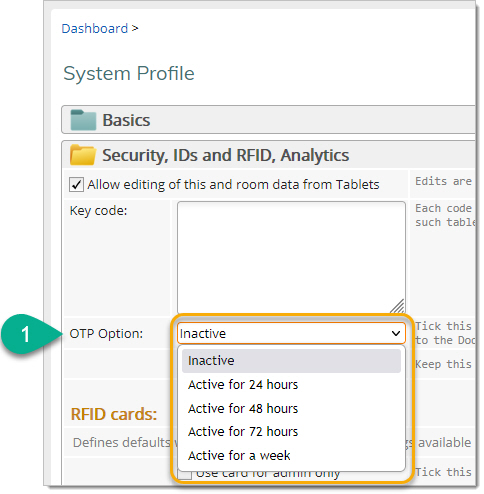
The options are:
 Warning:
You must test that Door Tablet can successfully route mail to you. If you cannot get the OTP code you will not be able to login. In the event the mail routing stopped working, for whatever reason, you can do this:
- Disable OTP by issuing a server console command
- Login to the Web UI
- Resolve the mail routing issue
- Reactivate OTP
- Logout and try again
The console command you need to issue is:
tell doortablet otp
Note:
If you are using an instance on Door Tablet CONNECT you cannot issue console commands. Therefore, contact our support team and they will resolve this for you.
Creating the OTP message
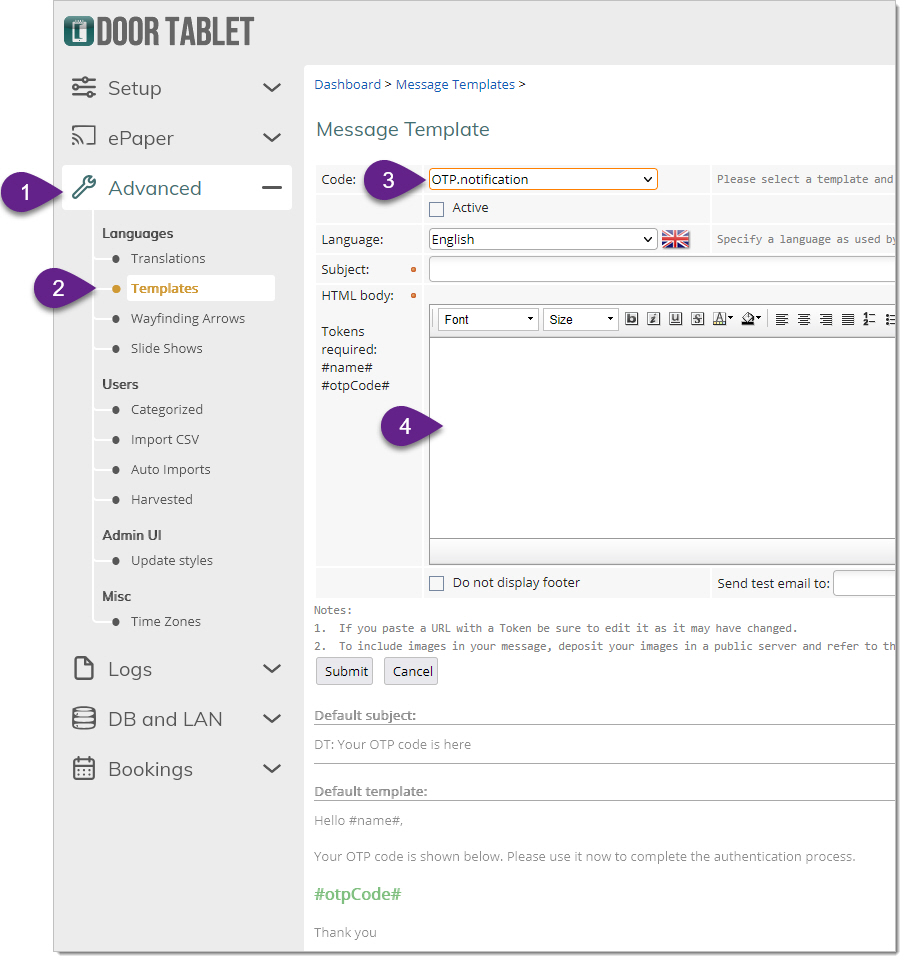
If you like the default message you do not need to do anything here. If you would like to change the message or add the message in another language you can do so using 'Templates':