n
anonymousdoortablet/dthelp.nsfqr-codes
Protected content
| 278pages | Our help system contains many pages and videos for you to consume. This includes the complete information on how Door Tablet works, all its features and options, and of course the many benefits for your business. Door Tablet School offers many videos too. |
|
Click on images to see them in full screen
750E1CCA6FC8EE9E80258D69003CD875Basic QR Codes
Door Tablet displays QR Codes in a few places. This list show where we set these codes and display them for the user:
- Meeting room displays
- Nearby screens in room displays
- Hot desk displays
- ePaper room displays
- ePaper desk displays
- Check-in codes
- Teams sessions
- Zoom sessions
This page covers QR code that are fixed and relate to setup, items 1 to 5 above. For items 6 to 8 codes are generated automatically and you do not need to set this up.
Enabling QR code for meeting rooms
Door Tablet will display QR codes depending on your setup. For systems that use LibCal, the QR codes will show automatically on both the main display and nearby displays. For all others admins decide if QR code should be shown and, needless to say, what is behind them.
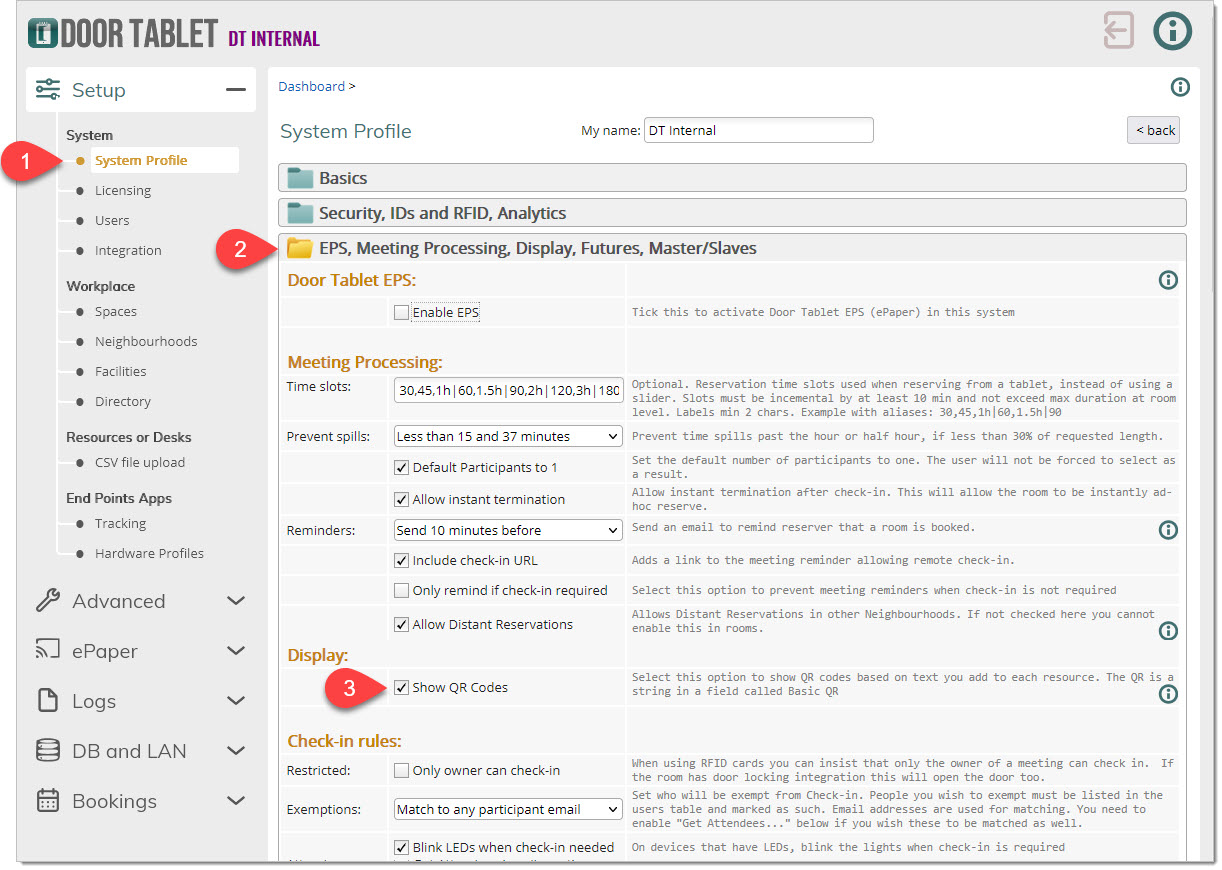
Show QR codes
 Add QR data to resources
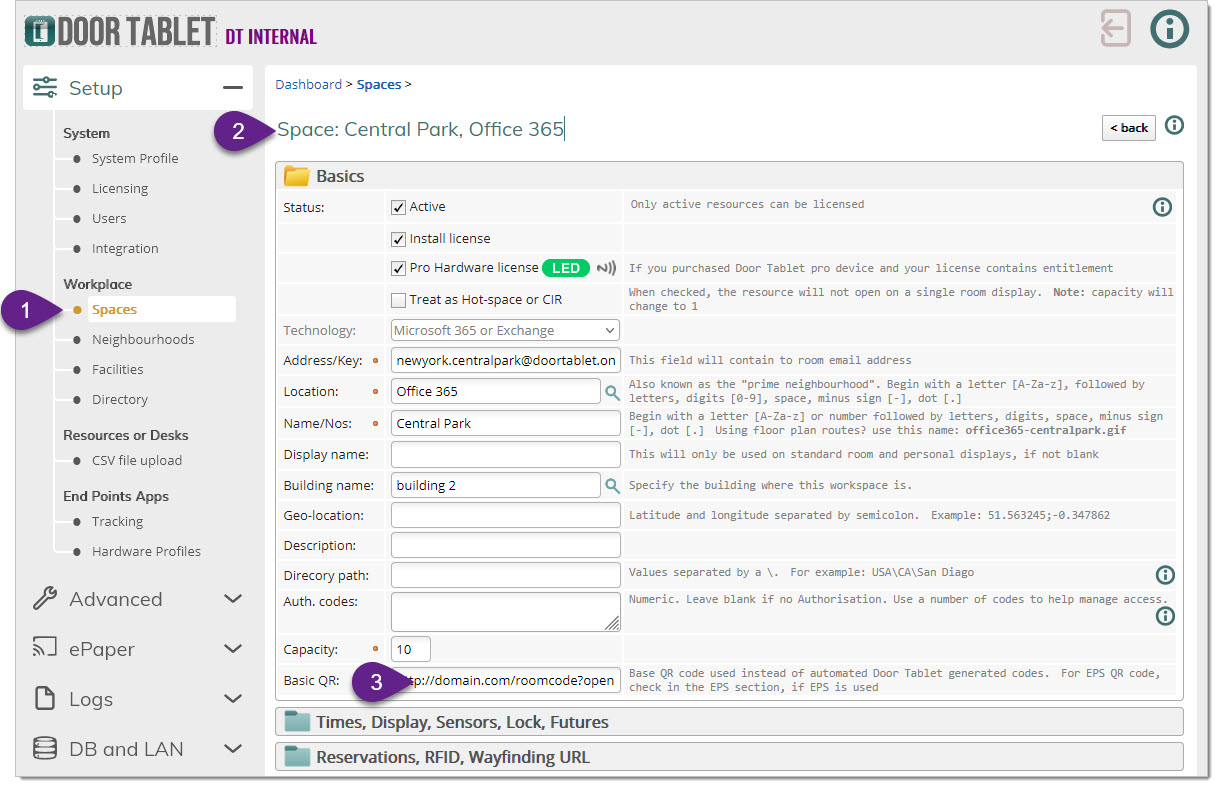
Note: if the Basic QR code is empty, the display will not show one.
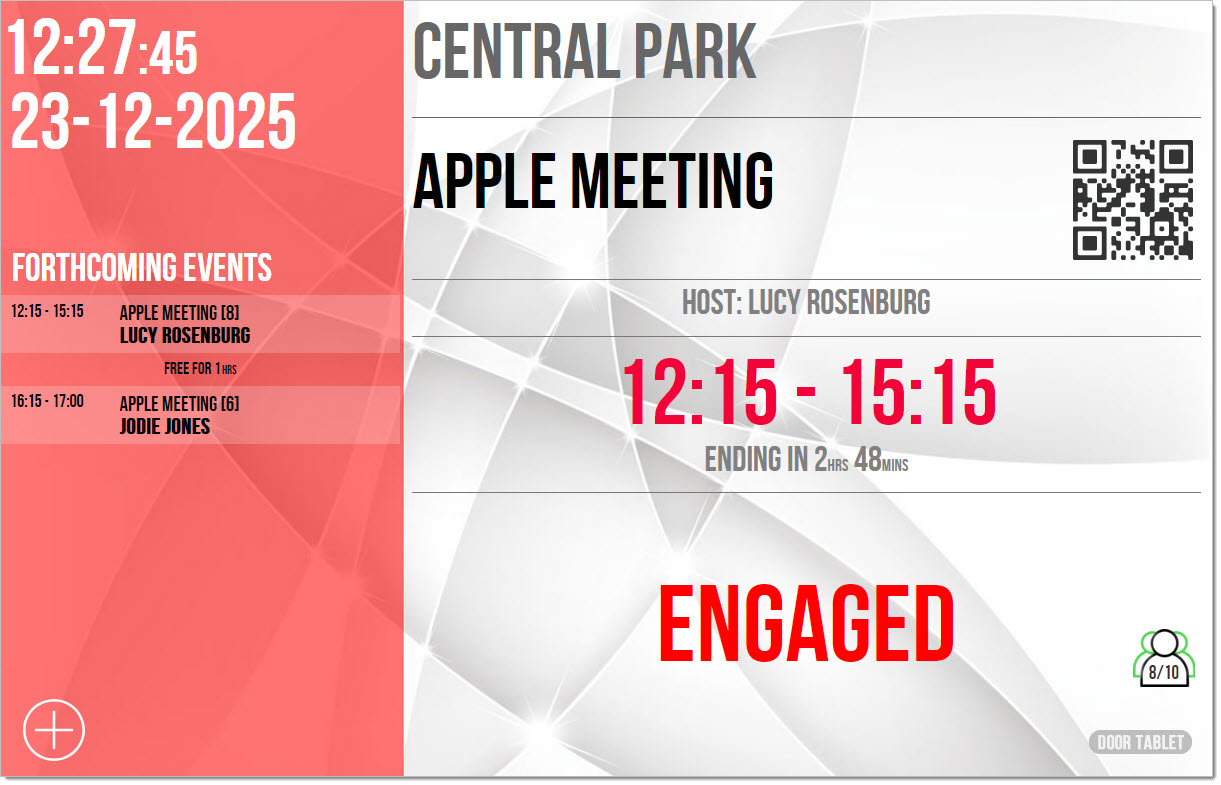
In the Nearby view, if a QR data is missing the invitation to see the QR code will not show:
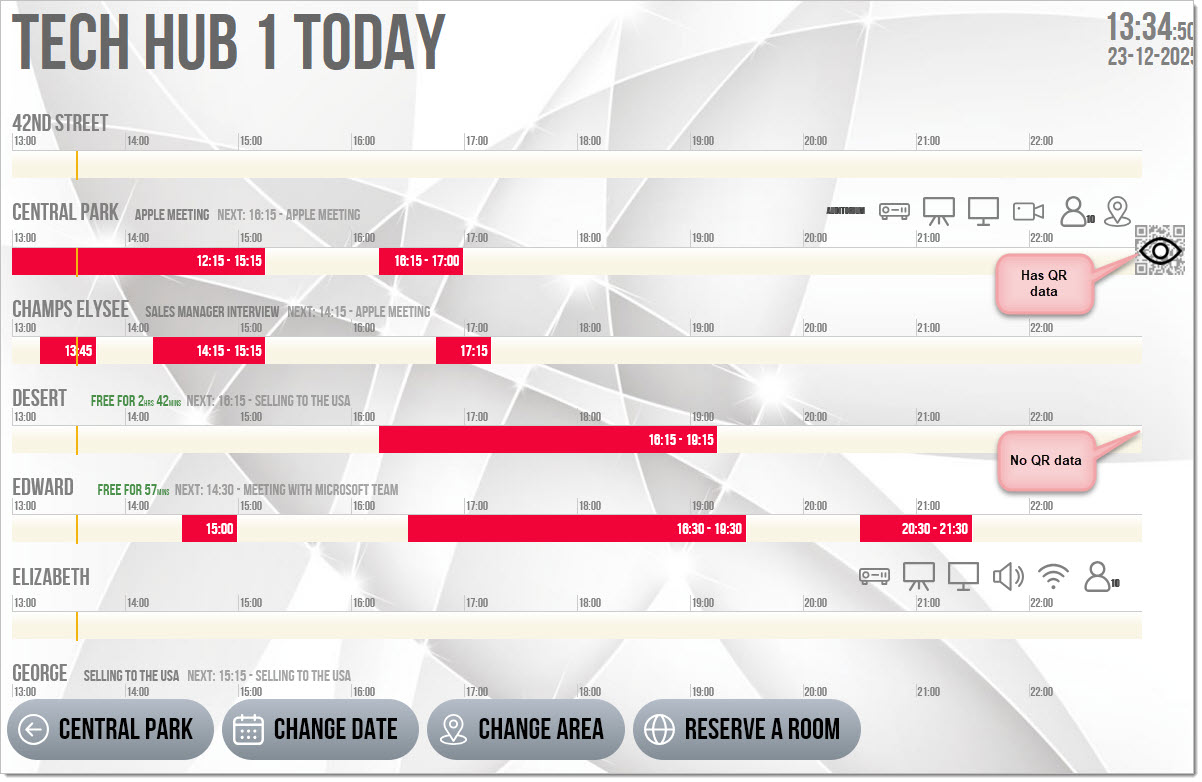
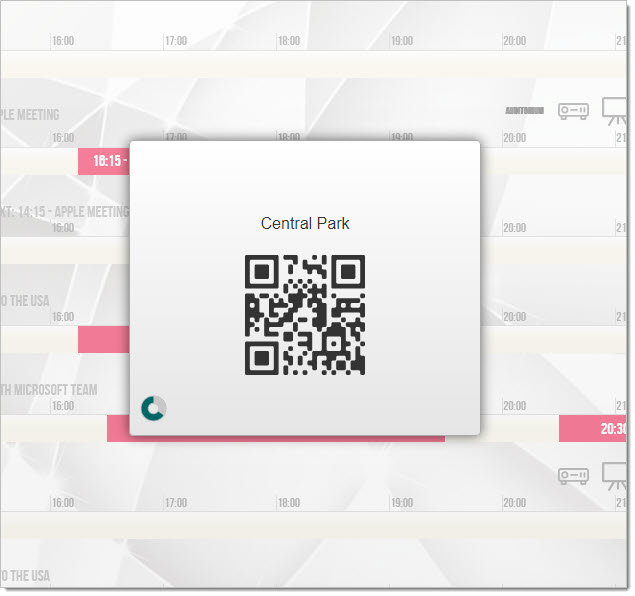
Taping on the icon shows a Popup with the QR you can scan with your phone:
 QR code on EPS devices
Please check the Door Tablet information on EPS devices
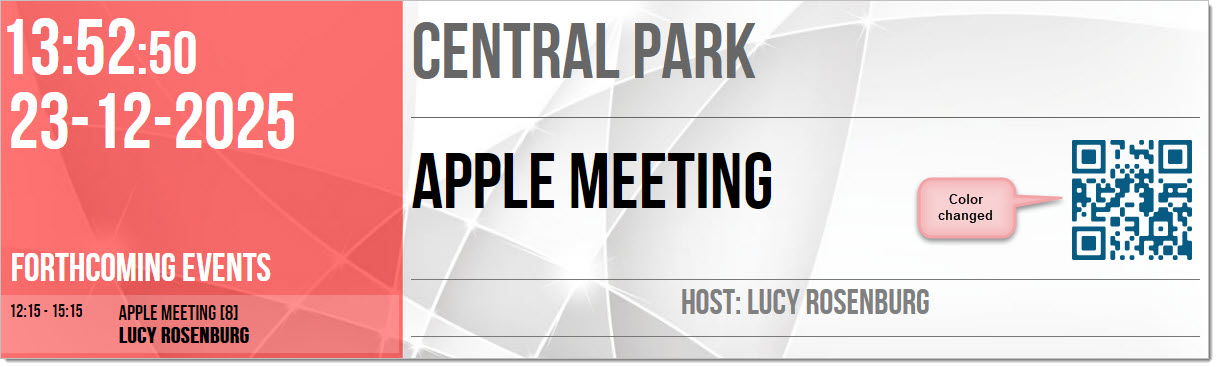
 Color your QR codes
If you like to change the color of QR codes from the standard black, you can do so easily. Use CSS in the normal way to add color:
#qrcodes {
color: #075b82;
}