Click on images to see them in full screen
3BAA22808B56969D80258E93004D7F56Teams integration
Microsoft Teams Integration
Currently supported for CalDAV and Prism bridges. Support is built-in for native Microsoft | |
The Integration page provides configuration and a create-and-delete connection test. The current code implements Teams creation, stored join links and local email for eligible Prism and CalDAV tablet bookings. Tablet extension hooks exist for both providers, and Prism also has cancellation hooks. Live booking validation has been completed. CalDAV termination propagation and reconciliation of changes made directly in either scheduling provider remain unfinished.
This integration is intended for buildings using BuildingEngines Prism or CalDAV as their scheduling provider. A building nominates a Microsoft 365 account to organise Teams meetings for identified tablet bookers. The booker does not need to be the nominated organiser.
Eligibility
- Prism: enable booking on behalf of the booker in System Profile and select BuildingEngines Prism as the User ID Source on the Integration page. The booking must match a Prism user to their tenant.
- CalDAV: the booker must identify themselves using PIN or RFID.
- In both cases, the identified booker must have an email address. Anonymous bookings are outside the intended Teams workflow.
Choose the organiser account
Use a Microsoft 365 work or school account enabled and licensed for Teams meeting scheduling. This account will own the Teams meetings. When several companies share it, the meetings follow the building's Microsoft tenant policies, including external access and lobby settings. Test that intended participants can join and run the meeting without the building organiser being present.
Configure the Microsoft application
- In the organiser's Microsoft tenant, open Microsoft Entra ID → App registrations and register a dedicated application, for example Door Tablet Teams. Choose Accounts in this organisational directory only (single tenant). No redirect URI is needed for this server-to-server integration.
- Record the Directory (tenant) ID and Application (client) ID.
- Under API permissions → Add a permission → Microsoft Graph → Application permissions, add OnlineMeetings.ReadWrite.All and User.Read.All. The latter resolves the organiser Email to a Microsoft user object ID.
- Grant administrator consent for the tenant. This is an application permission for unattended server operation.
- Under Certificates & secrets, create a client secret and securely record its value. The secret ID is not the value used for authentication. Track its expiry and arrange renewal.
- Record the nominated organiser's Microsoft Entra user object ID for the access policy.
Authorise the organiser
Microsoft also requires a Teams application access policy. Granting API consent alone does not authorise the application to create meetings for the organiser.
An authorised Teams administrator should connect using Teams PowerShell and run the following, replacing the placeholders with the application's client ID and organiser's user object ID:
The application access policy is a separate Teams PowerShell step; configuring permissions in Entra does not create it. Use PowerShell 7.2 or later on the administrator workstation; Microsoft also supports Windows PowerShell 5.1. Run the following commands one at a time:
Install-Module -Name MicrosoftTeams -Scope CurrentUser -Repository PSGallery
Import-Module MicrosoftTeams
If prompted, accept the official PowerShell Gallery repository or required package provider. Install and import the module in the same PowerShell environment: a module installed for PowerShell 7 may not be visible in Windows PowerShell 5.1.
Sign in with a Teams administrator account for the correct tenant. Before creating or assigning a policy, inspect existing settings:
Connect-MicrosoftTeams -TenantId "DIRECTORY-TENANT-ID"
Get-CsOnlineUser -Identity "ORGANISER-EMAIL" | Format-List Identity,UserPrincipalName,ApplicationAccessPolicy
Get-CsApplicationAccessPolicy
If the organiser already has an application access policy, review it before replacing the assignment. If DoorTabletTeams already exists, check whether it includes the new Application ID; do not blindly recreate it or replace its application list. For a new policy and an organiser without a conflicting assignment:
New-CsApplicationAccessPolicy -Identity "DoorTabletTeams" -AppIds "APPLICATION-CLIENT-ID" -Description "Door Tablet Teams meetings"
Grant-CsApplicationAccessPolicy -PolicyName "DoorTabletTeams" -Identity "ORGANISER-OBJECT-ID"
Assign the policy to the nominated organiser only. APPLICATION-CLIENT-ID is the new app registration ID; ORGANISER-OBJECT-ID is the user Identity returned by Get-CsOnlineUser. Do not use the tenant ID or secret in their place. Verify the result:
Get-CsApplicationAccessPolicy -Identity "DoorTabletTeams" | Format-List Identity,AppIds,Description
Get-CsOnlineUser -Identity "ORGANISER-EMAIL" | Format-List UserPrincipalName,ApplicationAccessPolicy
The policy AppIds must contain the new application ID, and the organiser ApplicationAccessPolicy must show DoorTabletTeams. Allow up to 30 minutes for policy changes to take effect, then use Check connection to Teams in Door Tablet. No client secret is needed by these policy commands.
Configure Door Tablet
- Open Setup → Integration. The Microsoft Teams section appears only for Prism and CalDAV.
- For Prism, save the required booker-matching and ID-source settings, then reopen Integration if the Teams checkbox is disabled.
- Select Enable to display the connection fields.
- Enter Tenant ID, Application ID, Secret Value and Email. Use the nominated organiser Microsoft 365 user principal name in Email. All four labels are marked as mandatory. This account organises the meeting; the tablet booker will receive the join link.
- Select Check connection to Teams. The test uses the currently entered values without requiring a save. It authenticates, resolves the organiser and creates a temporary standalone Teams meeting with no attendees, then deletes it immediately. No invitation or calendar event is created. Success confirms meeting creation and cleanup, but participant access and the real booking workflow still require testing. If cleanup fails, the result identifies the test subject and meeting ID. If creation times out, a test meeting may remain without a known ID: check before repeating. Standalone meetings do not appear on the organiser calendar, so an administrator may need Microsoft Graph to remove a remaining meeting using the reported organiser and meeting ID.
- Submit the page to save the settings in the System Profile.
These are separate Teams integration settings. They do not replace Prism or CalDAV connection credentials, or the Microsoft scheduling backend settings.
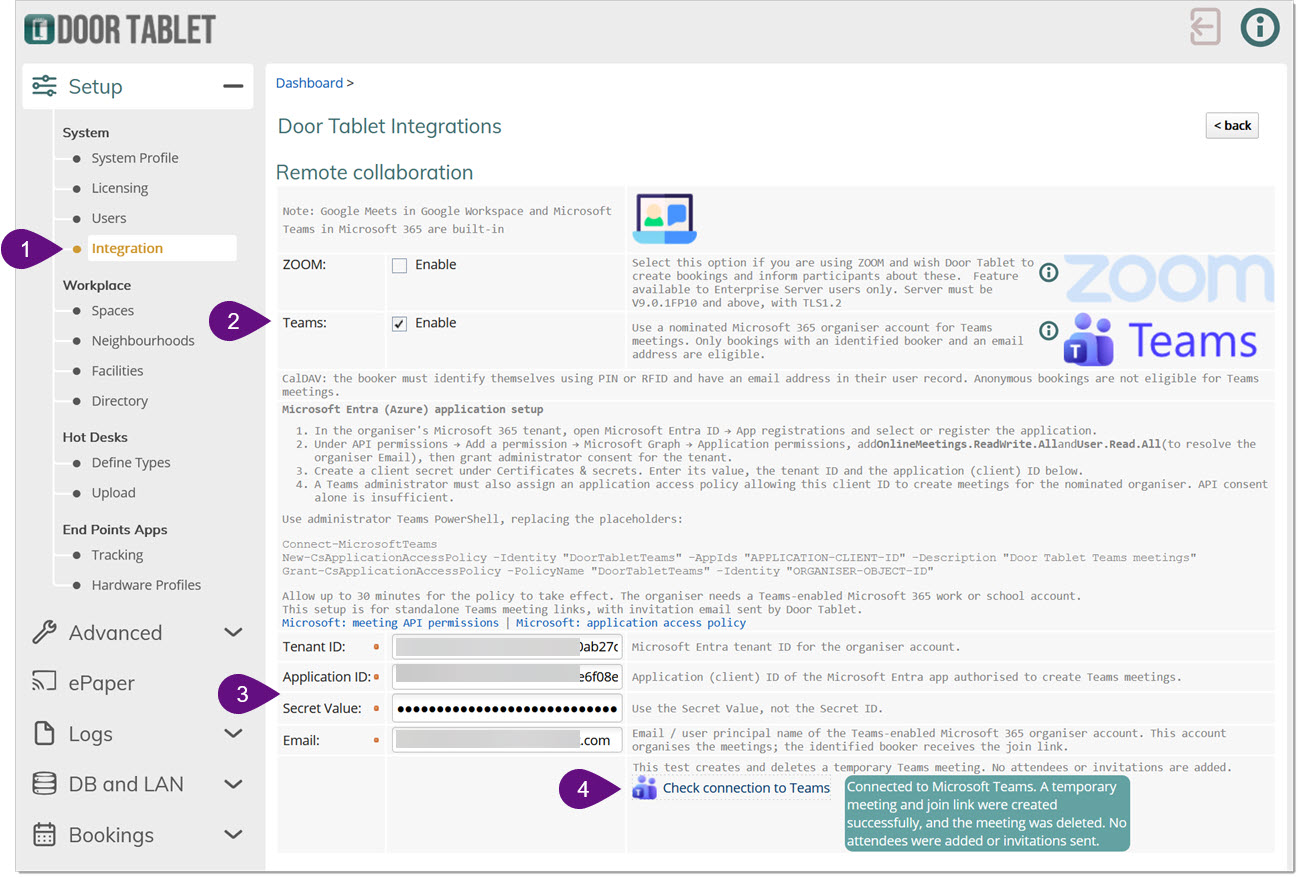
Successful connection test
A successful result states that a temporary meeting and join link were created and the meeting was deleted, with no attendees added or invitations sent. This verifies Microsoft credentials, organiser lookup, the application access policy and meeting creation/deletion for that organiser. It does not verify participant lobby behaviour or automatic Teams creation for tablet bookings.
Tablet booking workflow
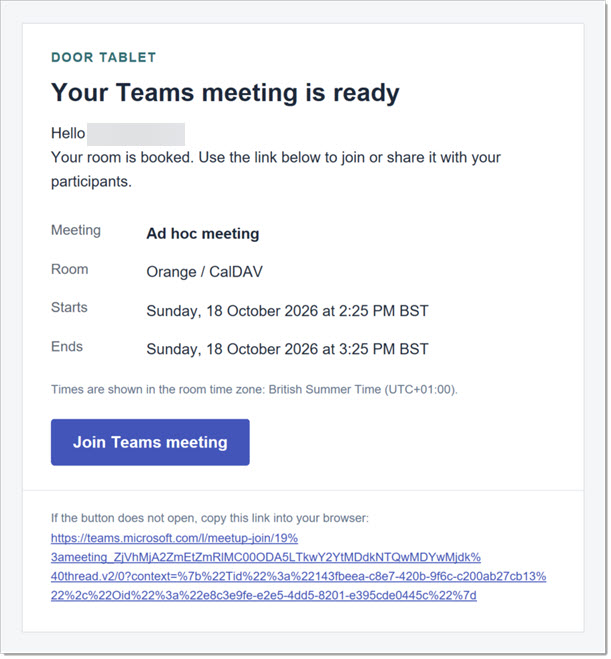
With Teams enabled and the settings saved, Door Tablet attempts to create a standalone Teams meeting after an eligible tablet room booking has been confirmed. The nominated Microsoft account organises the meeting. Door Tablet saves the join link with the reservation for the tablet join/QR flow and queues a local email to the identified booker. Configure the Door Tablet server mail routing and verify delivery; queuing an email does not confirm that it arrived.
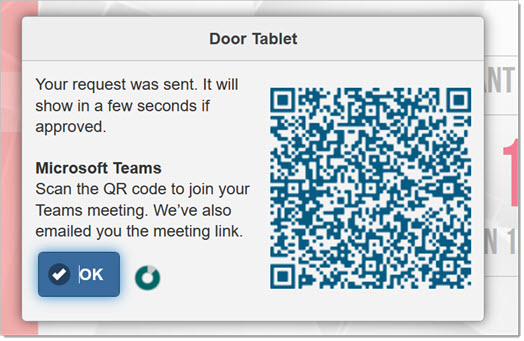
For CalDAV, the server must authenticate the booker through the existing PIN/RFID lookup and obtain an email address from the user record. Entering an email address alone does not qualify. When the Teams email is successfully queued, it replaces the generic CalDAV booking email. The email uses the tablet time zone where valid, falling back to the room time zone.
If Teams fails: the confirmed room booking remains in place. A warning can indicate that meeting creation, link storage or email was not confirmed. Check the reservation and any available join link; do not book the room again to retry Teams. If email cannot be queued after the link is saved, the link remains available on the tablet. Administrator recovery may be needed; there is no automatic background repair or dedicated retry control.
Email confirming your Team session:
Extending and cancelling bookings
- Prism: tablet extension updates the Teams end time; tablet cancellation and no-show cancellation attempt to delete the linked Teams meeting.
- CalDAV: a confirmed tablet extension updates the Teams end time and keeps the same join link. An extension notification email is not yet implemented. Propagation of CalDAV termination/cancellation to Teams remains unfinished; do not assume that ending the room booking removes its Teams meeting.
- If a Teams update fails, the successful room change remains in place and a warning is recorded. Do not repeat the room extension to retry Teams.
- Changes or deletions made directly in Prism or the CalDAV calendar are not reconciled to Teams. Review the linked Teams meeting separately.
The selected design uses standalone Teams meeting links and Door Tablet mail delivery. Creating a standalone online meeting does not itself send a Microsoft calendar invitation.
If Windows blocks the setup script
If PowerShell reports that running scripts is disabled, the script has not run. Leave the execution policy unchanged and enter the setup commands interactively instead. Run Import-Module MicrosoftTeams in that same PowerShell window; if the module is unavailable, install it for the current user first. If Windows PowerShell cannot load PowerShellGet or find MicrosoftTeams, open PowerShell 7 and repeat installation/import there. Do not change the system execution policy just to run the setup file. Connect to the correct tenant, inspect the organiser and existing policies, then create and assign the policy as described above.
Connection-test troubleshooting
- Authentication failure: check the tenant, Application ID, Secret Value and secret expiry.
- Organiser lookup failure: use the Microsoft user principal name and check User.Read.All application permission and administrator consent.
- Teams test meeting creation HTTP 403: authentication and organiser lookup have already succeeded. Check that the application access policy includes this app and is assigned to this organiser. Allow up to 30 minutes after changes. Also check the organiser is enabled and licensed for Teams.
- Not authorised to test: sign in to the Door Tablet admin UI with Integration edit permission. If the saved provider is not Prism or CalDAV, select and save the appropriate scheduling technology first.
- Meeting deletion not confirmed: retain the reported subject and meeting ID and ask the Microsoft administrator to check and remove the temporary standalone meeting before repeating tests.
- Timeout or socket failure: check connectivity and VPN from the Door Tablet server.
Checks when configuring a building
- Verify successful meeting creation for both an identified Prism tenant user and a CalDAV PIN/RFID user.
- Verify that anonymous or unresolved bookers cannot create a Teams session.
- Confirm organiser ownership, email and QR delivery, and external-user lobby behaviour.
- Test booking changes, cancellation, API failure and retry behaviour before documenting those flows as supported.
Microsoft references