anonymous216.73.216.180
Door Tablet NOW
Your workplace
Now on your phone
Scan a QR code at a room, desk or wayfinding display. Open Door Tablet NOW in your mobile browser to see what’s available, book a space and manage your booking.
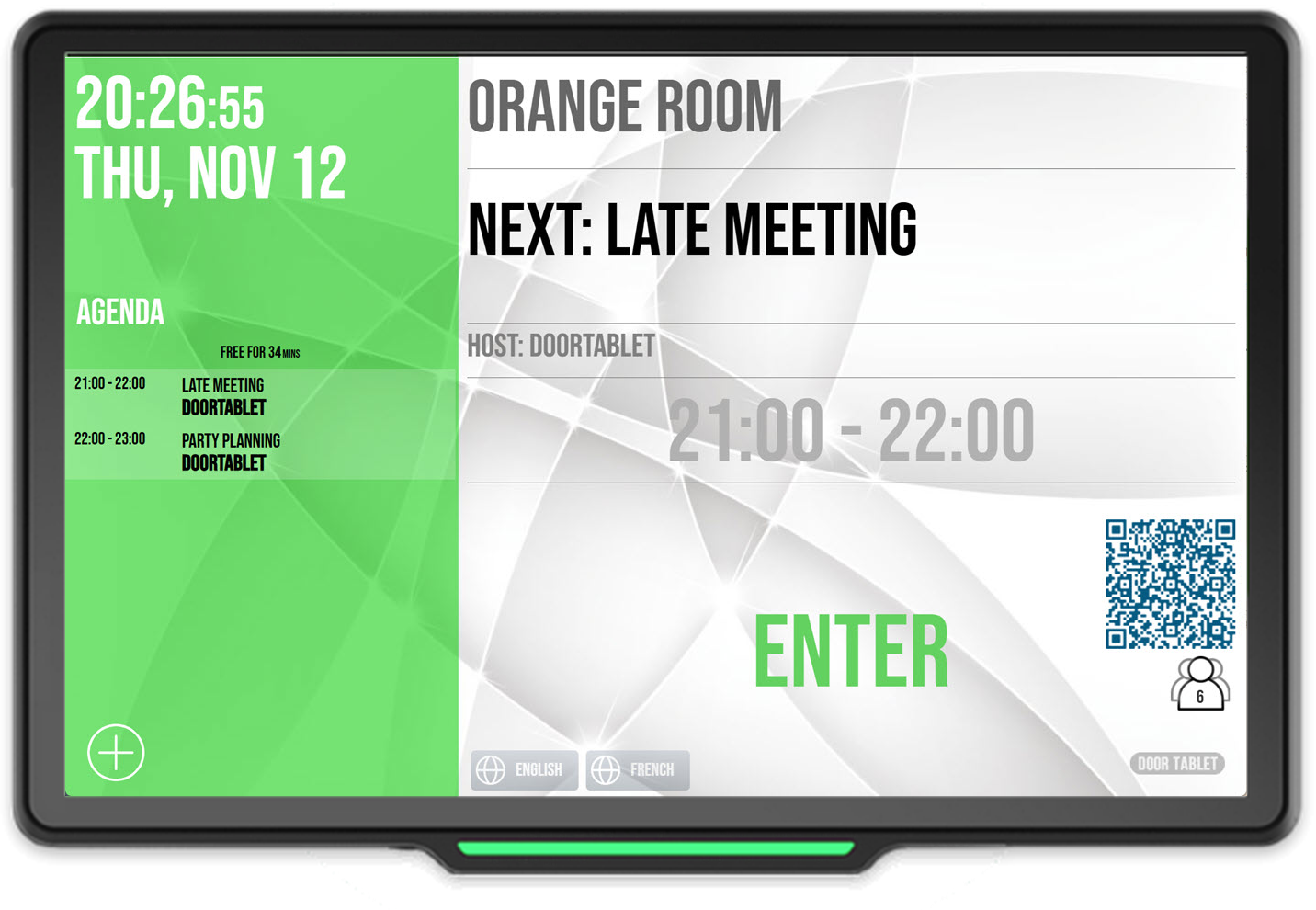 Room display
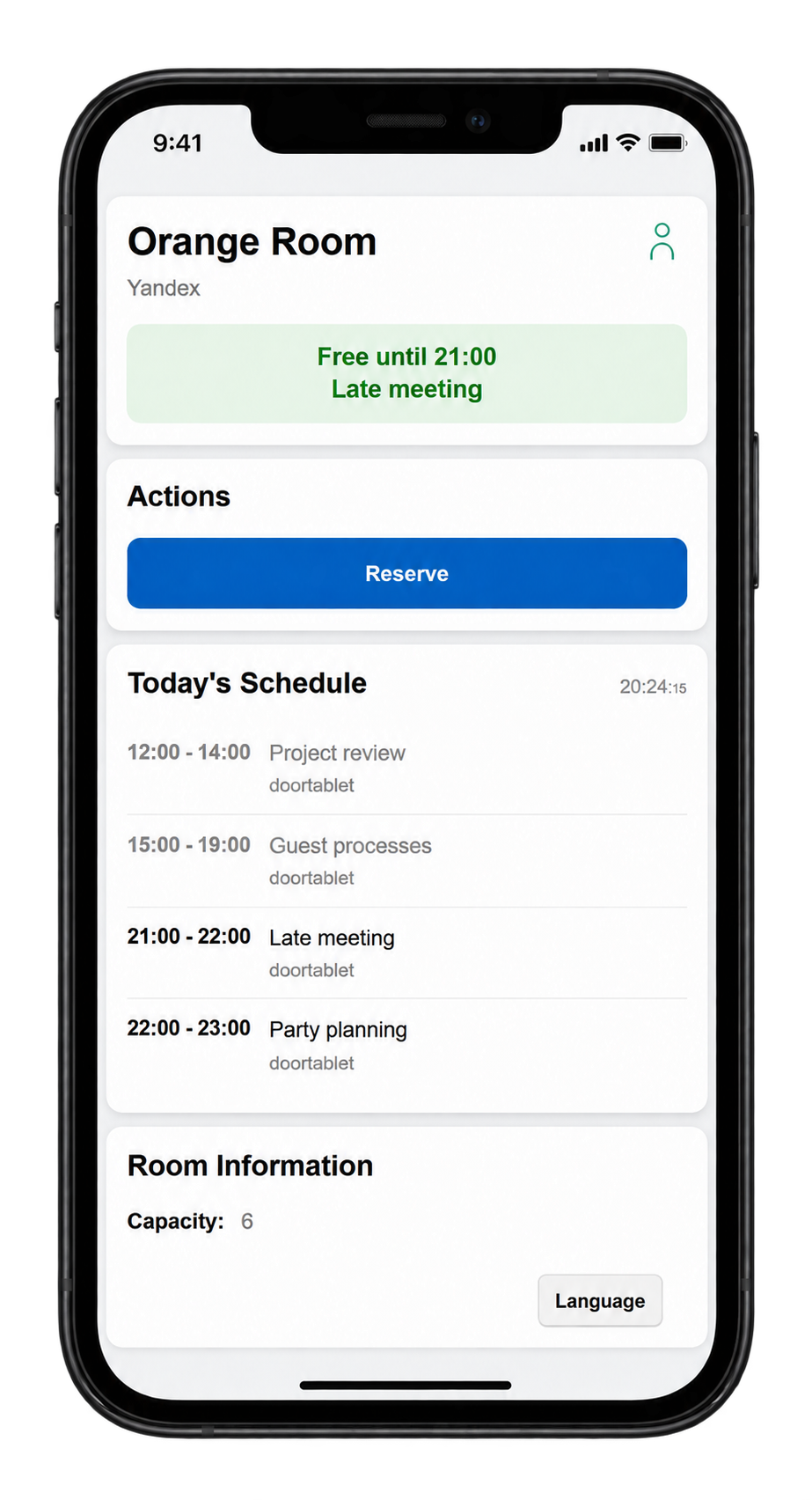 Door Tablet NOW
Scan the room’s QR code to open Door Tablet NOW in your mobile browser.
No separate app to install. Just a mobile browser, the space in front of you and the controls your workplace makes available.
Opens in your mobile browserWorks with Door Tablet EPSFollows your workplace rules
01
Scan the space
Use your phone camera to scan a QR code on a display, a desk label or a floor plan.
02
See the details
Open the link in your mobile browser to see that room or desk’s availability and details.
03
Take the next step
Identify yourself when prompted, then book, check in or manage your booking using the controls available to you.
A room for right now
Turn a free moment
into a meeting.
A conversation needs a little privacy. A team needs somewhere to gather. Door Tablet NOW shows whether the room is free and how long you have before the next booking.
- Know the space. Check the room’s capacity and available facilities, such as Wi-Fi, a whiteboard or video conferencing.
- Choose your time. Select Reserve, choose an offered duration and set the number of people.
- Confirm and get started. Review the end time, reserve the room and check the updated schedule.
Booking options follow room permissions and the time available. Use your usual calendar tools for future or recurring meetings.
Add a Teams or Zoom session
Where enabled, a reservation can create a Microsoft Teams or Zoom session at the same time, bringing the space booking and online meeting together.
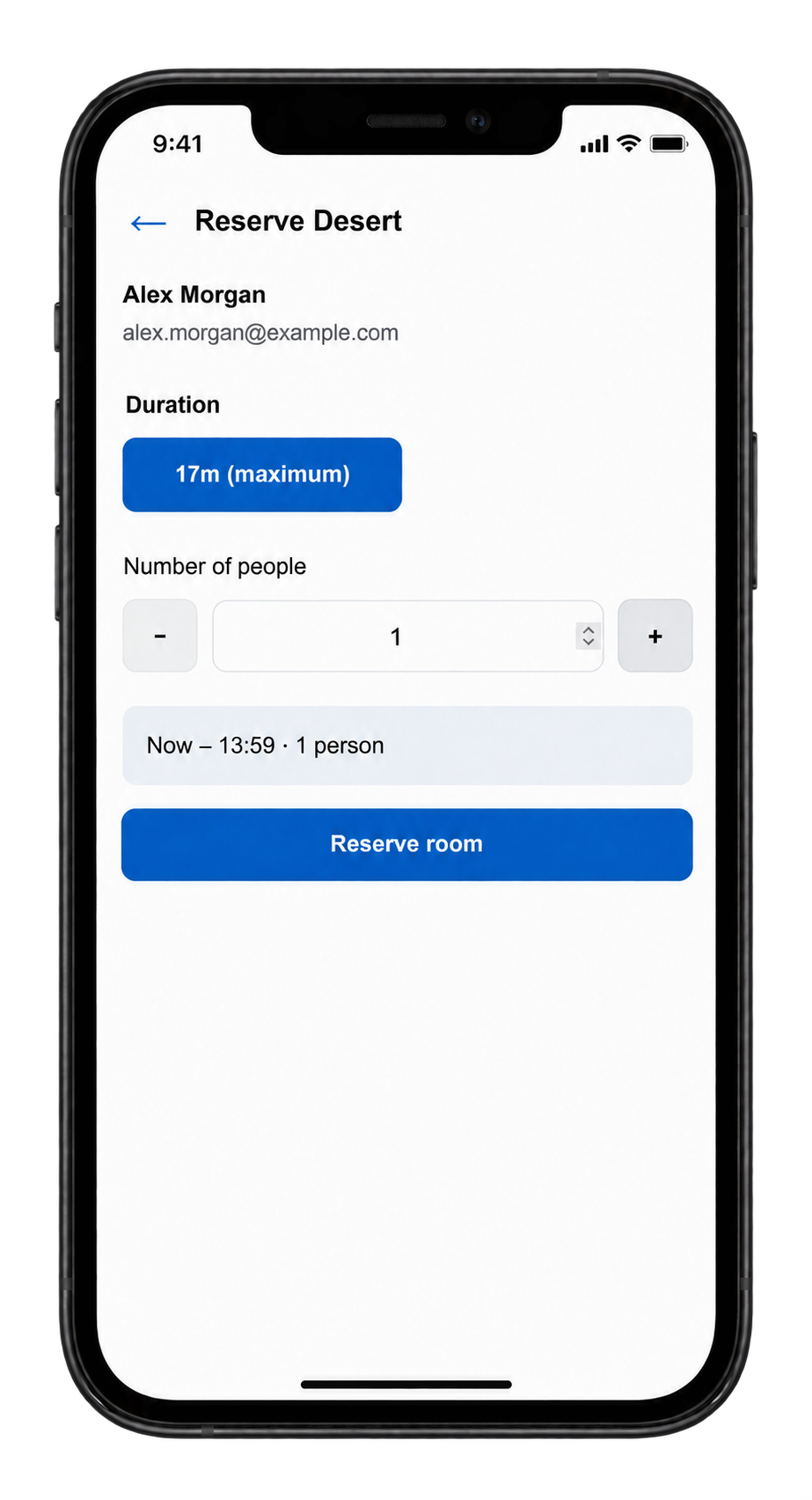 Room reservation shown. Desks follow the same reservation process.
Your desk. Your day.
One person. One desk.
Your identity.
Scan the QR code beside the desk name and open that desk in Door Tablet NOW. Book a place for yourself, check in when you arrive and manage your booking from your own phone.
Your verified identity connects you to a single desk, so the space you use is the space booked for you.
A printed label is all you need
Print a QR code with the desk name beside it and stick it directly to the desk. No display hardware is required for people to scan the label and use Door Tablet NOW.
For professionally produced desk stickers, Door Tablet provides a dedicated spreadsheet output with the desk QR-code data. Supply it to a specialist label or sticker agency to produce your labels.
Explore desk booking
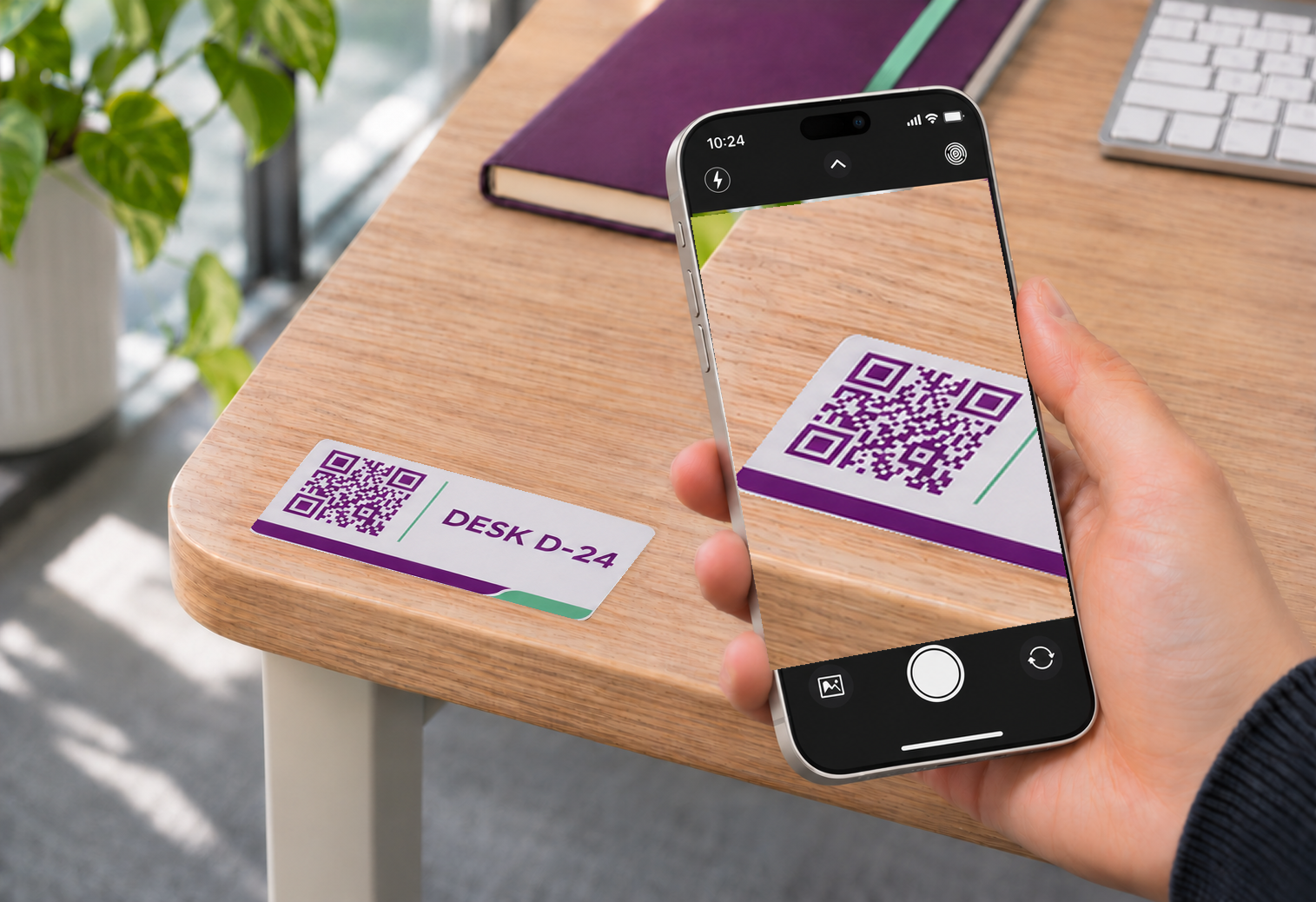 Scan the label for Desk D-24 with your phone.
Book your desk
Reserve an available desk for yourself. One desk at a time: overlapping desk bookings are blocked.
Check in
Confirm your arrival from one hour before your booking. Your identity is checked against the desk reservation.
Extend your time
Stay longer when availability and your workplace rules allow it.
Finish early
End your booking early and release the desk for someone else.
Find your desk
At someone else’s desk? Check-in is blocked and Door Tablet NOW shows the desk you have booked.
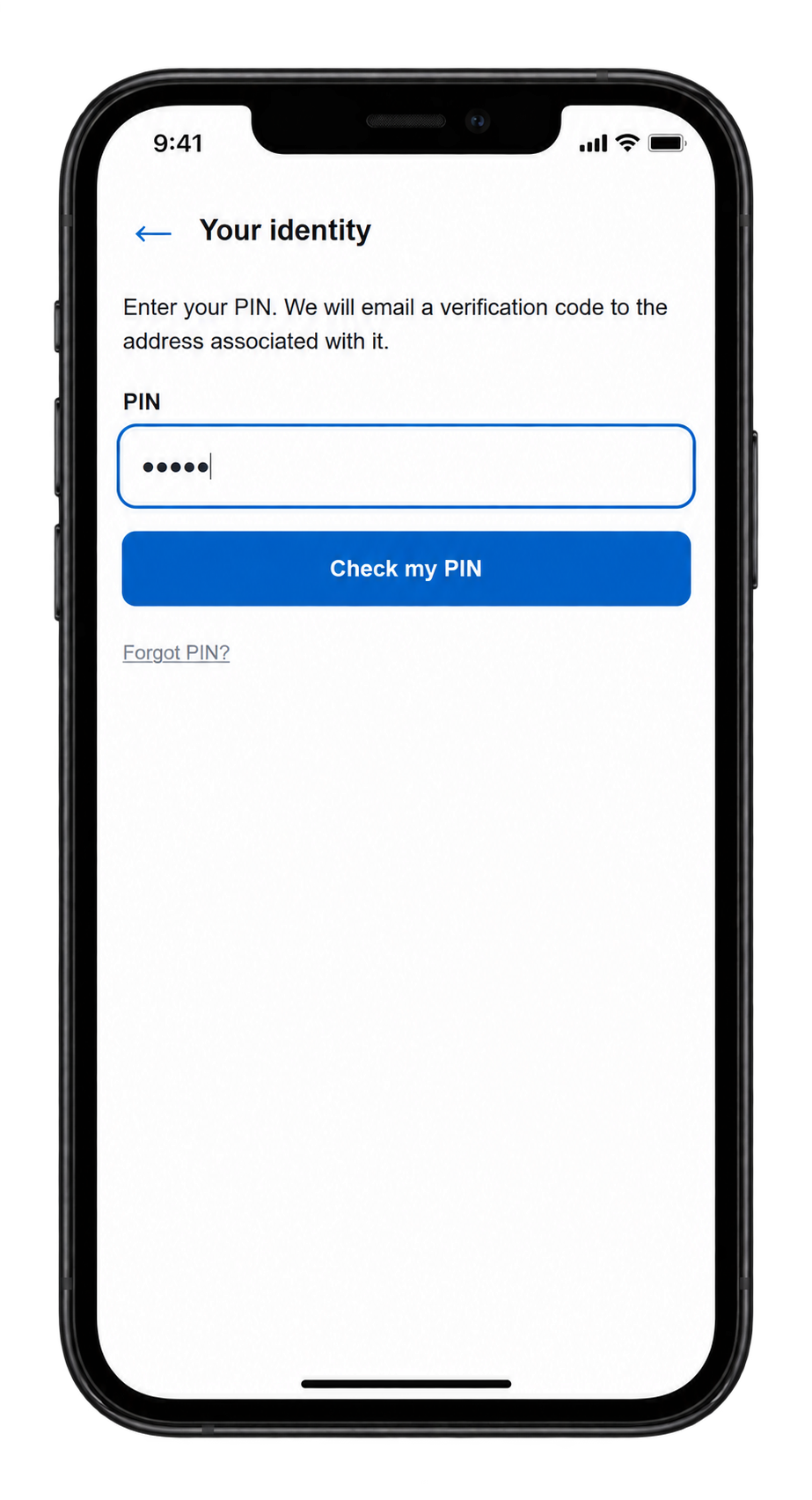 Identify yourself when an action requires it.
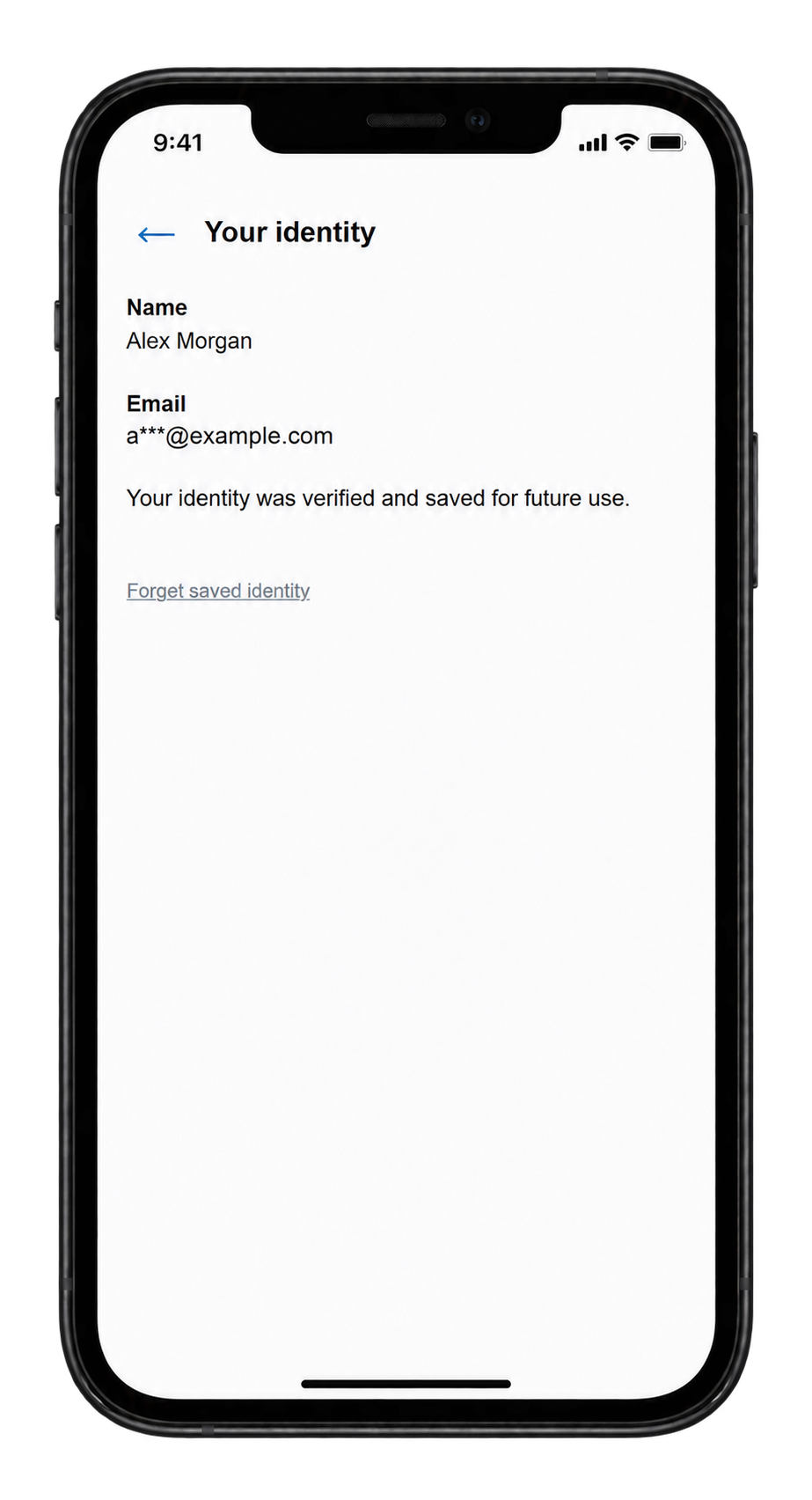 Keep a verified identity in your browser for later visits.
A personal screen. An identified user.
Your identity,
ready when you need it.
Bring identification to the device you carry. Your organisation can use an existing Door Tablet PIN or a journey that asks for your name and email address. Both complete verification with a code sent by email.
Door Tablet NOW can remember your verified identity in that browser, reducing repeated entry on later visits. You can review or forget the saved identity from the room screen.
The actions you see depend on your permissions and the room or desk’s settings.
When plans change
Keep the conversation moving.
Give time back when you’re done.
Meeting controls are there when your identity, calendar connection and room policy allow them.
Need a little longer?
Extend your meeting
Choose an available extension and review the new end time. Door Tablet NOW checks the gap before the next booking.
Current meeting rules allow one extension for an eligible meeting.
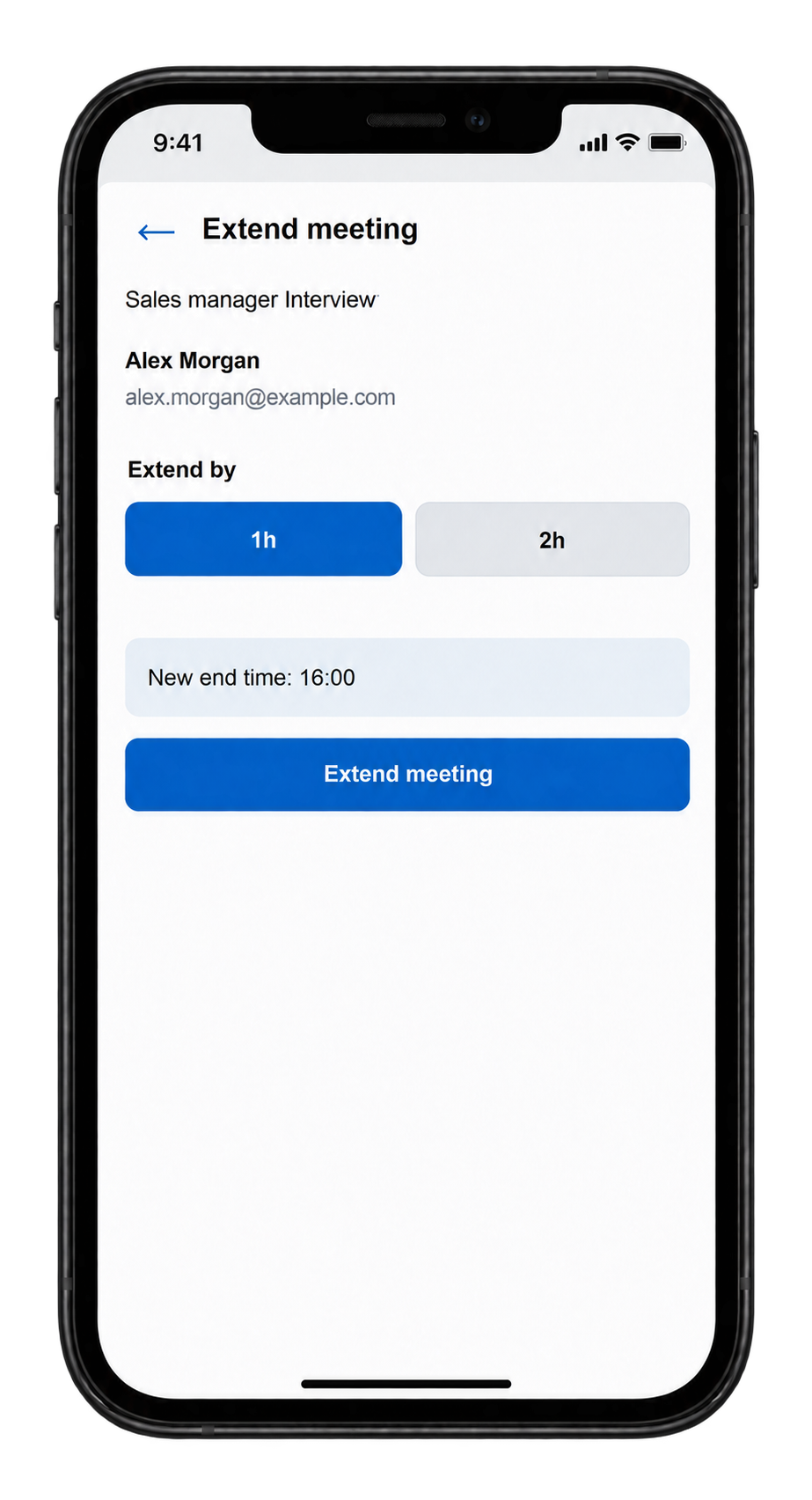 Review the extra time.
Finished early?
Release the room
Use Terminate to end an eligible active meeting early and make the remaining time available to colleagues.
Release depends on ownership, check-in and room policy.
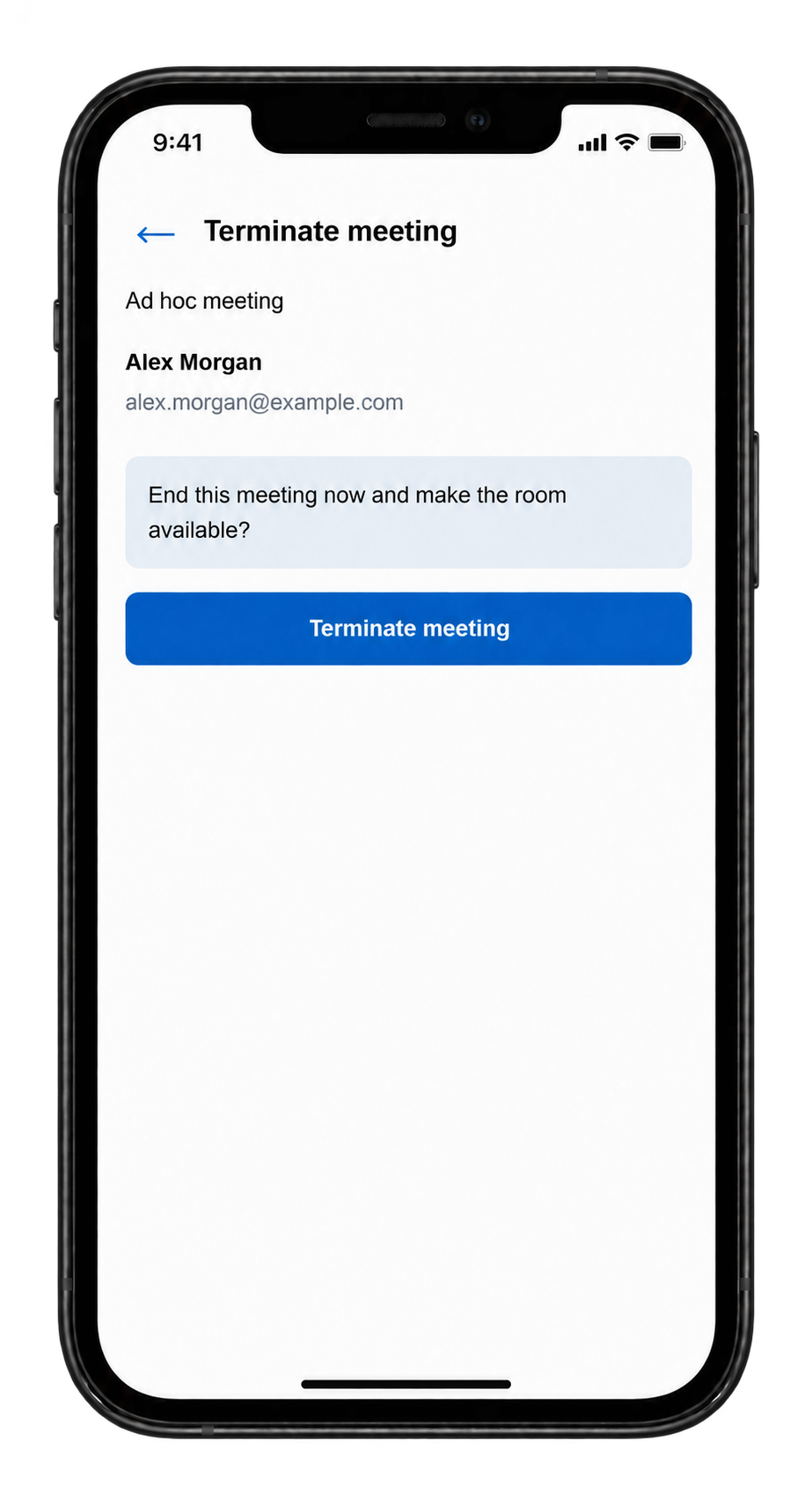 Confirm before releasing.
Door Tablet EPS + Door Tablet NOW
Bring interactivity to ePaper displays.
Door Tablet EPS presents rooms and desks on ePaper displays. Door Tablet NOW brings interaction to the phone: scan the QR code, see the schedule and take an authorised action.
At the meeting room
Show the room, meeting details and QR code on an ePaper room display. Scan to view availability and manage an eligible booking on your phone.
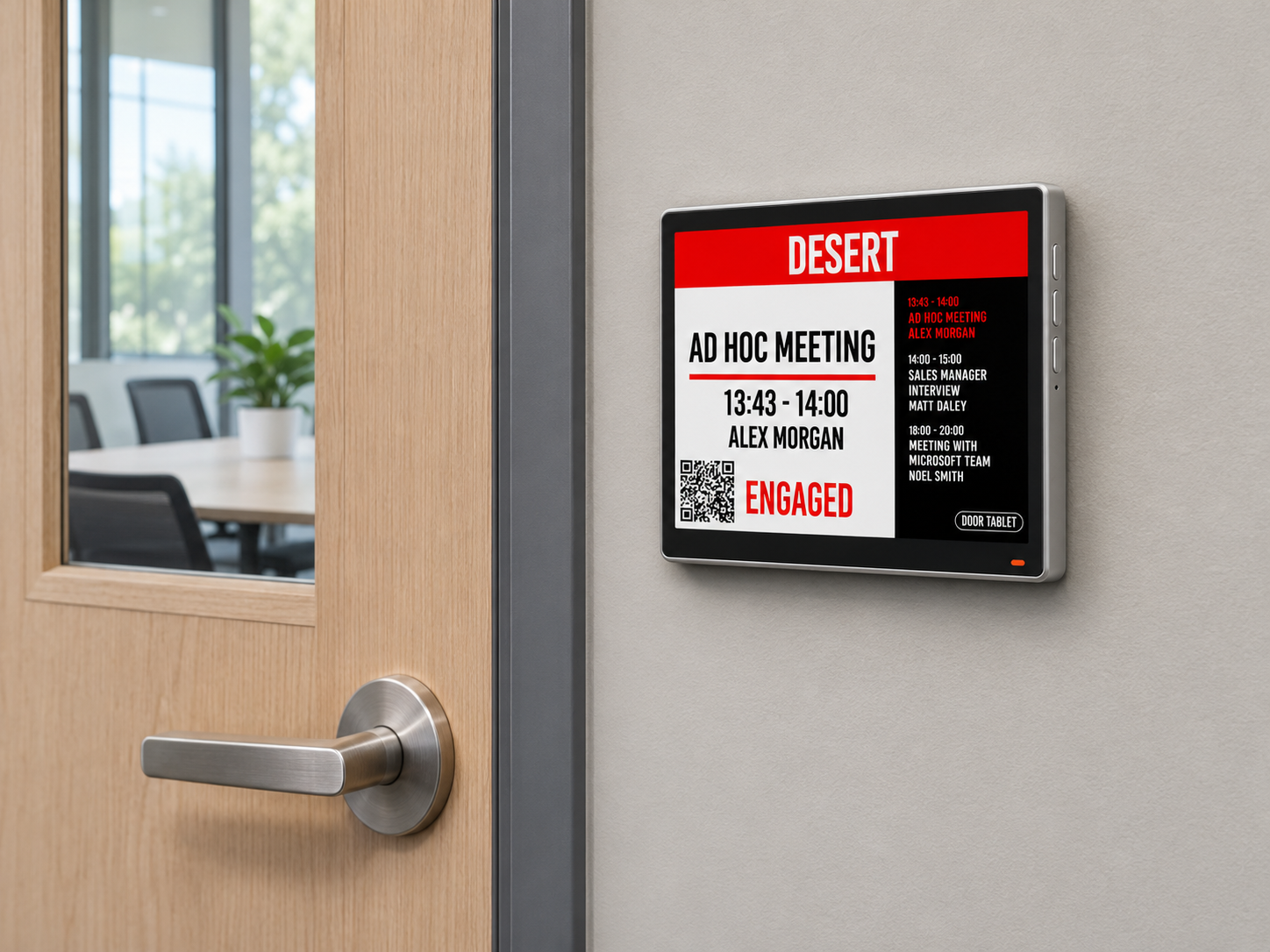 Wall-mounted ePaper beside a meeting-room door.
At the desk
A four-inch ePaper display can sit flat on the desk, showing its name, booking details and QR code. People scan the code and use their phone for the interaction.
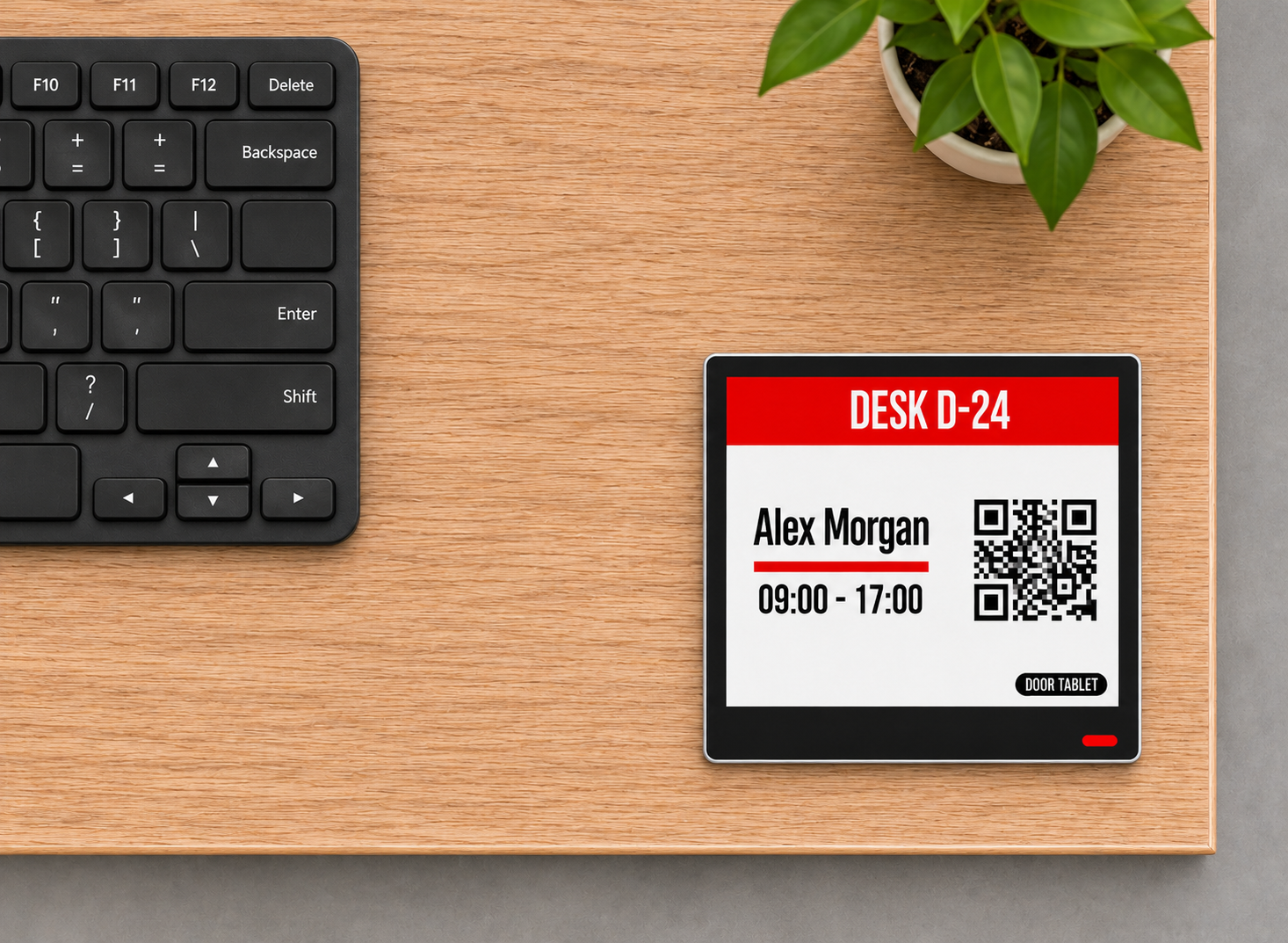 A four-inch ePaper display mounted flat, face-up on the desk.
On Door Tablet ePaper displays, QR codes can be black, red or white, chosen to contrast with the background.
Your phone connects to the Door Tablet server. The EPS display follows its configured update process, so its image may refresh later than the phone’s schedule.
Explore Door Tablet EPS
From the floor plan to your phone
Find a space.
Scan to make it yours.
Bring Door Tablet NOW to your wayfinding displays. Show QR codes on the floor plan so people can open the space they are looking at on their own phone.
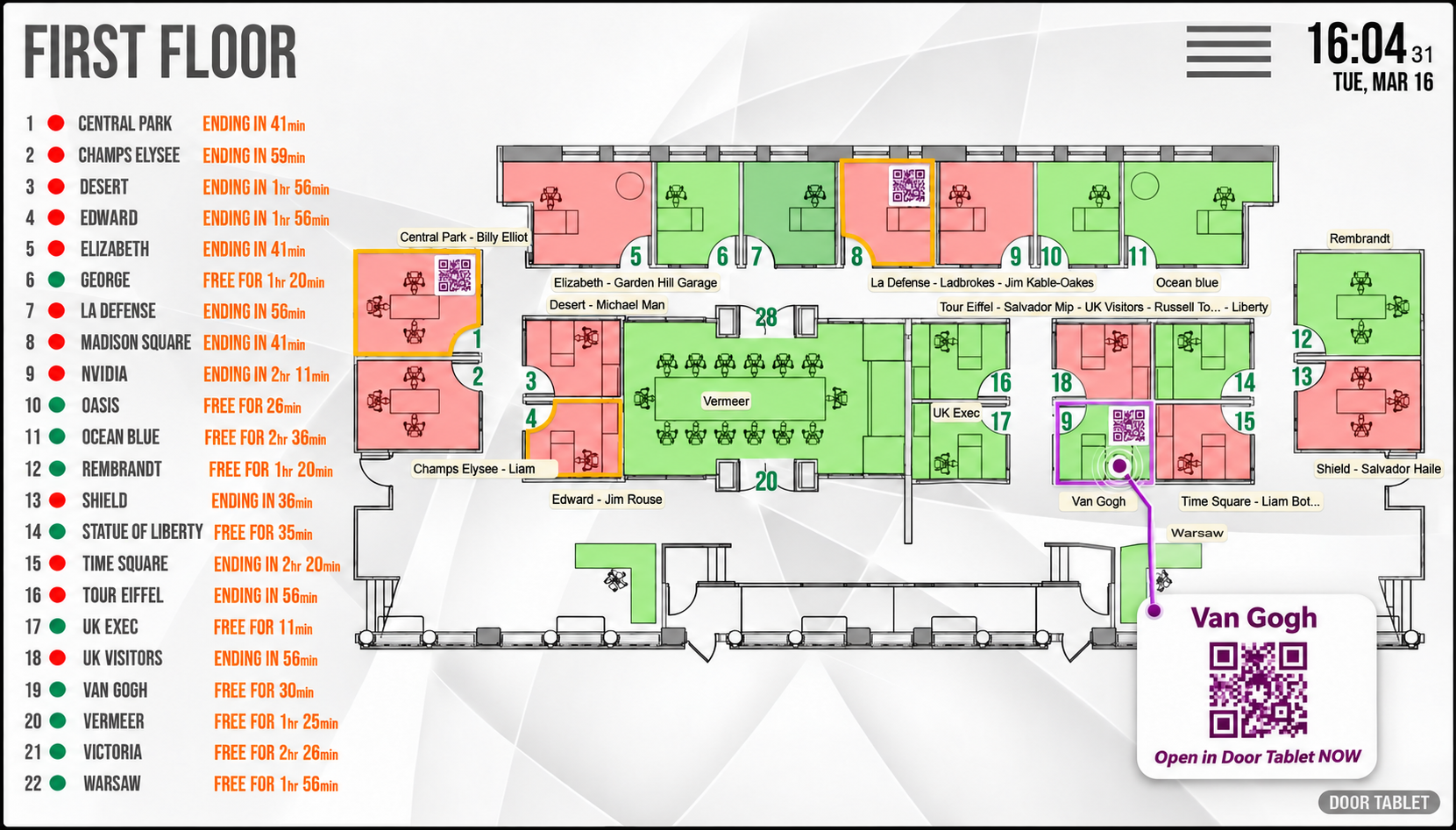 Illustration based on our Door Tablet floor plan, showing QR codes and a selected-space QR panel.
Scan from the floor plan
Place a QR code on the plan for a room or desk. A scan opens that space in Door Tablet NOW, ready to view availability and take a permitted action.
Tap a space, then scan
On an interactive wayfinding display, tap a space to reveal its QR code. Scan it to continue on your phone.
Explore wayfinding displays
QR codes in your brand colours
QR codes are brandable. Use your own brand colours to suit your workplace, keeping a clear contrast so they are easy to scan.
Examples link to the Door Tablet website.
A familiar welcome
Your brand.
Your words. Your language.
The whole Door Tablet NOW application is fully brandable. Match its colours, fonts and visual style to your organisation.
Adjust all on-screen terms to match your organisation’s lexicon, using the wording your people know.
Let people choose the language that works for them. Door Tablet NOW offers a broad language selection, including Arabic and French, and remembers a supported choice in that browser. Set an organisation-wide default language or let people choose a supported language in their mobile browser.
Shown here: the language selector and the room screen in Arabic, with a layout that reads from right to left.
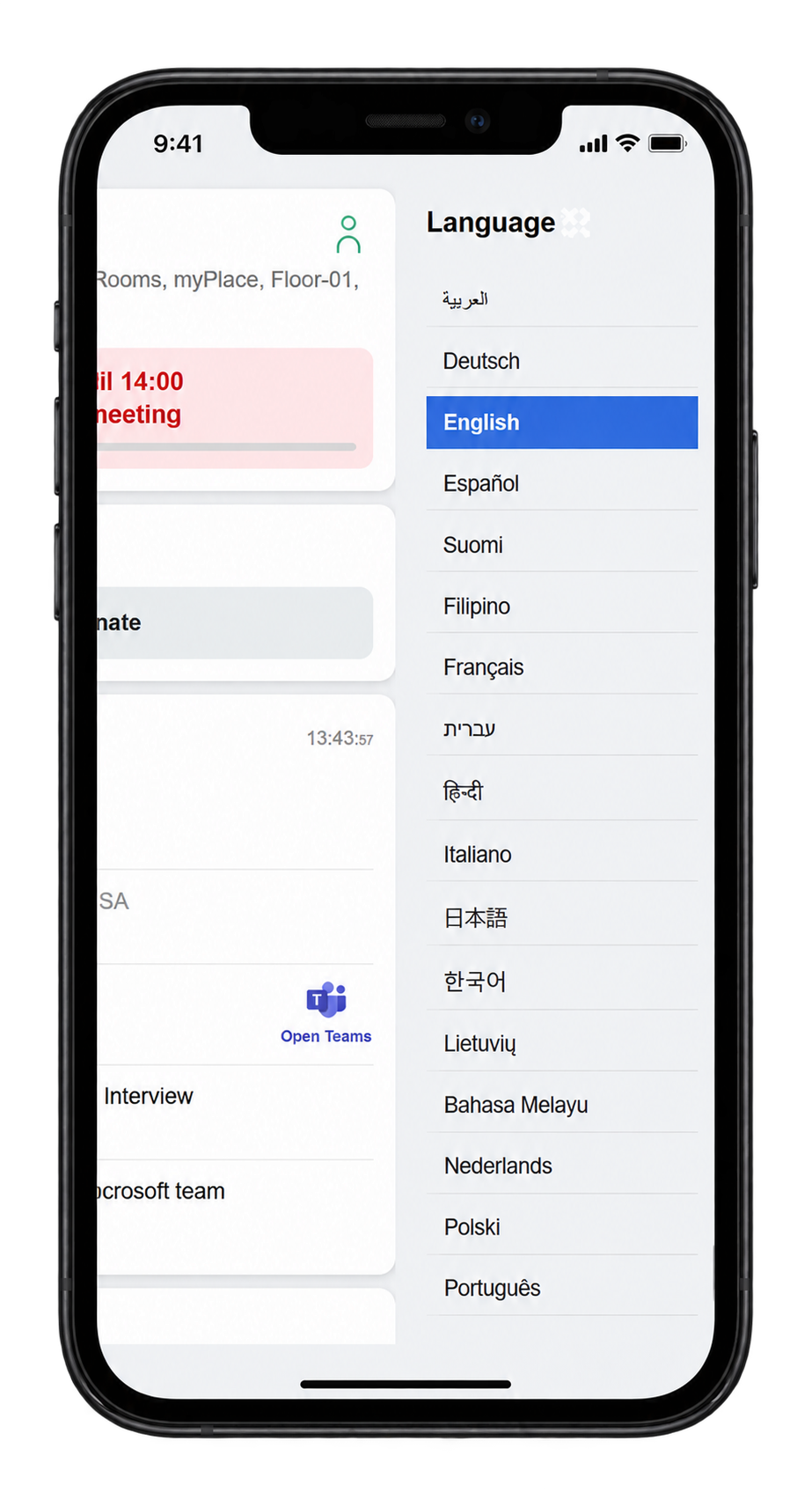 Choose your language.
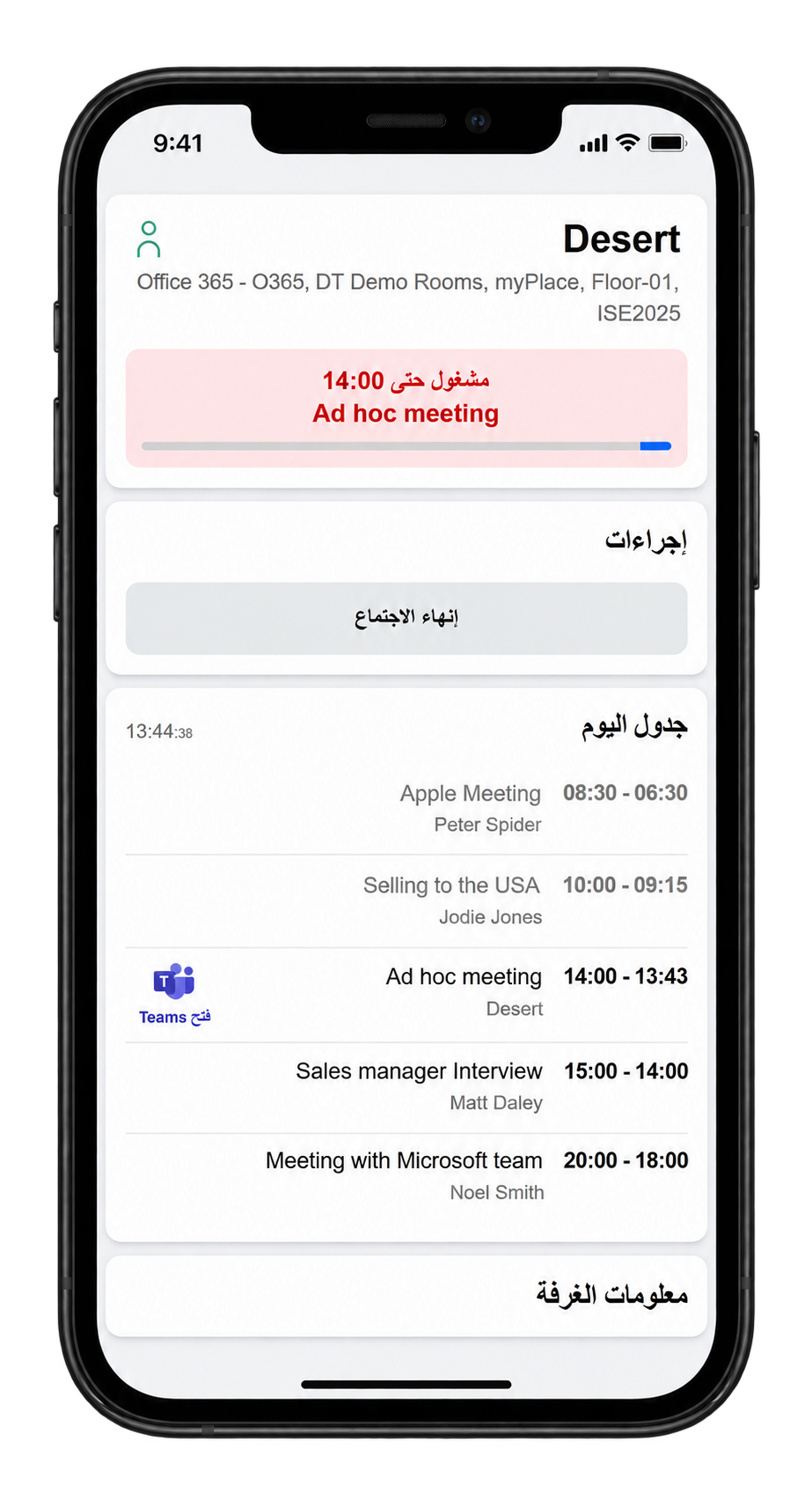 View the room in Arabic.
A few practical details
Before your first scan.
Do people need to install an app?
No separate mobile app is needed. Scan the room or desk’s QR code and open the link in your mobile browser.
Does the phone need a network connection?
Yes. The phone must be able to reach your organisation’s Door Tablet server. Depending on the installation, that may mean workplace Wi-Fi or another approved connection. Identity verification also requires access to email.
Do the QR codes expire?
QR codes shown on displays can expire according to your workplace’s settings. Codes on ePaper can refresh after 24 hours; if prompted, scan the current code on the display. Printed QR codes do not expire. Identity and access permissions still apply.
Can everyone control every meeting?
Available actions depend on the room, the calendar integration and the verified user’s permissions. Meeting privacy rules can hide details, and a QR scan does not grant unrestricted access.
What does our workplace need to enable Door Tablet NOW?
A working Door Tablet server, configured rooms or desks with supported calendar connections, QR codes on displays or printed labels and a server address reachable from phones. Your administrator also configures identity, email verification, room actions and the applicable licensing.
Bring your workplace to your phone
See Door Tablet NOW
in your workplace.
Explore how Door Tablet NOW fits your rooms, desks and wayfinding displays, alongside your calendar platform and identity policy.
Individual actions depend on configuration, permissions, calendar capabilities and applicable licensing.
User guide · Administrator guide (login may be required)
doortablet/dtcms.nsf/doortablet/dtcms.nsf::/doortablet/css/dt.css?rnd=45671" id="dt-css" data-dummy="contpagesAF9DE113940A9CDF80258EB2004FD5CDDoor Tablet NOW