Click on images to see them in full screen
2F466FF8F3D8D60A80258EAB003D972CYandex
Connecting Door Tablet to Yandex Calendar
 Use CalDAV to connect Door Tablet to Yandex Calendar. Create one Yandex calendar for each room, discover those calendars in Door Tablet, and use tablets to display schedules and manage supported bookings. This guide records setup requirements and the live tests completed. It does not establish certification for every Yandex account or deployment.
1. Prepare the Yandex account and room calendars
- Sign in to Yandex Calendar with the account that Door Tablet will use.
- Create a separate calendar for each room and give it a recognisable name, for example Orange Room. Confirm that the integration account can read and write each calendar.
- Set the calendar's timezone to the room's timezone. For the tested installation this was Europe/London. Configure the tablet for the same timezone; use the named timezone rather than a fixed UTC offset so daylight saving changes are handled.
- In Yandex ID, open App passwords, create a password for Calendar / CalDAV, and retain it for the Door Tablet connection. Use the account's full email address as the username.
Yandex documents the server as caldav.yandex.ru and the account principal format as https://caldav.yandex.ru/principals/users/your_username@your_domain/. See Yandex desktop calendar setup and Yandex CalDAV account setup. These credential instructions follow current Yandex guidance; the available session record does not contain the original account-creation screens.
2. Connect Door Tablet
- Check that the Door Tablet server can reach Yandex over HTTPS and that its Java environment trusts the server certificate.
- Open Setup → System Profile and select CalDAV as the scheduling technology.
- Enter https://caldav.yandex.ru/ as the service URL, the full Yandex account email address as Username, and the Calendar app password as Password. Door Tablet performs service discovery; if an installation requires an explicit discovery endpoint, obtain it from the provider rather than substituting an individual event link.
- Optionally enter a room-name filter. It matches calendar names without regard to case. A blank or unmatched filter includes all visible event calendars; it is not a permissions boundary.
- Select Check connection to CalDAV. Confirm that the expected calendars are listed.
- Save the System Profile before synchronising rooms. The connection test uses entered settings, whereas room synchronisation uses saved settings.
Do not confuse the service URL, a room calendar address and a Yandex web event link. A discovered room address has a form such as https://caldav.yandex.ru/calendars/account%40yandex.com/events-CALENDAR_ID/. Door Tablet stores this address as the room identifier. Keep the discovered value rather than replacing it with the browser's event URL.
3. Synchronise and activate rooms
- Run room synchronisation from Door Tablet's room-management page and review the inserted/updated counts.
- Find new rooms under Newly created; they initially remain inactive.
- Review each room's location, neighbourhood, timezone and booking controls, then activate it.
- Open the tablet schedule and compare it with Yandex. Repeat synchronisation when required to discover room calendars; refreshing a schedule reads bookings.
Repeated synchronisation uses the calendar address to update the existing room and retains administrator settings. If booking email is required, configure mail delivery on the Door Tablet server. CalDAV is not the email transport. Configure PIN/RFID users separately if the deployment requires authenticated booker identity; those identity and email workflows were not established by the Yandex tests described here.
4. Set event visibility deliberately
For an event whose title should appear on the public room display, set Yandex's Visible to option to All. During testing, events restricted to Participants only appeared as Meeting in Door Tablet. Making one event public caused its title to appear while the other remained hidden. This was expected privacy handling, not a lost-subject defect. Save changes and refresh the tablet.
For room occupancy, use Show me as: Busy. Save the event, close the editor, and confirm that it persists after refreshing Yandex.
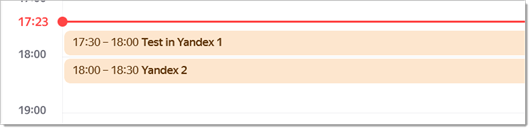
The source calendar shows two named bookings at 17:30–18:00 and 18:00–18:30.

Participants only restricts event visibility. Door Tablet masks the subject of a private event.
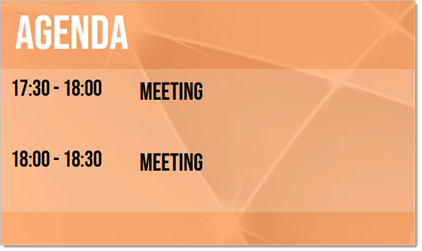
Before changing visibility, the times match Yandex but both subjects are displayed as Meeting.
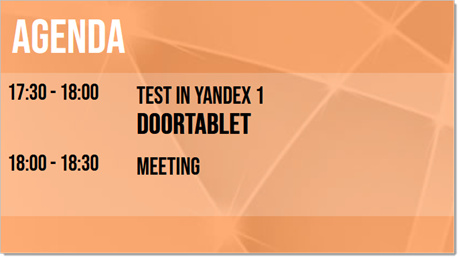
After making the first booking public, its title appears. The second remains masked. The additional DOORTABLET text is shown as captured; it is not a second booking.
5. Required Door Tablet fixes
- HTTP 201 on meeting changes: Yandex applied an extension but returned HTTP 201, which the earlier Door Tablet code treated as failure. The corrected PUT update path accepts 200, 201 and 204, then reads the same resource back and verifies its identity, start and requested end. It retains the original resource URL, UID and If-Match ETag protection. DELETE acceptance was not broadened. Deploy the corrected CalDAVAPI.java through the normal Designer sync/build process.
- Whole-day label: the booking bar previously used “Dedicated desk” for any all-day entry while the display used desk mode. The corrected label requires an actual dedicated desk assignment; ordinary whole-day bookings use the translated whole-day label. Update the JavaScript actually loaded by the client. The tested /DoorTablet/www/index.html loaded js/doors.js; updating only an ODP obfuscated bundle did not update that page. Deploy the served assets and refresh the browser cache reference.
If a change reports an error, refresh both systems before repeating it: the provider may already have applied the request. This happened before the HTTP 201 correction and repeated attempts extended the same meeting again.
6. Booking behaviour and completed validation
The following live checks were reported as passed in the tested installation:
- Authentication, calendar discovery and room synchronisation.
- Tablet creation, extension and active-meeting termination, with correct Yandex times and no errors or duplicates after the correction.
- Extension and termination from Door Tablet of a non-recurring meeting created directly in Yandex.
- Yandex edits and deletion reflected in Door Tablet after refresh.
- Public titles and restricted-event subject masking.
- A timed multi-day replacement booking, “New overnight”, from 10 November 07:30 to 12 November 08:00, displayed correctly. On the middle day it occupied the whole day; on the boundary dates only the relevant time portions were occupied.
- A true all-day event on 10 November appeared as Whole day and was absent on 11 November. An all-day DTEND is exclusive: an end date of 11 November is correct for an event occupying only 10 November.
- Recurring schedule reads, a moved second occurrence at its new time without the old entry, and a deleted third occurrence absent.
- A Europe/London daily series at 10:00–10:30 on 27–29 March 2027 retained that local time across the 28 March daylight saving transition.
- A final creation/extension/termination smoke test after diagnostics were disabled.
Active-meeting termination shortens the meeting to approximately the current time; it does not normally delete that booking. Recurring and all-day events are managed in Yandex and treated as read-only by Door Tablet. Future-booking cancellation was not part of the tested tablet workflow. Overlap protection was identified as an existing Door Tablet feature and was not separately revalidated in this Yandex session. Teams integration, mail delivery, load, outages and long-term synchronisation reliability were not covered by these functional checks.
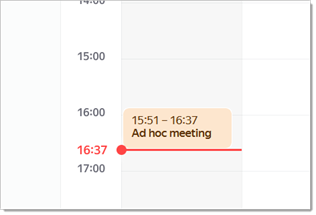
Successful active-meeting termination: Yandex retains the booking and shows its shortened end at 16:37, matching the termination time.
Observed issue: one booking spanning three calendar days was not returned
During testing on 9 November 2026, Yandex's web editor showed a public event named Over night in Orange Room, starting 10 November 2026 at 14:00 and ending 12 November at 14:30, with All day unchecked. This was a 48.5-hour timed booking spanning three calendar dates, not a 72-hour booking. It remained visible after refreshing Yandex, but Door Tablet could not retrieve it.
The investigation established:
- The calendar layer ID in the Yandex event link matched the calendar collection configured for Orange Room.
- Normal date-filtered CalDAV REPORT requests for the relevant dates returned no resources for this booking.
- Omitting server-side recurrence expansion did not make it appear.
- A REPORT without either expansion or the date filter returned only two other events, not Over night.
- A fresh Yandex iCal export also omitted Over night.
- A separate Untitled all-day event initially explained the whole-day bar; it was not a converted version of the missing timed event.
- A newly created multi-day event was subsequently returned by the normal query, with its original times preserved, and displayed correctly.
Conclusion: this was an observed inconsistency between Yandex's web interface and the data exposed through its CalDAV implementation and export for one event. The root cause was not established. It does not demonstrate a general Yandex limitation on three-date bookings, and no timing workaround was added to Door Tablet. If repeated, retain the event link, calendar ID, saved dates/timezone and export for provider investigation. After checking occupancy and avoiding duplicate reservations, recreating the event was a successful workaround in this test.
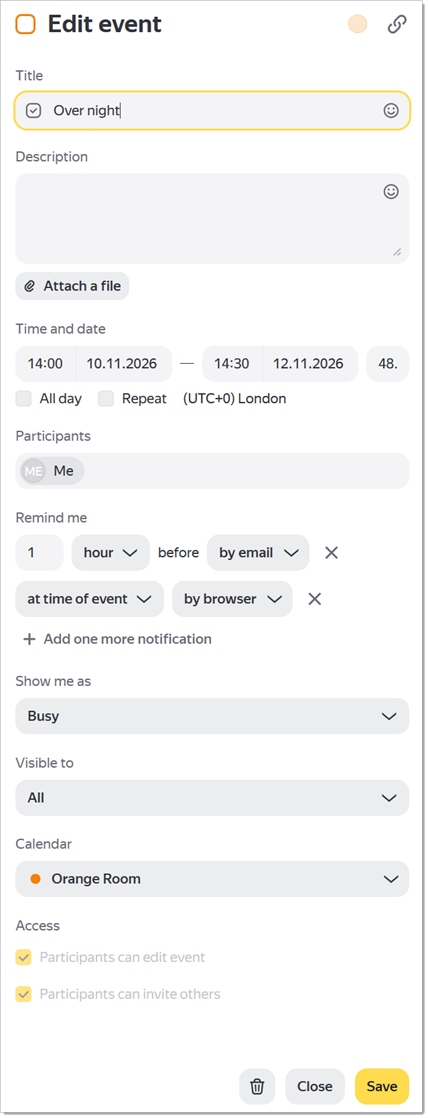
Diagnostic evidence for the original missing event, captured after refreshing Yandex. The editor shows the timed booking in Orange Room, but this event was absent from the CalDAV responses and iCal export. This is not the successful replacement event; the visible Save button alone does not establish saved server state.
Additional screenshots for the final article
Editorial note: the supplied privacy, termination and missing-event screenshots are embedded above. The following captures would complete the setup illustrations. Capture the final working configuration. Hide passwords, app-password values and unrelated personal information.
- Yandex Calendar app password: show where to select Calendar / CalDAV when creating the password, with the generated secret excluded. Place beside section 1.
- Door Tablet System Profile: show CalDAV selected, the service URL, account username field and successful connection result listing the room calendars. Mask the password. Place beside section 2.
- Room synchronisation and activation: show the synchronisation result and where newly created rooms are reviewed and activated. Place beside section 3.
- Successful multi-day booking: show the saved Yandex start/end values and Door Tablet views for the first, middle and last dates. Use the successful replacement event, with matching names and dates throughout. Place beside section 6.
- All-day booking: show All day selected in Yandex and Whole day on the tablet; optionally show its absence on the following date. Place beside section 6.
Troubleshooting and support evidence
- Discovery cannot find current-user-principal: collect the provider/server version, configured URL without credentials, and whether the same account works in another CalDAV client. This means the expected successful principal href was not found; it does not alone prove a bad password. A separate client discovery report remained unresolved at the end of this session and was not established as a Yandex issue.
- Missing meeting: confirm the displayed date, room calendar address, event visibility, Busy setting and saved state. Compare a fresh iCal export with the event shown in the web interface before assuming a display defect.
- Export for diagnosis: in Yandex's left sidebar, open the calendar settings, select Export, choose iCal, then open the generated link and save the ICS file. See Yandex export instructions. Share the relevant VEVENT rather than unrelated calendar contents.
- Diagnostic state: temporary Yandex event logging and the extra REPORT comparisons are disabled in the final tested code. Normal schedule requests remain in use. Any future diagnostic enablement should be temporary and followed by disabling it again.