n
anonymousdoortablet/dthelp.nsfepaper-printing-labels
Protected content
| 281pages | Our help system contains many pages and videos for you to consume. This includes the complete information on how Door Tablet works, all its features and options, and of course the many benefits for your business. Door Tablet School offers many videos too. |
|
Click on images to see them in full screen
01B0B4A17A47916680258EA300737541Printing Labels
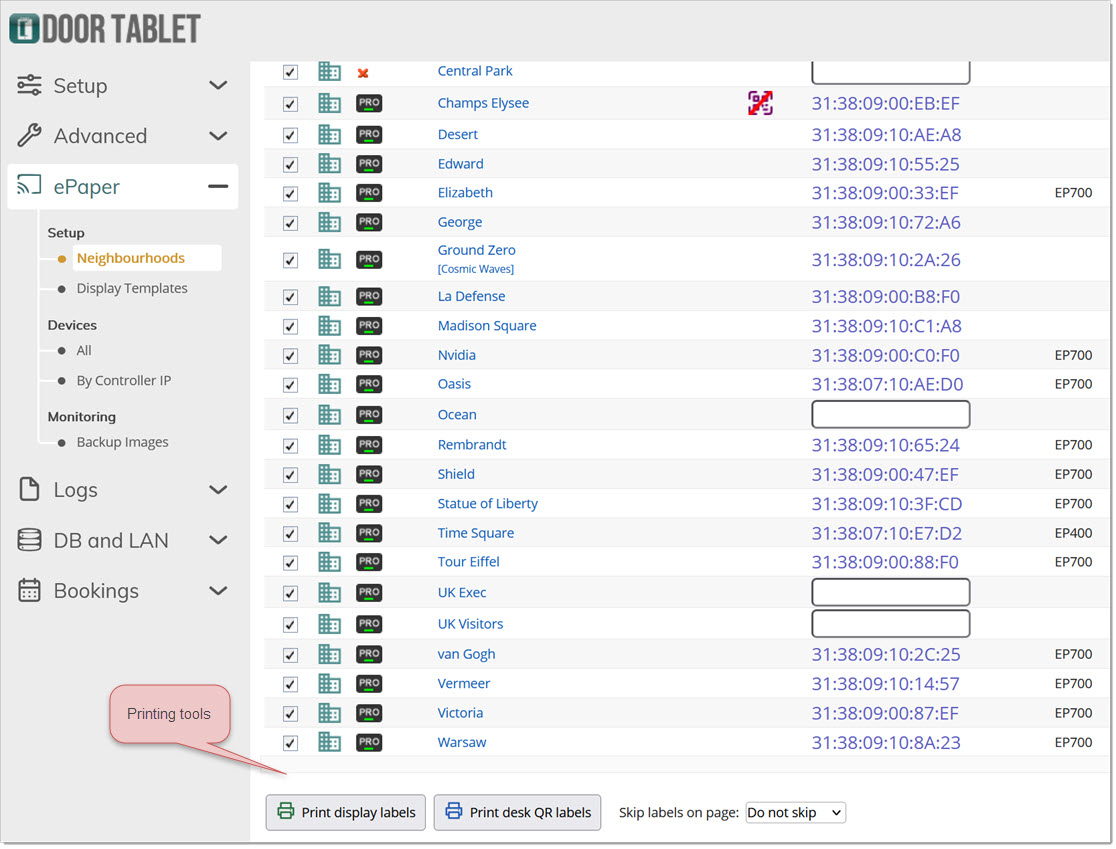
Use the EPS Neighbourhoods page in the Door Tablet Web UI to print display identification labels or desk QR labels. You can print labels for several selected spaces together and reuse a partially used label sheet.
Choose the label type
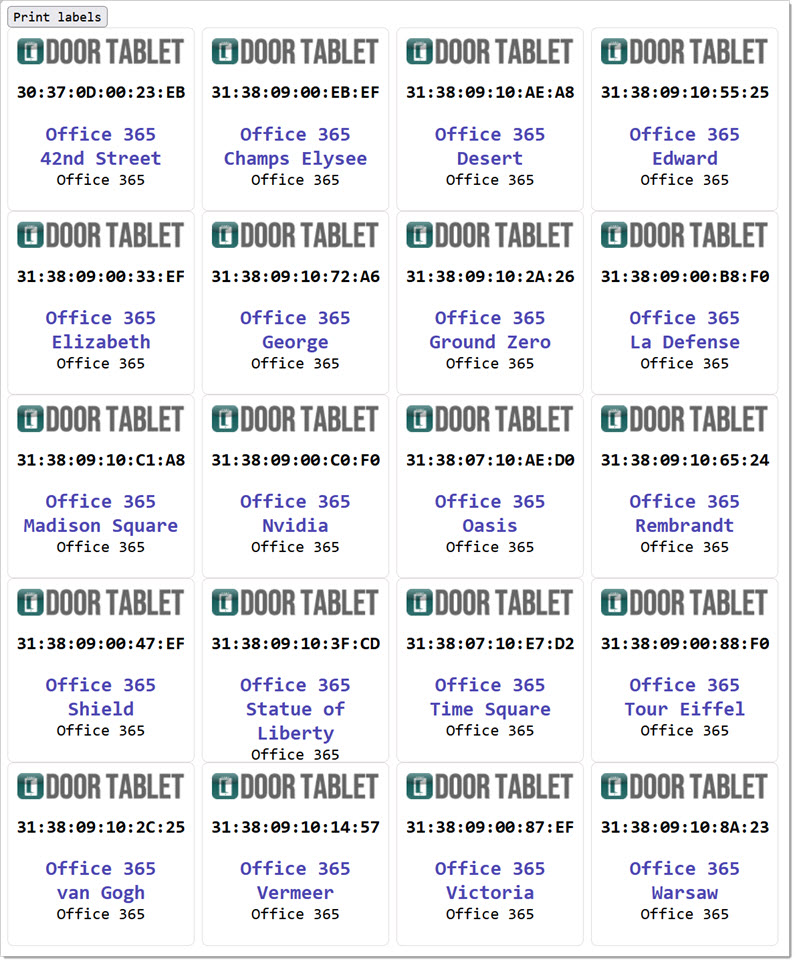
- Print display labels produces identification labels showing the display MAC address, space name, location and selected category. Use these labels to identify devices and their assigned spaces during installation and maintenance. Selected resources must have a display MAC address to be included.
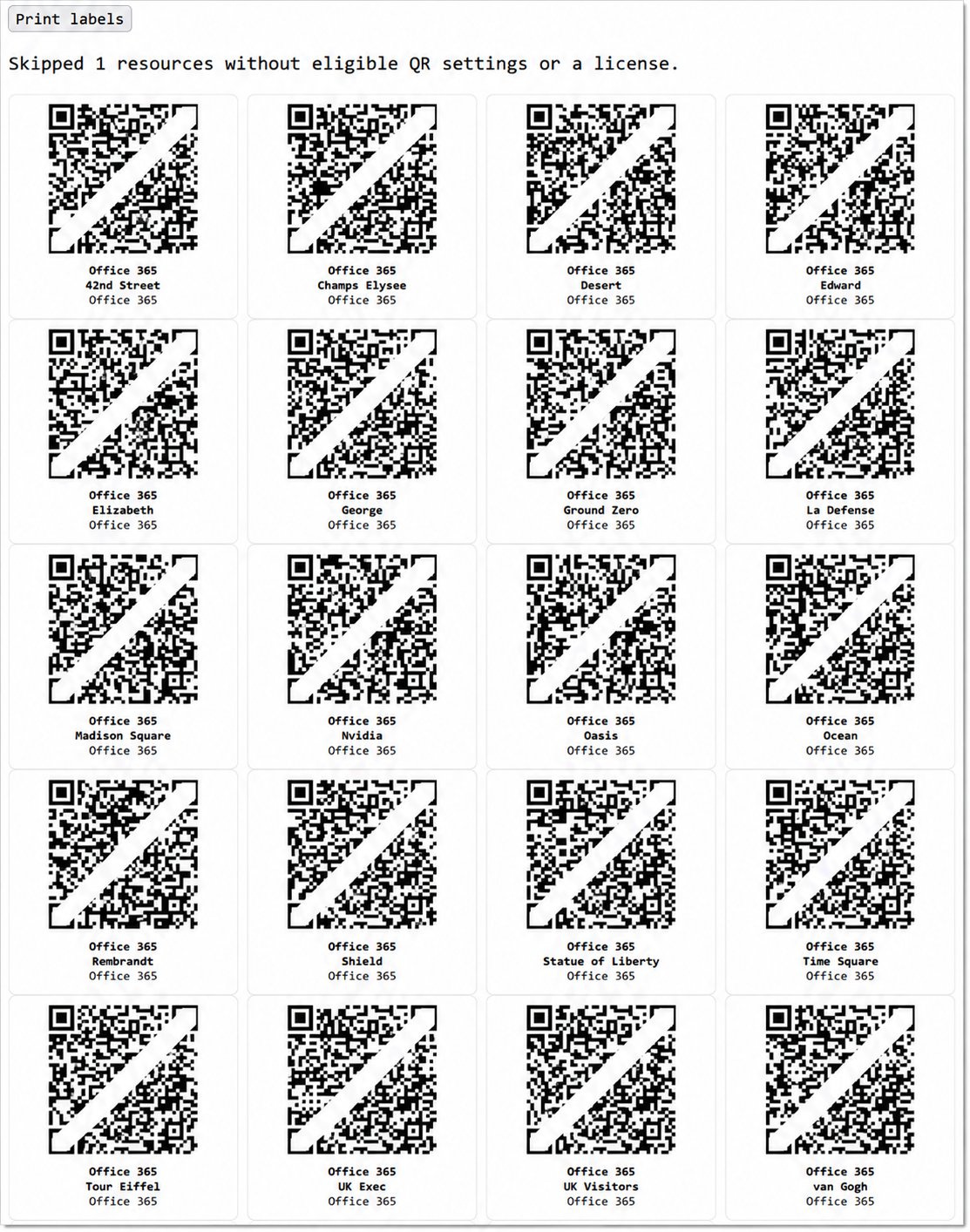
- Print desk QR labels produces labels with a QR code, space name, location and selected category. Place a label at the corresponding desk so users can scan it with their phone. A display MAC address is not required for this option.
Before printing desk QR labels
- Enable QR access for each space you want to include.
- For a generated Door Tablet QR code, install the resource licence and check that the server address used by the QR code is reachable from users' phones. If a QR server address is configured, Door Tablet uses it for generated links.
- If the space has a Basic QR override, the printed code uses that content instead of a generated Door Tablet link. QR access must still be enabled. The generated-link resource licence check does not apply to this override.
Generated desk QR labels have no expiry. They do not use the expiry setting for QR codes shown on ePaper displays. A permanent code still requires its destination and the relevant service to remain available. If you use a Basic QR override, its destination determines what happens when the code is scanned.
Print your labels
- Open EPS Neighbourhoods in the Door Tablet Web UI and find the spaces you want to label.
- Select the checkbox beside each required resource.
- Set Skip labels on page. Choose Do not skip for a new sheet, or select the number of label positions already used at the start of a partially used sheet. For example, select 3 to leave the first three positions empty.
- Choose Print display labels or Print desk QR labels.
- Follow the Click here to generate labels link in the message. The label sheet opens in a new browser tab or window.
- Review the space names, locations and labels. For QR labels, check any message reporting skipped resources.
- Select Print labels to open your browser's print dialog.
- Use A4 paper in portrait orientation and print at actual size (100% scale). Turn off browser headers and footers, and check the preview before printing.
The supplied layout uses four columns, with each label approximately 49 mm wide and 48 mm high and a 2 mm gap between columns. Check that your label stock matches the layout. Print a test on plain paper and compare it with the label sheet before using adhesive labels.
After printing QR labels, scan a sample using a phone on the network users will use. Confirm that it opens the intended space or the configured Basic QR destination before placing the labels.
OR, QR codes for your desks:
If labels are missing or do not print correctly
- Nothing selected: select at least one resource. For display labels, at least one selected resource must have a display MAC address.
- No QR labels available, or some resources were skipped: check QR access and the resource licence for generated codes, or check the Basic QR override.
- No display labels available: check the selected resources and their display MAC addresses.
- Unable to load labels: check your Web UI connection and session, then generate the sheet again.
- Labels do not align: check A4 paper size, scaling, margins, headers and footers, and the number of skipped positions. Compare another plain-paper test with the label stock.
- A printed QR code does not open: check the encoded address and whether the phone can reach it. If you change the address or Basic QR content, generate and print replacement labels.
Related topics: Door Tablet EPS Introduction. See also Devices Setup and EPS QR Codes in this category.